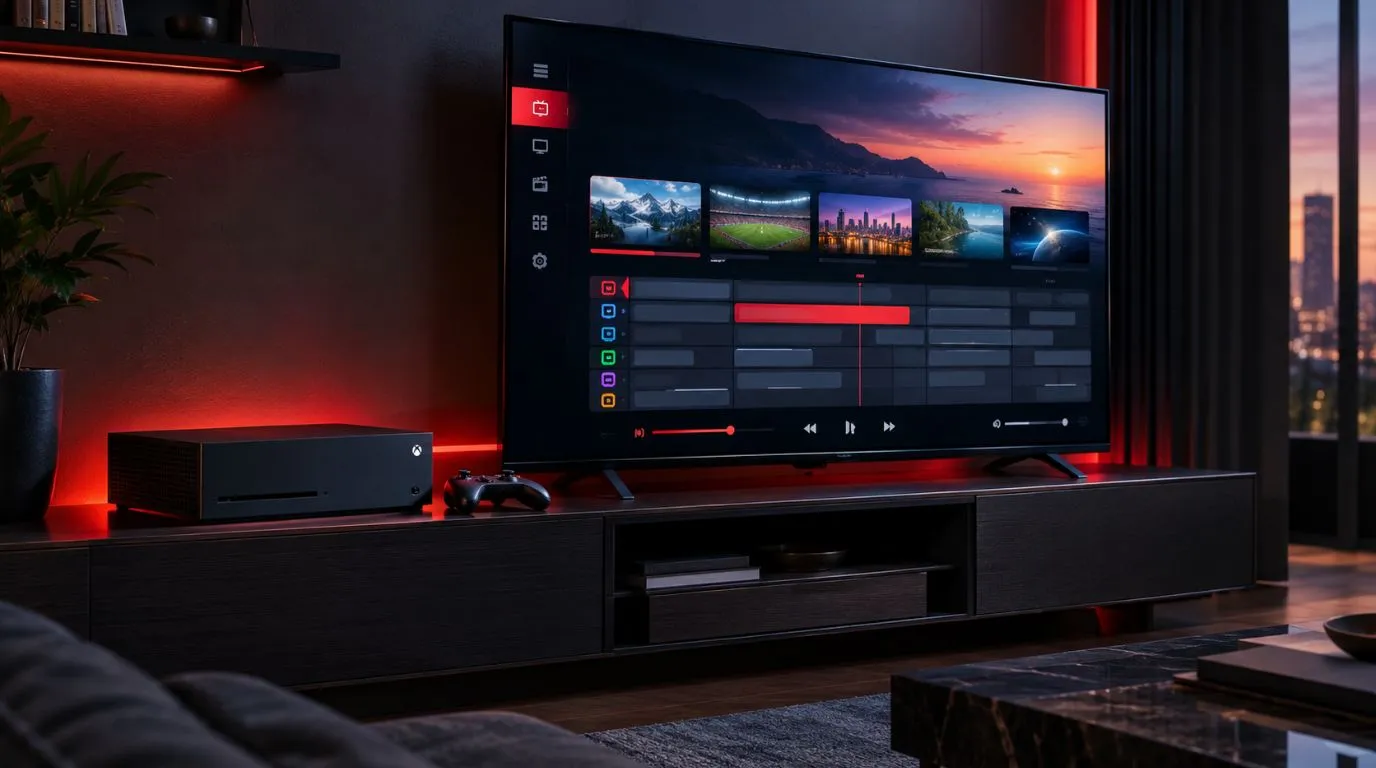
If you already use an Xbox One, Xbox Series X, or Xbox Series S for entertainment, you may wonder whether you can also use it to watch IPTV. The answer depends less on the console itself and more on the IPTV player or playback method available for your Xbox.
Xbox consoles support a range of entertainment apps through the Microsoft Store, but IPTV playback is not handled by a single universal Xbox IPTV application. App availability can also change over time and by region.
That means the right approach is to first check your console, identify a compatible playback option, and then connect your IPTV service using the credentials or playlist information supplied by your provider.
This guide explains how IPTV on Xbox works, what you need, which setup options to consider, and what to check if your streams do not play correctly.
Table of Contents
Can You Use IPTV on Xbox?
Yes, you can use an Xbox as part of an IPTV setup, but the exact method depends on the playback software available on your console and the way your IPTV service delivers its streams.
Xbox One and Xbox Series X|S consoles provide access to entertainment applications through the Microsoft Store. Microsoft specifically directs Xbox users to the Store to browse and install supported entertainment apps.
The important distinction is that having an Xbox does not automatically mean every IPTV service or IPTV player will work on it.
An IPTV subscription normally provides access information such as a username and password, a server address, or an M3U playlist URL. You need a compatible player or playback method that can accept the format supplied by your service.
So, when looking at IPTV for Xbox, think about the setup as three separate parts:
IPTV service → compatible player or playback method → Xbox-connected TV
If your preferred IPTV player is not available on Xbox, another compatible streaming device may be a more practical option.
What You Need for IPTV on Xbox
Before trying to configure IPTV, have the following ready.
An Active IPTV Subscription
You need access to an IPTV service that provides the channels or streams you want to watch.
The service should provide the connection information required by its supported player. Depending on the service, this may include:
- Username and password
- M3U playlist URL
- Server or portal address
- EPG information
- Other application-specific login details
Not every IPTV service uses the same format, so check the setup information supplied with your subscription.
An Xbox Console
The relevant modern Xbox consoles include Xbox One and Xbox Series X|S. Microsoft’s current console-app information lists both Xbox One and Xbox Series X|S as platforms for supported applications.
Your exact console matters because application support can differ between platforms and can change as software is updated.
A Compatible IPTV Player or Playback Method
This is the most important part of an Xbox IPTV setup.
Unlike a dedicated IPTV box or some smart TV platforms, Xbox does not provide one universal IPTV application that works with every service.
Before choosing an app or method, check whether it supports:
- Your Xbox console
- Your IPTV login format
- M3U playlists if required
- EPG data if required
- The stream formats supplied by your provider
- Controller-friendly navigation
A Reliable Internet Connection
Live IPTV depends on continuous data delivery, so a stable connection is more important than simply having internet access.
If possible, consider using Ethernet when your Xbox and router are close enough to make a wired connection practical. Otherwise, make sure the console has a strong and stable Wi-Fi connection.
How to Set Up IPTV on Xbox
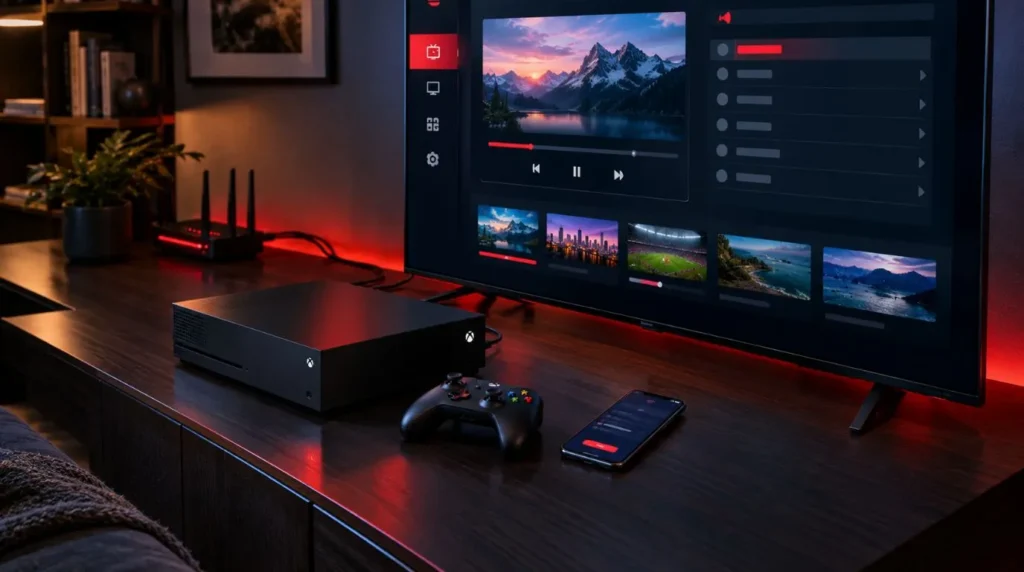
The exact menu names and application availability can change, so there is no single installation procedure that applies to every Xbox IPTV setup.
The following process gives you a practical way to approach the setup.
Step 1: Check Your Xbox Model
First, identify whether you are using:
- Xbox One
- Xbox One S
- Xbox One X
- Xbox Series S
- Xbox Series X
This matters because software availability can depend on the platform.
It is also worth keeping the console software up to date before troubleshooting application or playback problems.
Step 2: Check the Microsoft Store
Open the Microsoft Store on your Xbox and look through the available entertainment applications.
Microsoft provides entertainment apps through the Xbox Store, with availability varying by platform and region.
Search for the IPTV player or playback application you intend to use rather than assuming that a particular IPTV app is available.
If the application does not appear in the Store, do not assume that an unrelated app will accept your IPTV credentials. Look for another supported playback method instead.
Step 3: Check Your IPTV Service Details
Before opening the player, locate the setup information supplied by your IPTV provider.
Depending on the service, you may need:
- M3U playlist URL
- Username
- Password
- Server URL
- Portal information
- EPG URL
Keep these details exactly as provided. A small error in the server address, username, password, or playlist URL can prevent the service from loading.
If you are unsure which connection method your subscription uses, check the provider’s setup instructions before entering anything into the player.
Step 4: Install a Compatible Player
If a suitable IPTV player is available for your Xbox, install it through the supported Xbox/Microsoft Store process.
Do not choose an application solely because it contains the words “IPTV” in its name. Check that its supported platform and login method match your service.
For example, a player that accepts an M3U playlist may not use the same setup process as a service that provides portal-based credentials.
Step 5: Add Your IPTV Information
Open the player and select its option for adding a service, playlist, or account.
Enter the information provided by your IPTV service.
Depending on the application, this could mean entering:
- A username and password
- An M3U playlist URL
- A server address
- An Xtream-style login
- Another supported connection method
Only use the fields required by your specific player.
After saving the information, give the application time to load the channel list. Large playlists can take longer to process than smaller ones.
Step 6: Test Live TV Playback
Once the playlist or account has loaded, start with a single live channel.
Check:
- Does the channel open?
- Does video play smoothly?
- Is the audio synchronized?
- Can you change channels?
- Does the electronic program guide load if your service provides one?
- Does playback remain stable for several minutes?
Testing one or two channels first makes troubleshooting easier than immediately trying to diagnose the entire playlist.
IPTV on Xbox One vs Xbox Series X|S
For most users, the important question is not which Xbox has the highest specifications, but whether the required IPTV application or playback method is supported on that console.
| Consideration | Xbox One | Xbox Series X|S |
|—|—|—|
| IPTV use | Depends on compatible software | Depends on compatible software |
| Microsoft Store access | Yes | Yes |
| Dedicated IPTV player availability | Depends on current app support | Depends on current app support |
| Controller navigation | Available | Available |
| Wired network option | Available | Available |
| Need for external device | Possible | Possible |
Microsoft currently lists Xbox One and Xbox Series X|S among the consoles that can access supported entertainment applications through the Microsoft Store.
However, console generation should not be treated as a guarantee that a particular IPTV application will be available. Always check the current Store listing and the player’s supported platforms.
IPTV Setup Options on Xbox
There is not necessarily one solution for every Xbox user. Your options depend on what software is currently supported and what your IPTV service requires.
Direct IPTV Player on Xbox
The most straightforward arrangement is to use a compatible IPTV application directly on the console.
This keeps the setup simple because the Xbox handles the application and sends the video to the connected TV.
The limitation is application support. If your preferred player is not available for Xbox or does not support your IPTV credentials, this route may not be possible.
Browser-Based Playback
A browser-based solution may be possible for some services, depending on how the provider delivers its web player.
This can be useful when a service has a browser interface designed for TV or desktop use.
However, browser playback is not necessarily equivalent to a dedicated IPTV application. Navigation, EPG support, playback controls, and overall usability depend on the specific web player.
Using an External Streaming Device
If the Xbox does not support the IPTV player you want, an external streaming device can provide another route.
This can make sense when:
- Your preferred IPTV application is designed for another TV platform.
- You want a dedicated streaming environment.
- You do not want to rely on browser playback.
- The Xbox is mainly used for gaming.
- You want IPTV to remain available without turning on the game console.
If you are considering a dedicated device, you can also review ViviMate’s guides covering IPTV on an Android TV box and IPTV on Chromecast when those setups better match your hardware.
Common IPTV Problems on Xbox
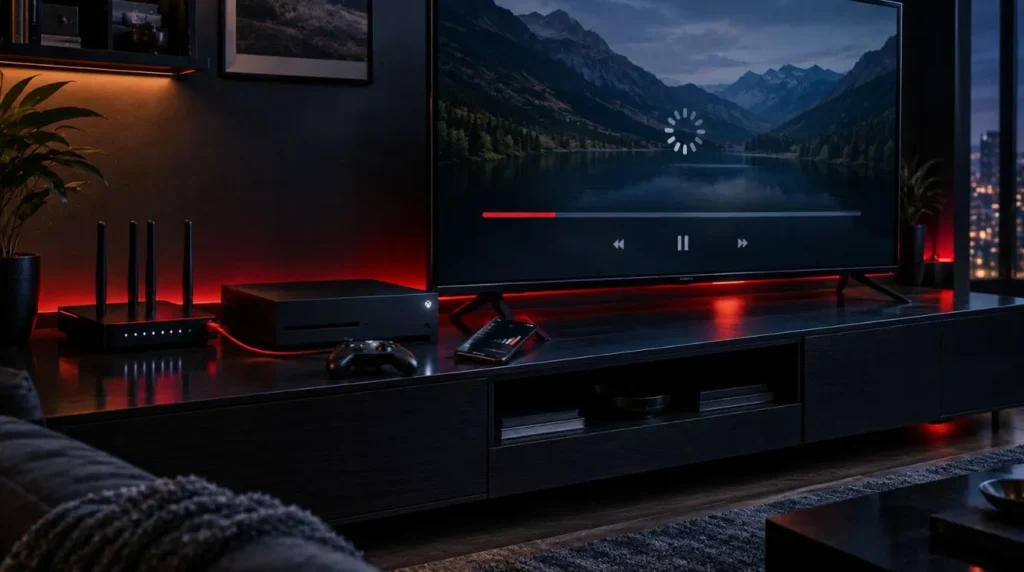
An IPTV setup can fail for several different reasons. Before changing multiple settings at once, identify exactly where the problem occurs.
The IPTV App Is Not Available
If you search the Microsoft Store and cannot find the player you want, the application may not currently support your Xbox platform or region.
Application catalogs can change, so avoid relying on old installation instructions that tell you an app is guaranteed to be available.
Instead, verify the current Xbox Store listing and check whether your IPTV provider supports another compatible playback method.
Your IPTV Login Does Not Work
If the application opens but rejects your credentials, check:
- Username spelling
- Password spelling
- Server address
- Playlist URL
- Subscription status
- Expiration date
- Required connection format
Avoid adding extra spaces when copying credentials.
If the same credentials work on another supported device but not on Xbox, the issue may be related to the player’s compatibility rather than the subscription itself.
Channels Load but Do Not Play
A playlist appearing successfully does not necessarily mean every stream will play.
Possible causes include:
- Player compatibility
- Unsupported stream format
- Incorrect server information
- Expired access
- Provider-side stream problems
- Network instability
Test another channel before assuming the entire IPTV service is unavailable.
If only certain channels fail, the issue may be specific to those streams.
IPTV Keeps Buffering
Buffering can be caused by network conditions, Wi-Fi interference, router congestion, the stream itself, or other factors.
Start with simple checks:
- Test another channel.
- Restart the IPTV player.
- Restart the Xbox if necessary.
- Check the Xbox’s network connection.
- If practical, test Ethernet instead of Wi-Fi.
- Reduce other heavy network activity.
- Check whether the problem occurs across multiple channels.
For a broader troubleshooting guide, see ViviMate’s IPTV buffering fix guide.
The EPG Does Not Load
The electronic program guide is usually dependent on the IPTV service and the player.
If live channels work but the guide does not, check whether:
- Your provider supplies EPG data.
- The EPG URL is correct.
- The player supports the supplied EPG format.
- The guide has finished loading.
- The playlist and EPG information are correctly associated.
A missing EPG does not necessarily mean that the underlying live streams are unavailable.
Is Xbox a Practical Device for IPTV?
Xbox can be part of an IPTV setup, particularly if you already own the console and want to use it for multiple types of entertainment.
The main consideration is software compatibility.
| If you… | Consider |
|---|---|
| Already own an Xbox | Check whether your preferred IPTV player supports it |
| Want one device for gaming and streaming | Xbox may fit that use case |
| Need a specific IPTV player | Verify its current Xbox availability first |
| Prefer a dedicated IPTV interface | An external streaming device may be more suitable |
| Cannot find a compatible Xbox player | Consider another supported device |
| Experience buffering | Check the network and player before replacing hardware |
There is no need to buy another device simply because you want to explore IPTV on Xbox. First determine whether the player and IPTV service you intend to use are compatible with the console.
On the other hand, if your preferred IPTV application is unavailable, an external device can avoid forcing an unsupported setup.
When Another Device May Make More Sense
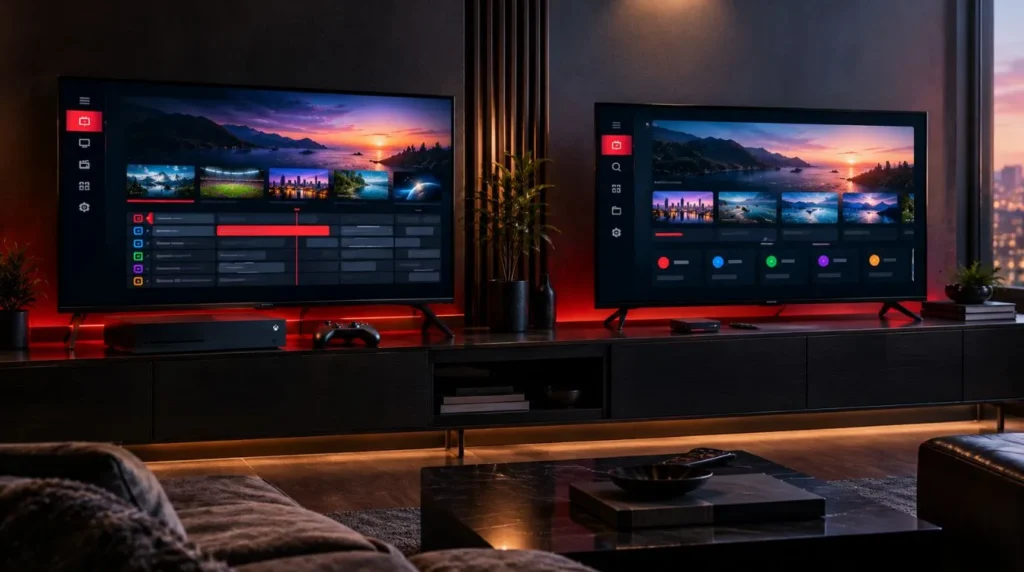
An Xbox is not automatically the ideal IPTV platform for every household.
An alternative device may be worth considering when:
- Your IPTV player is not available on Xbox.
- Your IPTV service requires a platform-specific application.
- You want a dedicated IPTV interface.
- You regularly watch IPTV without using the console for gaming.
- You want a smaller device that stays connected to the TV.
- Your preferred player has better support on another platform.
For example, users looking specifically for a dedicated IPTV hardware setup can explore the considerations in ViviMate’s IPTV box guide.
The important point is to choose the playback environment based on the requirements of your IPTV service rather than assuming that every service works identically across Xbox, smart TVs, and streaming devices.
What About IPTV Legality on Xbox?
The legality of IPTV does not depend simply on whether you watch it through an Xbox.
What matters is whether the service has the necessary rights or authorization to distribute the content in your jurisdiction and how the service is used.
Before using an IPTV subscription, check that the provider is authorized to distribute the channels and content it offers. Avoid services that rely on unauthorized access to copyrighted programming.
The same principle applies whether IPTV is viewed on an Xbox, smart TV, streaming box, computer, or another compatible device.
Start With Compatibility Before Installation
Setting up IPTV on Xbox is mainly a question of compatibility.
The Xbox itself can provide access to supported entertainment applications, but there is no universal IPTV setup that works for every service, player, and console.
The most reliable approach is:
- Identify your Xbox model.
- Check the current Microsoft Store for compatible software.
- Confirm which login or playlist format your IPTV service provides.
- Choose a player or playback method that supports both.
- Enter your IPTV information carefully.
- Test a few channels.
- Troubleshoot the network or player if playback is unstable.
If you need broader installation guidance beyond the Xbox-specific setup, continue with ViviMate’s IPTV setup guide.
For users who already have compatible hardware and an IPTV service, this approach keeps the process straightforward: verify compatibility first, configure the player second, and troubleshoot only what actually fails.