Using IPTV on Chromecast can be straightforward, but the setup depends on which Chromecast device you have and whether your IPTV player supports Google Cast. The key distinction is between casting IPTV from a phone, tablet, or computer and running an IPTV app directly on Chromecast with Google TV.
If you already have an IPTV service and want to watch it on your television, this guide explains both approaches, what you need, how to set them up, and what to check when Chromecast does not appear or playback fails.
Table of Contents
Can You Use IPTV on Chromecast?
Yes, Chromecast can be used as part of an IPTV setup, but the exact method depends on the device and app.
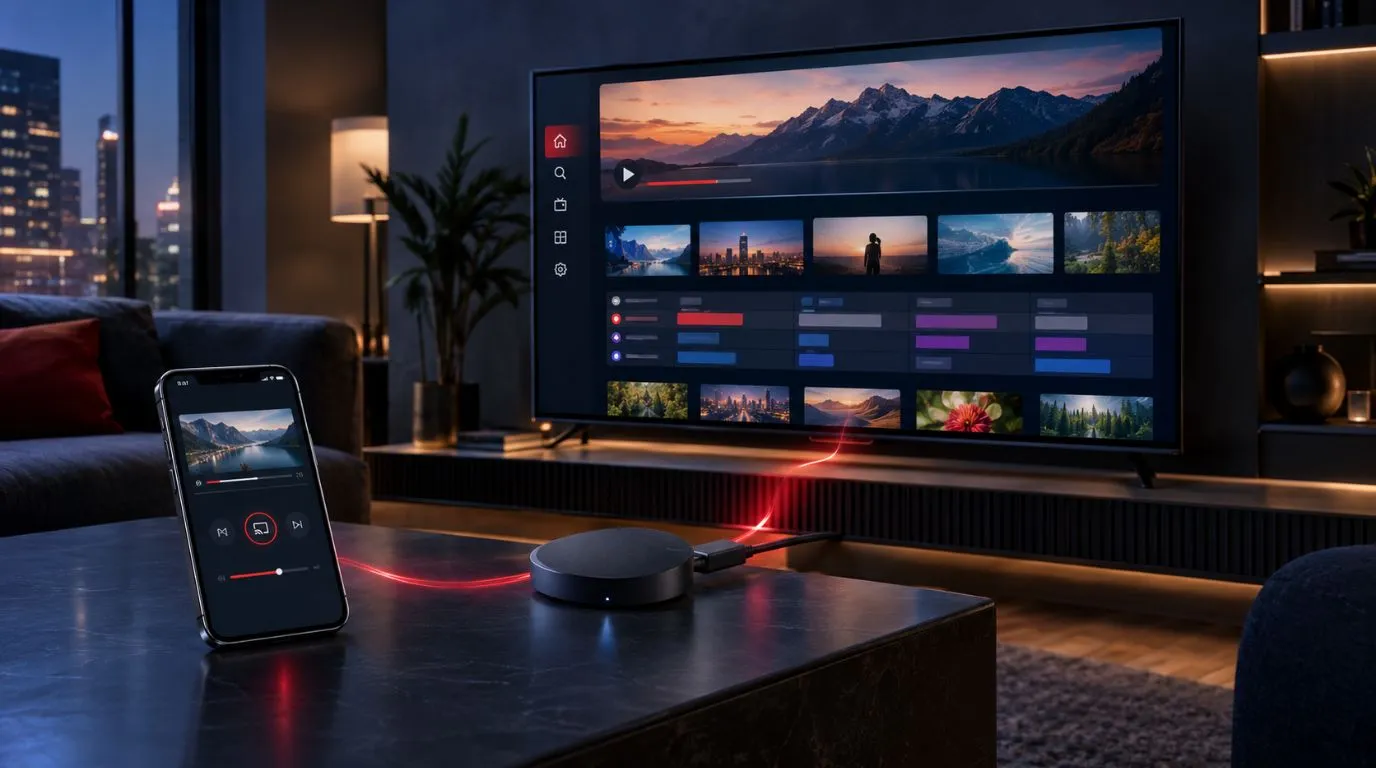
With a traditional Chromecast-style setup, the IPTV content generally starts on another device and is sent to the TV through Google Cast. The IPTV app or playback source needs to support casting for this workflow to work directly. Google states that casting requires a supported Cast-enabled app or Chrome browser, with the source device and Google TV or Chromecast connected to the same Wi-Fi network.
With Chromecast with Google TV, the experience is different. Google TV provides an on-device app environment, so compatible streaming and IPTV player apps can be installed and used from the TV interface.
That gives you two main IPTV workflows:
| IPTV setup | How it works | Main requirement |
|---|---|---|
| Cast IPTV | Phone, tablet, or computer sends compatible content to Chromecast | IPTV player/source must support casting |
| Direct playback on Google TV | Compatible IPTV player runs on the Google TV device | Chromecast with Google TV and a compatible app |
Understanding this difference can save you from trying to cast an IPTV app that does not actually support Google Cast.
Chromecast and IPTV: Which Setup Do You Have?
Before configuring anything, identify your Chromecast type.
Traditional Chromecast
A traditional Chromecast is primarily designed to receive content cast from another supported device or browser. You typically control playback from your phone, tablet, or computer.
For IPTV, the important question is whether the IPTV player or service you use provides a compatible Cast option.
If it does, the basic workflow is:
IPTV app → Cast → Chromecast → TV
If there is no Cast button, you may need a different playback method rather than assuming Chromecast is incompatible with IPTV altogether.
Chromecast with Google TV
Chromecast with Google TV adds a TV-oriented interface and lets you install compatible applications directly on the device. Google provides an app installation process through the Google TV interface.
The workflow can therefore be:
Google TV → IPTV player → IPTV service → TV
This means you don’t necessarily need your phone to remain the primary playback device.
For people looking for an IPTV Chromecast Google TV setup, this distinction is particularly important.
What You Need for IPTV on Chromecast
Before you start, make sure you have the basic equipment and information required for your chosen method.
For casting IPTV
You’ll generally need:
- A Chromecast or compatible Google Cast device
- A television with an appropriate HDMI connection
- A smartphone, tablet, or computer
- A stable Wi-Fi connection
- An IPTV player or source that supports Google Cast
- Your IPTV service login or playlist information, if required
Google recommends connecting the device you’re casting from and the Chromecast or Google TV device to the same Wi-Fi network.
For direct playback on Google TV
You’ll need:
- Chromecast with Google TV
- A television with an HDMI input
- Internet access
- A Google TV setup
- A compatible IPTV player
- Your IPTV service credentials or playlist details
Google’s setup process for Chromecast with Google TV uses the Google Home app or can be completed through the TV and remote, depending on the setup method.
If you haven’t configured your IPTV environment yet, the broader [IPTV setup guide] can walk you through the general installation process before you focus on Chromecast.
How to Cast IPTV to Chromecast
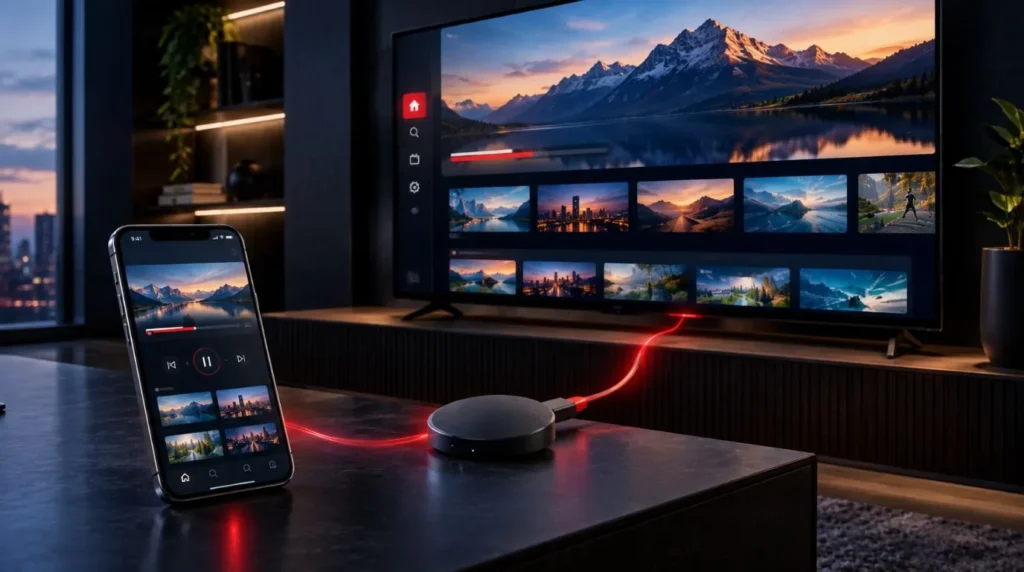
If your IPTV player supports Google Cast, casting is usually the simplest approach.
1. Connect Chromecast to Your TV
Connect your Chromecast to an available HDMI port on your television and select that HDMI input.
Complete the initial Chromecast setup before trying to cast IPTV.
For Chromecast with Google TV, Google provides setup through the Google Home app, with the option to continue setup using the Voice Remote.
2. Connect Both Devices to the Same Wi-Fi
Your phone, tablet, or computer and the Chromecast need to be connected to the same Wi-Fi network for normal Cast discovery.
Check this before troubleshooting the IPTV application itself.
Google specifically identifies the same-network requirement as one of the first checks when a Google TV device cannot be found for casting.
3. Open Your IPTV Player
Open the IPTV application or compatible playback source containing your IPTV content.
Make sure your service is already configured and that you can play the desired content on the source device.
If the IPTV content does not work on the phone or computer itself, Chromecast will not solve that underlying playback problem.
4. Look for the Cast Button
If the application supports Google Cast, look for the Cast icon within the player.
The exact location varies between applications. Google notes that the Cast button is not positioned identically across all Cast-enabled apps.
Select the Cast button and choose your Chromecast or Google TV device.
5. Start Playback
Once the connection is established, select the live channel, movie, series, or other available content you want to watch.
Playback should then appear on the TV.
The controls available to you depend on the IPTV application and how it implements casting.
6. Stop Casting When Finished
When you’re done, open the Cast controls on your source device and disconnect from the Chromecast.
The exact steps vary by application, but Google documents disconnecting through the Cast control.
How to Use IPTV Directly on Chromecast with Google TV
If you have Chromecast with Google TV, you can take a different approach by installing a compatible IPTV player directly on the device.
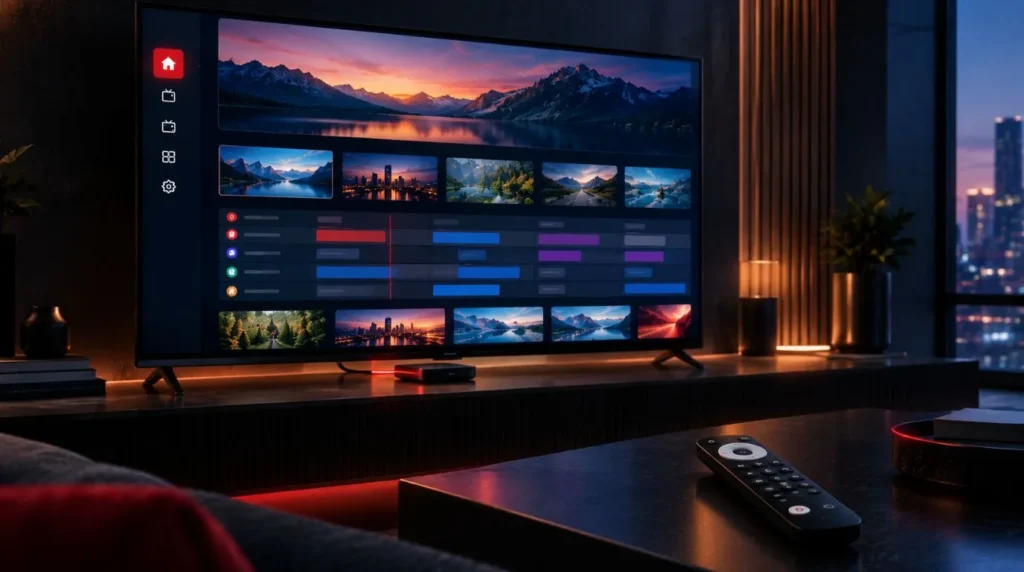
This is useful when you want to browse IPTV content using the TV interface and remote rather than depending on your phone for every viewing session.
1. Open the Google TV Home Screen
Turn on your TV and switch to the HDMI input used by Chromecast with Google TV.
Make sure the device has completed its initial setup and is connected to the internet.
2. Find a Compatible IPTV Player
Open the Apps area on Google TV and search for the IPTV player you intend to use.
Google TV supports installing available apps directly from its interface. You can search for an application by name or browse available categories.
The important point is that not every IPTV player is available on every platform, so check the application’s current device compatibility before relying on this method.
3. Install the IPTV Player
Select the compatible application and choose Install.
Once installation is complete, open the player.
4. Add Your IPTV Service Details
The exact configuration depends on your IPTV provider and the player you’re using.
A player may ask for information such as:
- Username and password
- Playlist URL
- Server information
- Other provider-specific connection details
Only use the information supplied by your IPTV provider.
5. Test Playback
After configuration, test more than one type of content if your service provides it.
For example, check:
- A live TV channel
- Another channel from a different category
- An on-demand title, if available
- The electronic program guide, if supported
Testing several functions helps determine whether the issue is with the application, a particular stream, or the overall connection.
IPTV and Chromecast: Casting vs. Direct Playback
The two approaches can look similar from the outside, but they work differently.
| Feature | Casting IPTV | Direct IPTV on Google TV |
|---|---|---|
| Main playback device | Chromecast | Chromecast with Google TV |
| Source device | Phone, tablet, or computer | Google TV device |
| IPTV app | Needs compatible casting support | Needs compatible Google TV app |
| Phone needed during viewing | Usually involved | Not necessarily |
| Control | Usually through source device/app | Google TV remote and app |
| Setup complexity | Depends on casting support | Depends on app compatibility |
Neither approach should be treated as universally appropriate for every IPTV setup.
The right choice depends primarily on your Chromecast model and the IPTV application you want to use.
What Is the Best IPTV Chromecast Setup?
There isn’t one universal setup that works for every IPTV user.
Instead, start with the hardware you already own.
If You Have a Traditional Chromecast
Focus on casting from a compatible IPTV source.
The most important requirement is that the IPTV player or playback source provides the necessary Google Cast functionality.
If your application does not offer casting, installing an IPTV app directly on a traditional Chromecast is not the same process as installing an app on Chromecast with Google TV.
If You Have Chromecast with Google TV
A direct IPTV player installation may be possible when the required application is available and compatible with your Google TV device.
This approach can provide a more TV-focused workflow because the player operates on the television device itself.
If Your IPTV App Doesn’t Support Casting
Don’t assume that the IPTV service itself is incompatible with Chromecast.
First determine whether:
- The player supports Google Cast.
- A compatible version of the player is available for Google TV.
- Your particular Chromecast model supports the intended workflow.
This is more useful than simply searching for a generic “best IPTV Chromecast” solution.
Common IPTV Chromecast Problems and Fixes
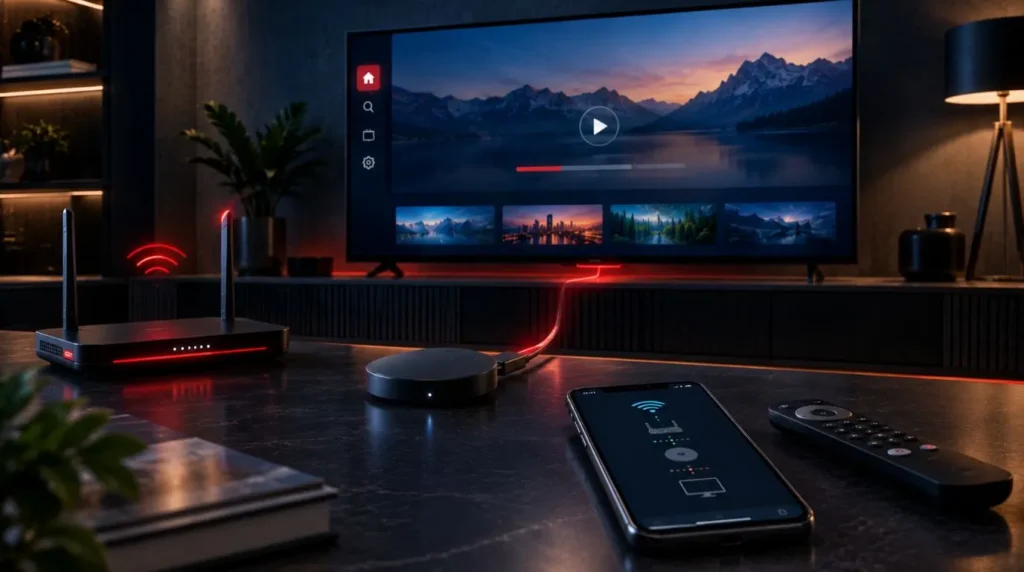
Chromecast Does Not Appear in the IPTV App
Start with the network.
Check that:
- Your phone or tablet is on the same Wi-Fi network as Chromecast.
- Chromecast is powered on.
- The TV is using the correct HDMI input.
- The IPTV application is updated.
- The application actually supports Google Cast.
Google also recommends checking whether Google Cast is enabled on Google TV and restarting the device when casting does not work.
On iPhone or iPad, local-network permissions can also affect discovery of Cast-enabled devices. Google explains that Google Cast-enabled apps need local-network access to discover compatible devices on the home network.
IPTV Casts but Playback Does Not Start
If the Chromecast appears but the stream does not play, the problem may be related to the IPTV player, stream compatibility, or the casting implementation rather than Chromecast discovery.
Try:
- Playing another IPTV stream.
- Restarting the IPTV application.
- Restarting Chromecast.
- Updating the IPTV application.
- Checking whether the same content plays normally on the source device.
If only certain channels fail, the issue may be specific to those streams rather than the Chromecast connection.
Chromecast Keeps Disconnecting
Check the Wi-Fi connection on both devices.
A weak or unstable wireless connection can interfere with streaming and device discovery.
You can also restart the router and Chromecast. Google lists rebooting the Chromecast and router among basic troubleshooting steps for setup problems.
If the problem is specifically buffering rather than device discovery, use the dedicated IPTV buffering troubleshooting resource rather than repeating a full buffering guide here.
The IPTV App Works on Your Phone but Not on Google TV
Mobile compatibility does not automatically mean that an application has a compatible Google TV version.
A player can work perfectly on Android or iOS while having a different TV application, different interface, or no supported Google TV version.
Check the application’s current supported platforms before attempting to install or sideload it.
Google TV Cannot Find the App
Use the Google TV search function to look for the application.
If it isn’t available, that does not necessarily mean your IPTV service cannot be used with Google TV. It may mean that the particular player does not currently have a compatible version available through the device’s app environment.
Google’s official guidance explains that apps must be available for Google TV before they can be installed through its normal app interface.
Tips for Smoother IPTV Playback on Chromecast
Once your setup works, a few practical habits can help keep the experience consistent.
Keep Chromecast and Apps Updated
Updates can address compatibility and stability issues. Google provides system-update controls within Google TV’s settings.
Use a Stable Wi-Fi Connection
Place the Chromecast where it can maintain a reliable connection to your router.
If multiple devices are heavily using the network at the same time, overall streaming performance can be affected.
Test the IPTV Service Before Troubleshooting Chromecast
If a stream does not work on your phone, tablet, or computer, test the IPTV service there first.
This helps separate a service or stream problem from a Chromecast problem.
Keep the Setup Simple
If your IPTV player supports casting, use its native Cast function rather than adding unnecessary workarounds.
If you have Chromecast with Google TV and a compatible IPTV player is available, direct playback may provide a simpler TV-centered workflow.
Is IPTV on Chromecast Legal?
Chromecast itself is simply a streaming and casting platform. The legality of an IPTV setup depends on the content being provided, the provider’s authorization or licensing, the jurisdiction, and how the service is used.
If you’re evaluating an IPTV service, look for clear information about content rights, terms of service, and the provider’s authorization rather than assuming that every IPTV service has the same legal status.
A Simple IPTV Chromecast Setup Checklist
Before you start troubleshooting, run through this list:
- Identify whether you have traditional Chromecast or Chromecast with Google TV.
- Connect Chromecast to the correct HDMI input.
- Complete the initial Google setup.
- Connect your devices to the same Wi-Fi network when using casting.
- Confirm that your IPTV player supports the intended Chromecast workflow.
- Configure your IPTV service correctly.
- Test playback before changing advanced settings.
- Update the IPTV player and Google TV software when appropriate.
- Restart Chromecast and your router if device discovery fails.
- Check the IPTV player or stream itself if only certain content fails.
For the broader installation process, continue with the complete IPTV setup guide. If you’re still deciding which playback environment fits your needs, the site’s guides to IPTV players and compatible streaming devices can provide additional context.
Using IPTV with Chromecast is ultimately less about finding one universal configuration and more about matching the Chromecast model, IPTV player, casting support, and network setup. Once those pieces are compatible, the basic workflow is straightforward: cast from a supported device or run a compatible IPTV player directly on Google TV.