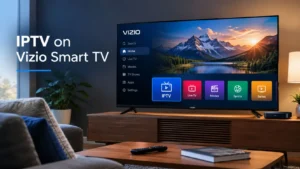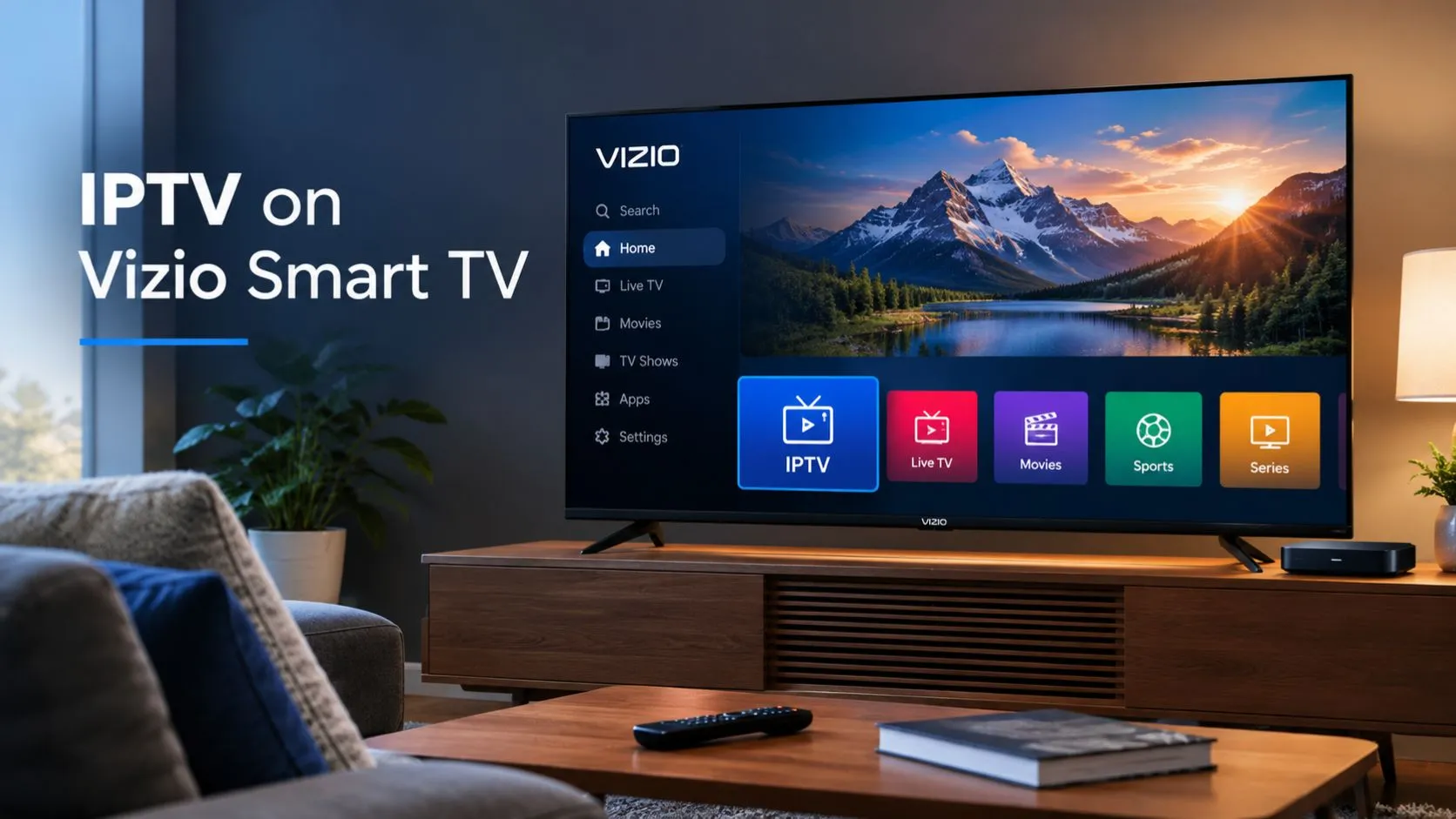
If you want to watch IPTV on a Vizio Smart TV, the first step is to check whether your television supports the IPTV player you plan to use. Unlike some Android TV and Google TV devices, Vizio TVs do not automatically support every streaming app, and the installation process depends on your TV’s model, software platform, and available apps.
The good news is that you may not need a new television or additional hardware. If a compatible IPTV app is available, you can use it directly. If not, you can explore casting from a supported phone or tablet, connecting a computer through HDMI, or using an external streaming device.
This guide explains how to check compatibility, choose the right setup method, and troubleshoot common problems when using IPTV on Vizio Smart TVs.
Table of Contents
Can You Use IPTV on a Vizio Smart TV?
Yes, IPTV can work on a Vizio Smart TV, but the available setup methods vary by model and app compatibility.
IPTV, or Internet Protocol Television, delivers television content over an internet connection. Depending on the service and player, it can provide access to live channels, sports, news, movies, and on-demand programming.
However, three separate components determine whether your setup will work:
- Your Vizio TV: Its smart-TV platform determines which applications and features are supported.
- Your IPTV player: The application must be available for your TV or work through a compatible alternative.
- Your IPTV provider: The service must support the login method, playlist format, or playback method used by your chosen player.
A television with built-in streaming apps is not necessarily compatible with every IPTV application. An app available on Android TV, Google TV, or Amazon Fire TV may not be available for installation directly on your Vizio television.
There are three main ways to get started:
| Setup method | When to choose it |
|---|---|
| Built-in IPTV app | Your Vizio TV supports a compatible player |
| Phone or tablet casting | Your TV and IPTV app support the same casting method |
| External streaming device | Your preferred IPTV player is unavailable on the TV |
The best approach is to check compatibility first rather than spend time looking for an app your television cannot install.
Check Your Vizio TV’s Compatibility Before Installing IPTV
Before following any installation instructions, identify your television’s model and available software features.
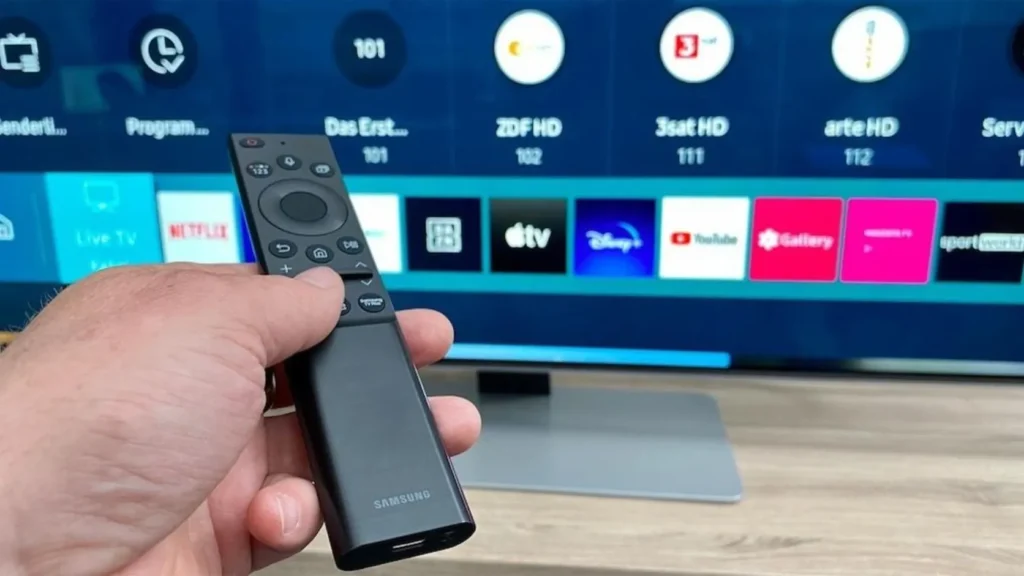
1. Identify your Vizio TV model
Vizio has used different smart-TV interfaces and software arrangements across its product generations. The available apps and settings can therefore vary between televisions.
To identify your model:
- Turn on your Vizio TV.
- Open the Settings menu using your remote.
- Look for a section such as System, Admin & Privacy, or System Information. The exact wording depends on your model.
- Find the model number and, if available, the software version.
- Consult the user manual for your specific model if you cannot locate this information.
You can also check the product label on the television or its original documentation.
Once you have the model number, visit the official Vizio website and locate the relevant support documentation.
Knowing your model helps you confirm which apps, casting features, and external connections are supported.
2. Check the available apps
Open your television’s home screen and navigate to its app interface.
Search for the IPTV player you want to use. Check the following before proceeding:
- Is the exact application listed?
- Is it compatible with your television’s software platform?
- Does the developer officially support your model or platform?
- Does the app accept the login details or playlist format provided by your IPTV service?
Do not assume that an app is compatible just because its name appears in a tutorial for another television brand.
Also distinguish between a streaming service and an IPTV player. An app that provides its own catalog of movies or live channels is not necessarily a player that accepts an IPTV subscription or playlist.
3. Understand the difference between Vizio’s built-in streaming features and IPTV apps
Vizio’s built-in streaming features provide access to supported apps and services. These features do not automatically turn the television into a universal IPTV player.
If the app you want is missing, repeatedly searching the app interface is unlikely to solve the compatibility issue. Instead, check whether your preferred service supports casting or an external streaming device.
Important: Do not follow instructions that tell you to install a standard Android APK directly onto your Vizio TV unless the specific device and installation method are officially supported. Vizio televisions should not be treated as interchangeable with Android TV devices.
How to Install IPTV on Vizio Smart TV
If your television supports a compatible IPTV player, follow these steps to configure it. The exact menu names and installation process may differ depending on the Vizio model and software version.
Step 1: Connect Your Vizio TV to the Internet
A reliable internet connection is essential for streaming IPTV.
- Open your TV’s settings.
- Navigate to the network settings.
- Select your home Wi-Fi network and enter the password, or use Ethernet if your TV supports a wired connection.
- Open another streaming app to confirm that the connection works.
If other apps cannot connect, resolve the network issue before configuring IPTV.
Step 2: Open the App Interface
Return to the TV’s home screen and locate the available apps.
Depending on your model, the interface may provide an app catalog or a different method for accessing streaming services. Search for the IPTV player you intend to use.
If the player is listed and officially supports your television, open its app page and follow the available installation instructions.
If you cannot find it, do not assume that your TV is malfunctioning. The application may not be available for your model’s platform.
Step 3: Install or Open a Compatible IPTV Player
Select the compatible app and follow the on-screen prompts.
Before entering any account information, verify that the application comes from a legitimate developer and supports your IPTV provider.
Some IPTV players require you to configure a service manually. Others support different login methods or connect to a provider through an account-based setup.
If the app is not available for your Vizio TV, skip to the alternative methods below rather than attempting an unsupported installation.
Step 4: Enter Your IPTV Service Details
If your selected player supports your IPTV service, follow its setup instructions.
Depending on the player and provider, you may need one of the following:
- An account username and password.
- An M3U playlist URL.
- An Xtream Codes-compatible login.
- Another provider-supported connection method.
These options are not interchangeable in every application. Use the details supplied by your provider and the configuration method supported by your player.
Keep your credentials and playlist URLs private. Avoid entering them into unfamiliar apps or websites that have not been verified.
Step 5: Test Your IPTV Channels
Once configuration is complete, check that the service works correctly.
- Open a live channel.
- Test another channel to confirm that switching works.
- Check audio and video playback.
- Open an on-demand title if your subscription includes that feature.
- Confirm that playback remains stable for several minutes.
If the app opens but the content does not load, check the credentials, playlist status, provider service, and network connection before changing additional settings.
For broader device setup instructions, see the ViviMate IPTV setup guide.
How to Watch IPTV on Vizio Without Installing an App
If your preferred IPTV player is unavailable on your Vizio television, you still have several options. The right choice depends on the devices you already own and the playback features supported by your IPTV app.
Option 1: Cast IPTV From Your Phone or Tablet
Casting can be convenient if you already watch IPTV on a compatible mobile device.
Some Vizio SmartCast models support Chromecast built-in, while supported models also offer Apple AirPlay. For example, Vizio’s documentation identifies Chromecast built-in on certain older SmartCast models, but features vary across the product range.
To try casting:
- Connect your Vizio TV and phone or tablet to the same Wi-Fi network.
- Open your IPTV app on the mobile device.
- Start playing content.
- Look for the app’s Cast or AirPlay control.
- Select your television if it appears in the available-device list.
- Confirm that the video and audio play correctly.
The important limitation is that your IPTV app must support a casting method compatible with your TV. Not every IPTV player includes a Cast or AirPlay button.
Screen mirroring may work in some situations, but results can vary by app and device. Protected content or app restrictions may prevent mirroring from working.
If your television does not appear in the device list, check its supported casting features and make sure both devices are connected to the same network.
Option 2: Connect a Computer to Your Vizio TV Through HDMI
Using a computer is another practical way to watch IPTV on a larger screen without installing an IPTV player directly on the television.
This method is useful when your IPTV service works through a supported desktop application or web player.
What you need:
- A laptop or desktop computer.
- An available HDMI port on the TV.
- An HDMI cable or compatible adapter.
- A supported IPTV player or browser-based service.
Follow these steps:
- Connect the computer to an HDMI input on your Vizio TV.
- Use the TV remote to select the corresponding HDMI input.
- Open your supported IPTV application or web player on the computer.
- Sign in or configure the service according to its instructions.
- Start playback and check that both video and audio appear on the TV.
If the computer screen appears but the audio comes from the laptop, check the computer’s audio output settings and select the TV or HDMI audio device where available.
This approach does not depend on the Vizio TV supporting the IPTV application itself. The computer handles playback, while the television functions as an external display.
Option 3: Use an External Streaming Device
An external streaming device is often the most convenient long-term option if your preferred IPTV player cannot run directly on your Vizio TV.
Compatible devices may include supported streaming sticks and boxes running platforms such as Android TV, Google TV, or Fire TV. However, app availability still depends on the specific device, its software, and the IPTV player’s requirements.
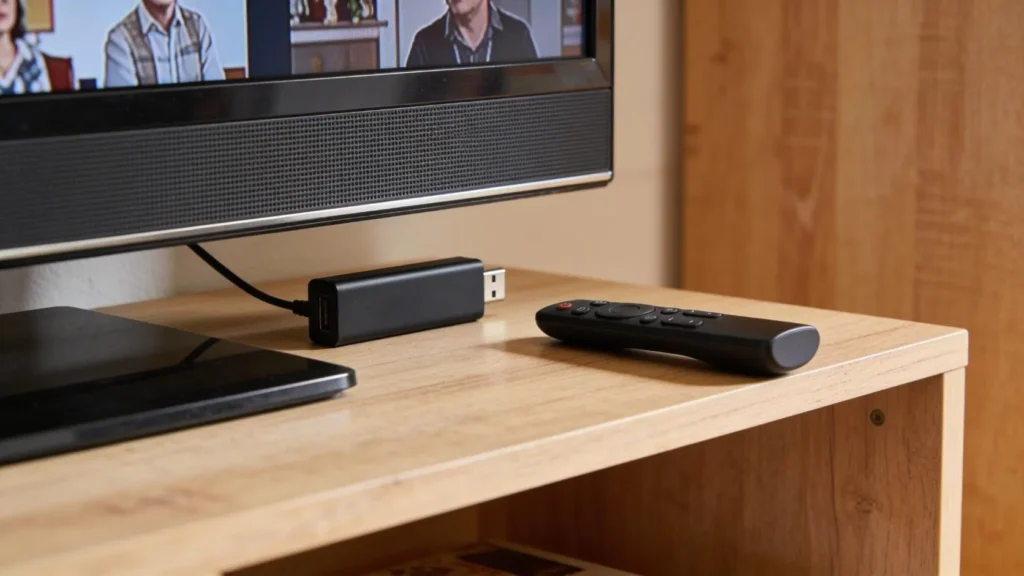
To get started:
- Choose a streaming device that supports your preferred IPTV player.
- Connect it to an available HDMI port on your Vizio TV.
- Complete the device’s initial setup and connect it to the internet.
- Open its official app store.
- Find and install a compatible IPTV player.
- Enter your provider’s supported login details.
- Select the device’s HDMI input on your Vizio TV.
The streaming device handles the app and playback, so the TV’s own app catalog is no longer the main limitation.
Before buying hardware, confirm that the device supports the application and connection method you need. You can also compare options in the ViviMate IPTV setup guide.
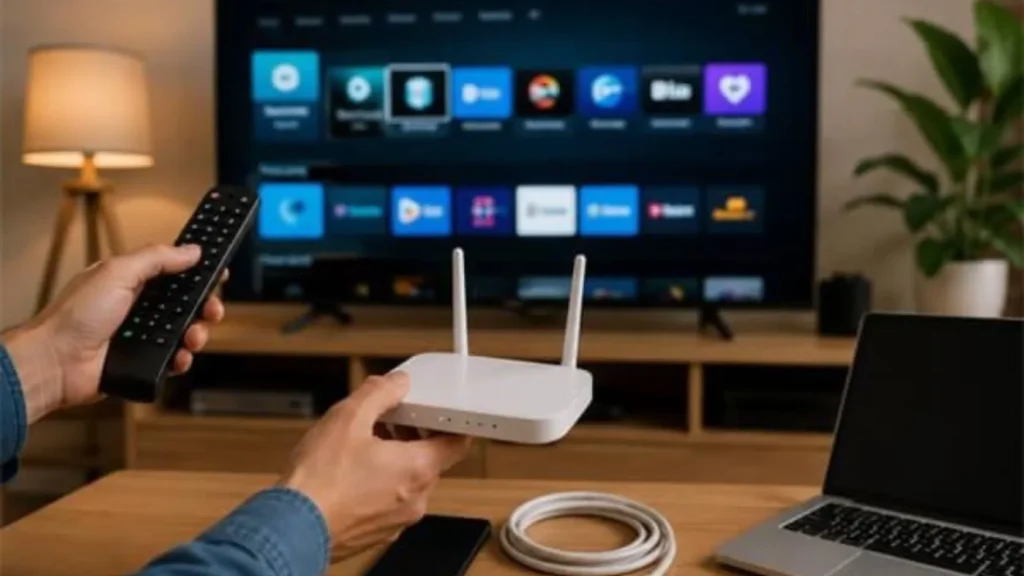
Common IPTV Problems on Vizio Smart TVs
Most setup problems can be narrowed down by checking app compatibility, connectivity, credentials, and the device handling playback.
| Problem | What to check |
|---|---|
| IPTV app is missing | Verify your TV model, platform, and the app’s supported devices |
| TV does not appear when casting | Check Wi-Fi connectivity, compatible casting support, and app permissions |
| Playlist fails to load | Verify the playlist URL, login details, and provider status |
| Channels keep buffering | Test your connection and try another channel or playback source |
| No audio through HDMI | Check the computer’s selected audio output and TV volume |
| App freezes or closes | Restart the playback device and check for supported software updates |
The IPTV App Is Not Available
If the player does not appear in your television’s app catalog, confirm that it supports your TV platform.
Updating your TV software may resolve certain app or compatibility issues, but an update cannot guarantee that an unsupported IPTV application will become available.
If the app remains unavailable, consider casting from a compatible device, using HDMI, or connecting a streaming device.
Casting Does Not Work
First, confirm that your TV supports the casting method you are trying to use.
Then check that both devices are connected to the same Wi-Fi network, restart the IPTV app, and reopen the casting menu.
If the TV still does not appear, check the manufacturer’s instructions for your specific model. You may need a different playback method.
Your Playlist or Login Fails
If the IPTV player opens but cannot load your channels, confirm that your subscription is active and that your credentials have been entered correctly.
For a playlist-based setup, check for missing characters or accidental spaces in the URL. If the problem continues, contact your provider to confirm that the playlist or account is still valid.
Do not share your password or full playlist URL publicly while seeking help.
IPTV Keeps Buffering
Buffering may be caused by a weak network connection, an overloaded service, or a problem with the particular stream.
Try moving closer to your router, using Ethernet if supported, or restarting your network equipment. Test another channel to see whether the issue affects one stream or the entire service.
For more detailed troubleshooting, read the IPTV buffering fix guide.
Which IPTV Setup Method Is Best for Your Vizio TV?
The best choice depends on your television’s compatibility and how you prefer to watch.
| Method | Main advantage | Main drawback |
|---|---|---|
| Built-in IPTV app | No additional playback device | Requires a compatible app |
| Phone or tablet casting | Convenient if you already own a compatible device | Depends on casting support |
| Computer via HDMI | Uses a supported desktop player or browser | Requires a connected computer |
| External streaming device | Can provide access to additional compatible IPTV players | Requires separate hardware and setup |
If your preferred IPTV app is available directly on your television, start there. If not, casting is worth trying when both devices support it.
For regular viewing, an external streaming device may provide a more convenient experience, particularly if it supports the IPTV player you want. A computer connected through HDMI is another option if you already have a suitable laptop.
There is no need to buy additional hardware until you have checked the capabilities of your existing devices.
Final Tips for Using IPTV on Vizio
Before choosing a setup method, keep these points in mind:
- Check your exact TV model rather than relying on instructions written for another Vizio television.
- Confirm app compatibility before attempting installation.
- Use the official app catalog and legitimate software sources.
- Verify that your IPTV provider supports your chosen player and login method.
- Consider casting, HDMI, or an external streaming device if direct installation is unavailable.
- Keep your TV and playback device software updated when supported.
- Use IPTV services and content you are authorized to access.
If you are still deciding how to configure your setup, start with the ViviMate IPTV installation guide for broader device setup guidance.
The key to getting IPTV on a Vizio Smart TV is choosing a method that matches your television’s capabilities. Once you confirm compatibility, you can use a supported app, cast from another device, or connect external streaming hardware without relying on unsupported installation methods.