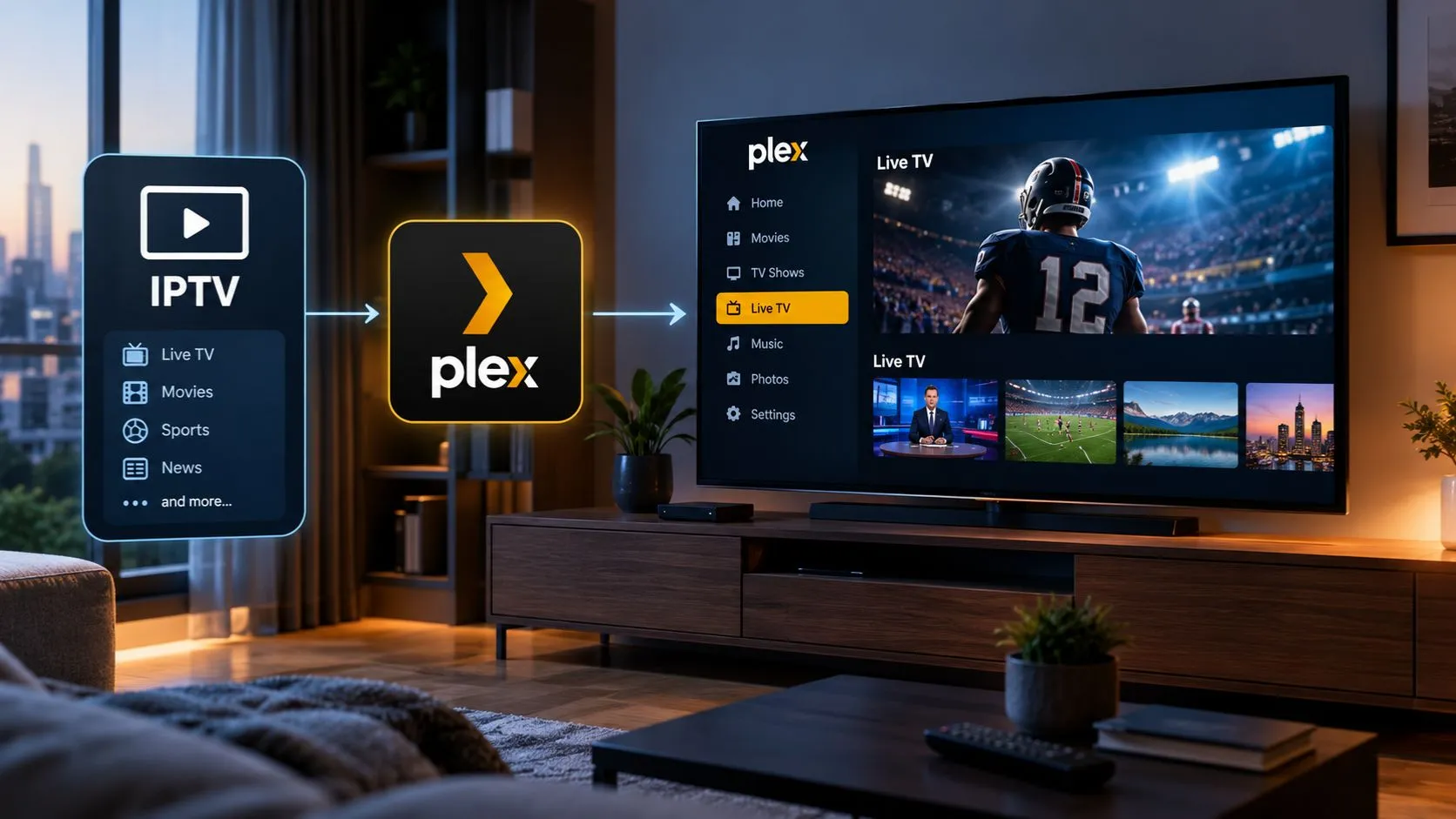
If you want to use IPTV on Plex, the first thing to understand is that Plex does not work like a traditional IPTV player. You generally cannot open Plex, paste any M3U playlist URL, and immediately start watching your provider’s live channels.
However, there are ways to bring compatible IPTV streams into a Plex-based setup. Depending on your equipment, playlist format, and technical experience, you may be able to use a third-party integration that connects IPTV sources to Plex’s live-TV interface.
The right approach depends on what you want to accomplish. If you already use Plex Media Server to organize your movies and TV shows, integrating compatible live streams may help keep more of your entertainment in one place. If your main goal is simply to load an IPTV playlist and watch live channels, a dedicated IPTV player may be easier to configure.
This guide explains how Plex and IPTV work together, what you need before getting started, which integration methods are available, and how to troubleshoot common problems.
Table of Contents
Can You Use IPTV on Plex?
Yes, IPTV can be integrated with Plex in certain configurations, but Plex does not natively support importing arbitrary third-party IPTV playlists as a standard playlist-based IPTV player would.
Plex offers its own live-TV features, including free streaming channels in supported regions and Live TV & DVR functionality with compatible tuner hardware. These features are different from accessing channels through an independent IPTV subscription.
To use a compatible third-party IPTV source with Plex, you may need an intermediary tool that converts or presents the source as a tuner Plex can recognize.
There are three main approaches to understand:
| Method | How it works | Best suited for |
|---|---|---|
| Plex’s built-in live TV | Uses Plex’s supported live-TV offerings or compatible tuner hardware | Users who want Plex’s native live-TV experience |
| Third-party IPTV integration | Connects compatible IPTV streams to Plex through a tuner-like interface | Users comfortable configuring additional software |
| Dedicated IPTV player | Loads a compatible playlist directly into an IPTV application | Users who mainly want to watch live channels |
The second approach is the one most relevant to people searching for Plex IPTV integration. It introduces extra setup requirements, and success depends on the tools, stream formats, provider restrictions, and Plex configuration involved.
Before choosing a method, identify whether you have an ordinary IPTV playlist, a compatible tuner, or access to Plex’s existing live-TV services. These are different starting points and require different instructions.
What You Need Before Adding IPTV to Plex
A little preparation can save considerable time. Before attempting to add IPTV to Plex, check the following requirements.
1. An IPTV playlist or authorized stream source
If you subscribe to a third-party IPTV service, your provider may supply an M3U or M3U8 playlist URL, individual stream URLs, or other connection details.
An M3U playlist typically contains references to media streams and may include channel names and other metadata. An M3U8 playlist uses UTF-8 text encoding and is commonly associated with HLS streaming.
Having a playlist does not automatically make it compatible with Plex. A separate integration may need to read the playlist, identify the channels, and expose the streams through an interface Plex can use.
Check with your provider for:
- Supported stream formats and playback requirements.
- Whether the playlist URL requires authentication.
- Whether external applications or tuner integrations are permitted.
- Whether electronic program guide data is available.
- Whether access is limited to particular devices or simultaneous streams.
Use only streams you are authorized to access.
2. Plex Media Server
For a third-party integration that feeds IPTV channels into Plex, you will generally need a functioning Plex Media Server installation.
Your server might run on a Windows PC, Mac, Linux machine, or compatible network-attached storage device. The exact requirements depend on the integration you choose.
Make sure that:
- Plex Media Server is installed and running.
- Your server and the integration tool can communicate over the network.
- Your computer or server has sufficient resources for the expected workload.
- You can access the server’s configuration and diagnostic logs.
A more powerful server is not automatically necessary for every setup. Performance depends on the stream format, the number of active streams, and whether video transcoding is required.
3. A compatible integration tool
Third-party tools such as Threadfin and xTeVe have been used to connect IPTV sources with Plex by presenting channel streams through a tuner-like interface.
These tools are not official Plex features. Their compatibility, maintenance status, supported configurations, and setup requirements can change.
Before installing one, verify that its current documentation supports your operating system, Plex version, playlist format, and intended workflow.
4. Electronic program guide data
An electronic program guide, or EPG, provides program names, schedules, and other information associated with television channels.
Some IPTV providers supply EPG data separately from the channel playlist. XMLTV is one format commonly used for television guide information.
Without compatible guide data and correct channel mapping, streams may play successfully while the program guide remains incomplete or displays incorrect information.
5. A compatible Plex client
Finally, you need a device capable of accessing the relevant Plex experience. This might be a streaming device, smart TV, computer, or mobile device with a supported Plex app.
Keep in mind that successful playback through one Plex client does not guarantee identical behavior on every other client. Available features and playback compatibility can vary.
How to Add IPTV to Plex Using a Third-Party Integration
One established approach is to use a tool such as xTeVe or Threadfin. These applications act as intermediaries between an IPTV playlist and Plex’s tuner-based live-TV system.
The general workflow looks like this:
IPTV playlist and EPG
Authorized channel streams and program-guide data
Third-party integration
Imports channels, maps guide data, and exposes a tuner-like interface
Plex Media Server
Discovers the compatible virtual tuner and configures live TV
Plex client
Accesses compatible live channels and available guide information
This is a third-party integration workflow, not a native Plex IPTV import feature. Its success depends on the integration tool and stream compatibility.
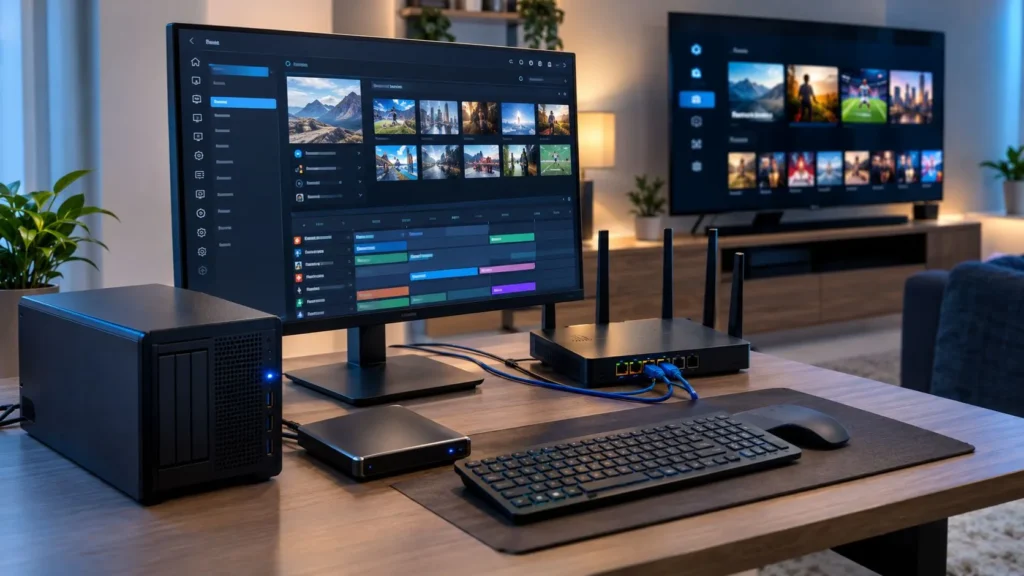
Step 1: Choose an integration tool
Two options worth researching are:
- xTeVe: An M3U proxy designed to connect playlist sources with Plex DVR and Emby Live TV.
- Threadfin: A related M3U proxy based on xTeVe, with its own interface and development history.
You can review their documentation and current requirements here:
Check the latest releases, operating-system support, and requirements before proceeding. Both are third-party projects, and their documentation may change.
The xTeVe project lists Plex Pass as a requirement for its Plex integration. Plex’s own antenna-based live-TV playback has different requirements, so do not assume that the requirements for one workflow apply to every Plex live-TV feature.
Step 2: Install and launch the integration
Install the selected tool on a supported computer or server on your network. Running it on the same machine as Plex can simplify initial troubleshooting, although other supported network configurations may be possible.
Follow the project’s current installation instructions for your operating system.
After launching the application, open its local web interface using the address shown in its startup output or documentation. Confirm that the interface loads and that the application is running before adding your playlist.
Avoid exposing the integration’s management interface directly to the public internet. Keep administrative access restricted to trusted users and devices.
Step 3: Add your M3U playlist
Open the playlist configuration area and enter your provider’s authorized M3U URL or select a local playlist file, depending on what the tool supports.
Save the configuration and allow the application to process the channel list.
Check that:
- Channels appear in the imported playlist.
- Stream URLs are valid and accessible.
- Channel names and identifiers are recognized.
- Your provider’s connection limits are respected.
- The playlist can refresh successfully when its contents change.
If your provider uses authentication or device restrictions, confirm that the integration method is permitted and supported. Do not assume a playlist that works in one app will work identically through Plex.
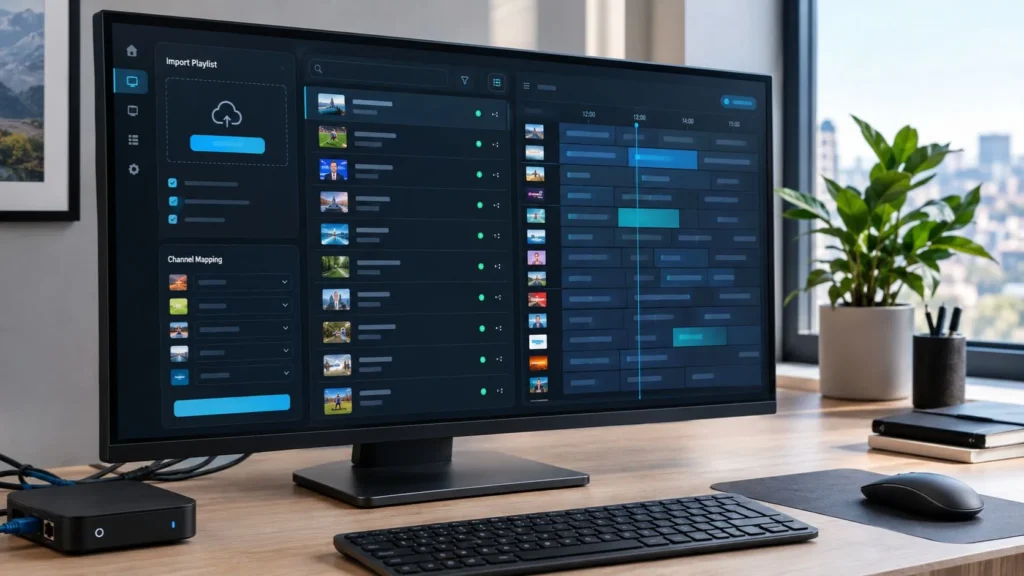
Step 4: Configure the electronic program guide
If your provider supplies an XMLTV guide, add its URL or local file using the integration’s documented process.
Depending on the tool and configuration, guide processing may happen within the intermediary application or through Plex’s own guide setup.
Review channel mapping carefully. The channel identifier in the playlist should correspond to the correct entry in the program guide. If the identifiers do not match, you may need to map channels manually.
Start with a small selection of channels rather than enabling every entry immediately. This makes it easier to identify incorrect mappings and remove channels you do not need.
Step 5: Configure the tuner in Plex
Once the integration is configured, open Plex Web App and navigate to the Live TV & DVR settings.
The exact steps depend on the integration and Plex version, but the general process is to:
- Open Settings → Live TV & DVR.
- Start the tuner or DVR setup process.
- Allow Plex to discover the compatible interface, or follow the integration’s instructions for manual configuration if supported.
- Configure the program guide using the supported method for your integration.
- Review the available channels and complete setup.
If Plex does not discover the integration automatically, check the project’s documentation for network discovery, manual tuner entry, and any required network settings.
Do not enter arbitrary playlist URLs into Plex’s tuner configuration. Plex expects a compatible tuner interface in this workflow, not simply an ordinary M3U URL.
Step 6: Test playback
Before relying on the setup, test a few channels from different categories.
Confirm that:
- Channels open and play consistently.
- Audio and video are both working.
- Program titles and schedules are correct.
- Switching between channels works.
- Playback remains stable for several minutes.
If a stream fails, test the source independently using a compatible player, if permitted by your provider. This can help determine whether the problem is with the original stream or the Plex integration.
For more general setup questions across devices, consult the ViviMate IPTV installation guide.
Plex IPTV vs. a Dedicated IPTV Player
A Plex integration makes the most sense when you already use Plex and are comfortable managing a server. It is not necessarily the simplest solution for someone who only wants to watch a provider’s live channels.
| Feature | Plex with an IPTV integration | Dedicated IPTV player |
|---|---|---|
| Playlist setup | Requires an intermediary in compatible configurations | Often accepts a supported M3U playlist directly |
| Initial configuration | More involved | Usually simpler |
| Channel guide | Depends on integration and EPG configuration | Depends on the player and available guide data |
| Server requirements | Typically requires Plex Media Server and integration software | Often works directly on a supported device |
| Maintenance | May involve Plex, the integration, and playlist updates | Primarily involves the player and provider configuration |
| Best use case | Bringing compatible live streams into an existing Plex environment | Watching and managing IPTV channels directly |
If you want to compare other playback options, ViviMate’s IPTV player guide is a useful next step.
The main trade-off is straightforward: Plex can offer a unified media environment, but the integration adds complexity. A dedicated player is often the more practical choice when live IPTV is your primary use case.
Common IPTV on Plex Problems and How to Fix Them
Even when a playlist imports successfully, several issues can prevent a Plex IPTV setup from working as expected.
Plex cannot find the tuner
If Plex does not detect your integration, check that both applications are running and that the server can communicate with the integration over the local network.
Review firewall rules, network isolation, and the IP address or port specified by the integration’s documentation. Restarting the relevant applications may help after configuration changes, but persistent discovery failures usually require checking network settings or logs.
Channels appear but do not play
A channel appearing in the guide does not guarantee that its stream is playable.
Possible causes include expired stream URLs, provider authentication, unsupported formats, audio or video codec incompatibility, and connection limits.
Test the source directly in a compatible player when possible. If the source itself fails, resolve that problem with the provider before changing Plex settings.
If the source plays independently but fails through Plex, investigate the integration’s stream handling and compatibility settings.
The program guide is missing or incorrect
A blank or inaccurate guide often points to missing EPG data or incorrect channel mapping.
Check that the guide URL or file is accessible and current. Verify that channel identifiers match the relevant guide entries, and review time-zone settings where applicable.
If only some channels have guide information, inspect those individual mappings rather than rebuilding the entire configuration immediately.
IPTV buffers or stutters in Plex
Buffering can result from unstable network connectivity, overloaded hardware, a slow source stream, or transcoding demands.
Try these diagnostic steps:
- Test the same stream in a compatible player.
- Check the server’s CPU and memory usage during playback.
- Compare wired and wireless network performance where practical.
- Review the integration’s logs and documented buffering options.
- Check whether a stream-format or transcoding limitation is involved.
For broader troubleshooting, see the IPTV buffering guide. Verify that destination URL before publishing if the article has a different live slug.
The setup stops working after an update
Third-party integrations can be affected by changes to Plex, operating systems, playlist formats, or provider access rules.
Before reinstalling everything, review the integration’s release notes and issue tracker. Check whether the problem affects the original stream, the intermediary application, or Plex itself.
Avoid relying on old tutorials that recommend unsupported Plex plugins. A setup that worked with an older version may no longer be appropriate.
Is Plex the Right Choice for IPTV?
Plex can be a reasonable option if you already maintain a Plex Media Server and want to bring compatible live-TV streams into the same environment as your personal media.
However, there are important limitations to consider:
- Plex does not provide a universal native M3U playlist import workflow for arbitrary IPTV subscriptions.
- Third-party integrations require additional configuration and ongoing maintenance.
- Channel guides depend on compatible EPG data and correct mapping.
- Not every provider, stream format, or Plex client will work with every integration.
- Third-party tools are not officially supported Plex features, and their availability can change.
Plex’s own Live TV & DVR feature is a separate option. For traditional over-the-air television in the US, Plex supports compatible tuner-and-antenna setups. Watching live broadcasts through that workflow is available without Plex Pass, while DVR recording requires an active Plex Pass subscription. These requirements should not be confused with those of a third-party IPTV bridge.
Also consider the rights associated with your chosen streams. IPTV technology itself does not determine whether a service is lawful. Licensing, authorization, jurisdiction, and how the content is accessed all matter.
If you want to explore device compatibility and installation options before choosing a setup, start with the IPTV setup guide. If you are still comparing available channel options, the IPTV channels page may also help.
The bottom line: IPTV on Plex is possible through certain third-party integrations, but it is not as straightforward as loading a playlist into a dedicated IPTV player. Check compatibility first, verify the integration’s current requirements, and choose Plex only if its media-server approach suits the way you want to watch television.