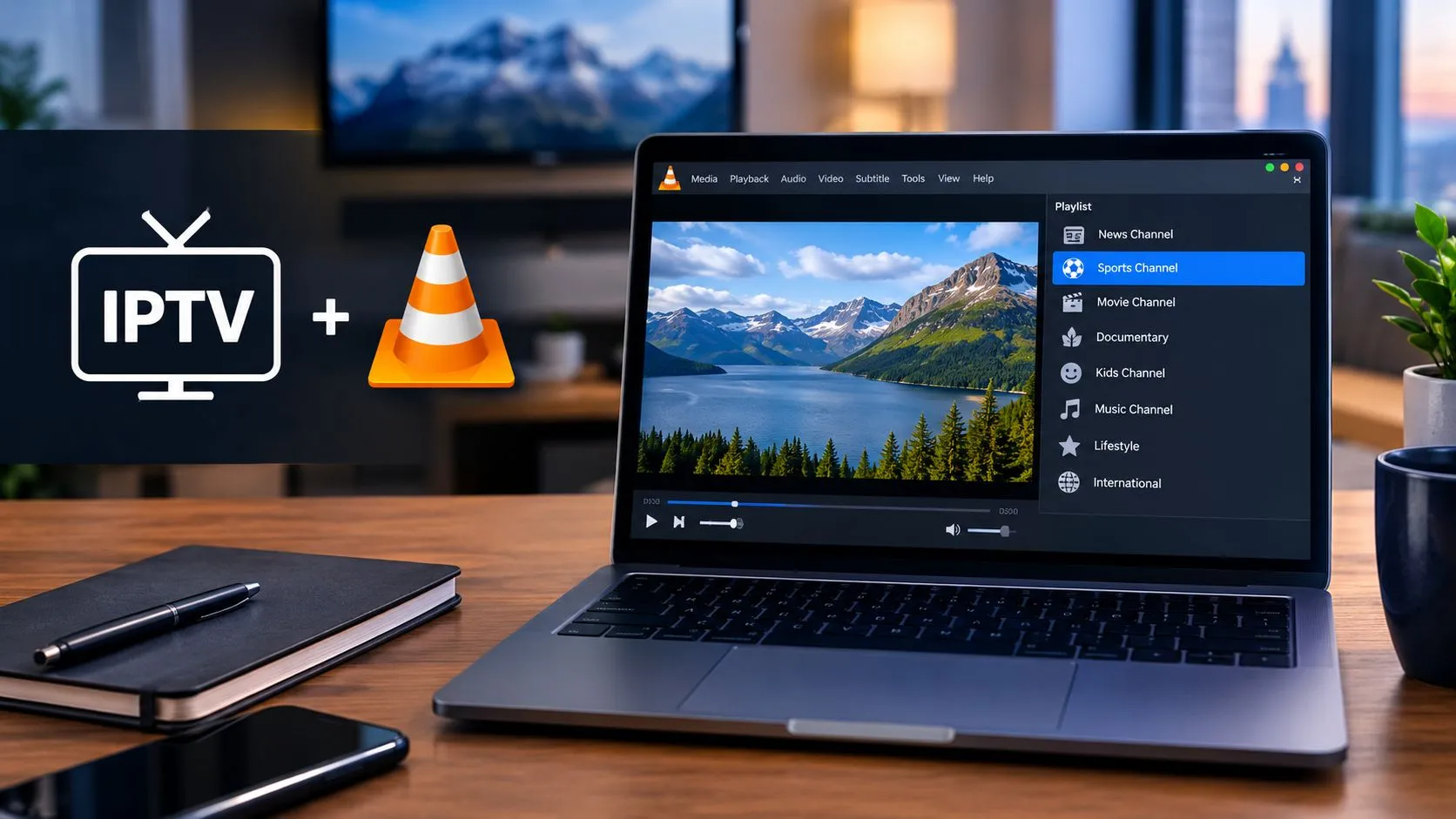
VLC Media Player can play compatible IPTV streams using an M3U playlist file, a playlist URL, or a direct stream link. If you already have IPTV access but aren’t sure how to load your channels into VLC, the process is relatively straightforward.
In this guide, you’ll learn how to set up IPTV on VLC Player, open your playlist, switch between available channels, and troubleshoot common playback problems. You’ll also discover what VLC can and cannot do compared with a dedicated IPTV application.
Before you begin, make sure you have a working IPTV playlist or stream URL from a provider authorized to distribute the content. VLC is a media player, not an IPTV subscription service, so it doesn’t supply channels automatically.
Table of Contents
What You Need Before Setting Up IPTV on VLC
Gather the following before you start:
- VLC Media Player: Install the current version compatible with your computer from the official VLC website.
- An IPTV playlist or stream URL: Your provider may supply an M3U playlist file, a remote playlist URL, or an individual stream address.
- Access credentials, if required: Some services require authentication or generate playlist URLs tied to your account.
- An internet connection: Online IPTV streams require a working connection with sufficient bandwidth.
Understanding IPTV playlist formats
The format you receive determines how you should load your content.
| Format | What it contains | How to use it in VLC |
|---|---|---|
| Local M3U or M3U8 file | A playlist containing references to available streams | Open the saved file in VLC. |
| Remote M3U playlist URL | An online address that retrieves a playlist | Open the address through VLC’s network-stream interface. |
| Direct stream URL | A link to an individual channel or video stream | Open the address as a network stream. |
An M3U playlist usually contains references to media streams rather than the video itself. Consequently, a playlist can open successfully even when some channels are unavailable.
M3U8 is commonly associated with UTF-8-encoded playlists and may also be used with HTTP Live Streaming (HLS). The extension alone does not guarantee that every entry will play in VLC.
If you still need to configure your IPTV access or understand the setup process across different devices, consult the ViviMate IPTV setup guide.
How to Set Up IPTV on VLC Player
There are three common ways to play IPTV in VLC. Choose the method that matches the information supplied by your provider.
Method 1: Open an IPTV M3U Playlist File
Use this method if you’ve downloaded an M3U or M3U8 file to your computer.
Step 1: Open VLC Media Player
Launch VLC on your Windows PC or Mac.
Step 2: Locate your playlist file
Find the M3U or M3U8 file saved on your computer. If your provider supplied the playlist as a download, check your Downloads folder or the location where you saved it.
Step 3: Open the playlist
On Windows, select Media > Open File and choose the playlist file.
On macOS, use the corresponding file-opening option from VLC’s menu. Menu names may differ slightly between versions.
You can also try dragging the playlist file into the VLC window if your version supports it.
Step 4: Wait for the playlist to load
VLC will process the playlist and attempt to make its entries available for playback. Loading time depends on the file and the referenced streams.
Step 5: Open the playlist panel
If you see only one video or a blank playback window, open VLC’s playlist view. On many desktop versions, you can use Ctrl + L on Windows or Command + L on macOS.
The playlist panel should display the entries VLC can read from the file.
Step 6: Select a channel
Double-click an entry, or select it and press Play. If the stream is accessible and compatible, playback should begin.
If the playlist opens but individual channels fail, the problem may involve the stream address, provider access, or stream compatibility rather than the playlist file itself.
Method 2: Load an IPTV Playlist URL
Use this method when your provider gives you an online M3U playlist address instead of a downloadable file.
Step 1: Copy the playlist URL
Copy the complete URL supplied by your provider. Check that it hasn’t been truncated and that any required parameters remain intact.
Treat this URL as private if it contains account credentials or a personal access token.
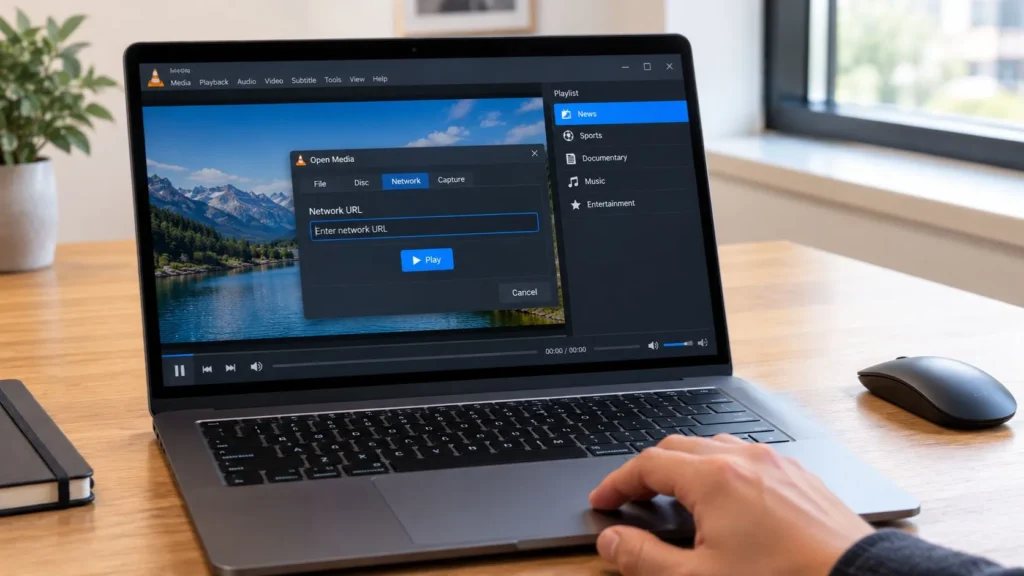
Step 2: Open VLC’s network-stream option
On Windows, go to Media > Open Network Stream.
On macOS, open the equivalent network-stream option from VLC’s File menu. The exact wording can vary by version.
Step 3: Enter the playlist URL
Paste the address into the network URL field.
Make sure you enter the playlist URL itself, rather than the provider’s homepage or account dashboard.
Step 4: Start playback
Click Play or the equivalent action available in your VLC version.
If the URL points to an M3U playlist, VLC may load the playlist and begin playing its first available entry. If it points directly to a media stream, VLC will attempt to play that stream instead.
Step 5: Check the playlist panel
Open the playlist view to see whether additional entries are available. Select another entry to switch streams.
If VLC returns an error, confirm that the URL is correct and that the playlist hasn’t expired. If the provider requires a specific authentication method that VLC cannot handle, you may need another supported playback method.
Method 3: Play a Direct IPTV Stream URL
Sometimes you only want to watch one channel or test a particular stream. In that case, you may not need a complete playlist.
Step 1: Copy the direct stream URL supplied by your provider.
Step 2: Open VLC and select its network-stream option.
Step 3: Paste the URL into the address field.
Step 4: Select Play and wait for VLC to establish the connection.
Step 5: If playback fails, verify that the link is current and that your provider permits playback through VLC.
A direct stream URL typically points to one stream, whereas an M3U playlist can reference many channels. A URL that opens one channel successfully does not necessarily mean the provider’s entire playlist will work.
How to Find and Switch Channels in VLC
Once your playlist has loaded, VLC’s playlist panel is the main place to navigate available channels.
Follow these steps:
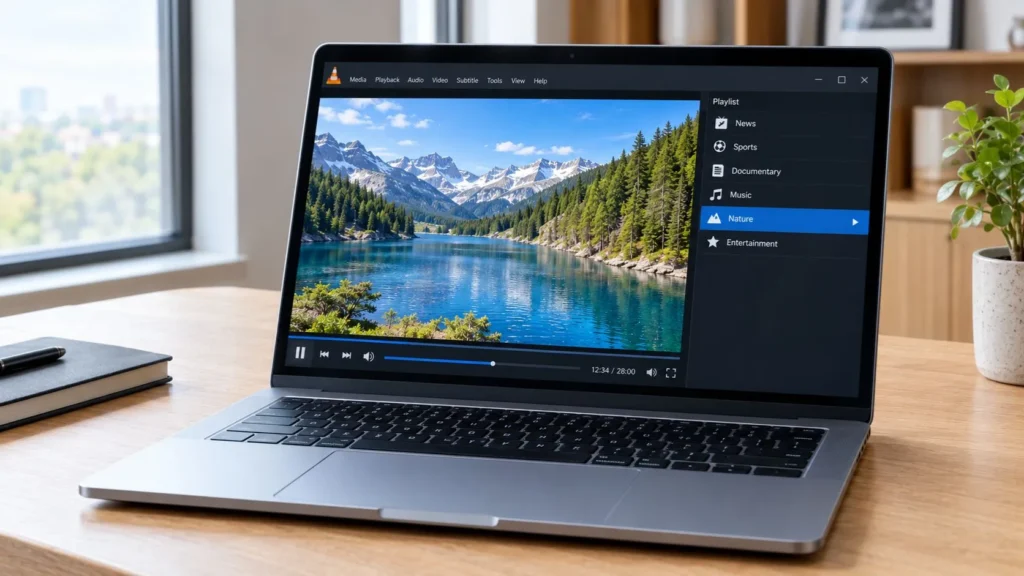
- Open the playlist view if it isn’t already visible.
- Browse the entries supplied by your playlist.
- Double-click the channel or stream you want to watch.
- Use the playback controls to pause, resume, or adjust the volume.
- Select another playlist entry to switch channels.
Some IPTV playlists include descriptive metadata, such as channel names, groups, logos, or categories. How much of that information VLC displays depends on the playlist structure and VLC’s handling of it.
A large playlist may be less convenient to navigate than a dedicated IPTV interface. You may need to search through entries manually, particularly when the playlist contains hundreds of channels.
Can VLC display an IPTV electronic program guide?
VLC’s standard playlist interface is designed primarily for media playback. It is not a full IPTV management interface with the same integrated channel browsing and electronic program guide (EPG) features offered by many dedicated IPTV applications.
An EPG provides program schedules and information about what’s currently airing or coming next. Even if your provider supplies separate EPG data, VLC does not automatically turn that data into a complete, TV-style program guide.
If integrated schedules, channel groups, favorites, and remote-control navigation are important to you, compare VLC with a dedicated IPTV player.
How to Fix IPTV Not Working in VLC
When IPTV doesn’t play as expected, identify the specific symptom before changing settings. The following checks address common problems associated with loading playlists and opening network streams.
VLC Opens but No Channels Appear
If VLC opens your playlist but doesn’t show a useful list of channels, try these checks:
- Open the playlist panel: The video window may be visible while the channel list remains hidden.
- Check the file format: Confirm that your provider supplied a valid M3U or M3U8 playlist rather than a webpage or an unrelated file.
- Verify the playlist contents: If you can safely inspect the file in a text editor, check whether it contains playlist entries and stream references.
- Try the original URL again: A remote playlist may have expired or become unavailable.
- Confirm access requirements: Some providers generate playlists that depend on account authorization or specific request parameters.
If the playlist contains entries but none of the channels plays, move on to the stream-specific checks below.
IPTV Stream Keeps Buffering or Freezing
Buffering can result from network congestion, an unstable connection, an overloaded streaming source, or a stream that requires more bandwidth than your connection can consistently provide.
Start with these practical checks:
- Test another channel from the same playlist.
- Check whether other online video services are also experiencing interruptions.
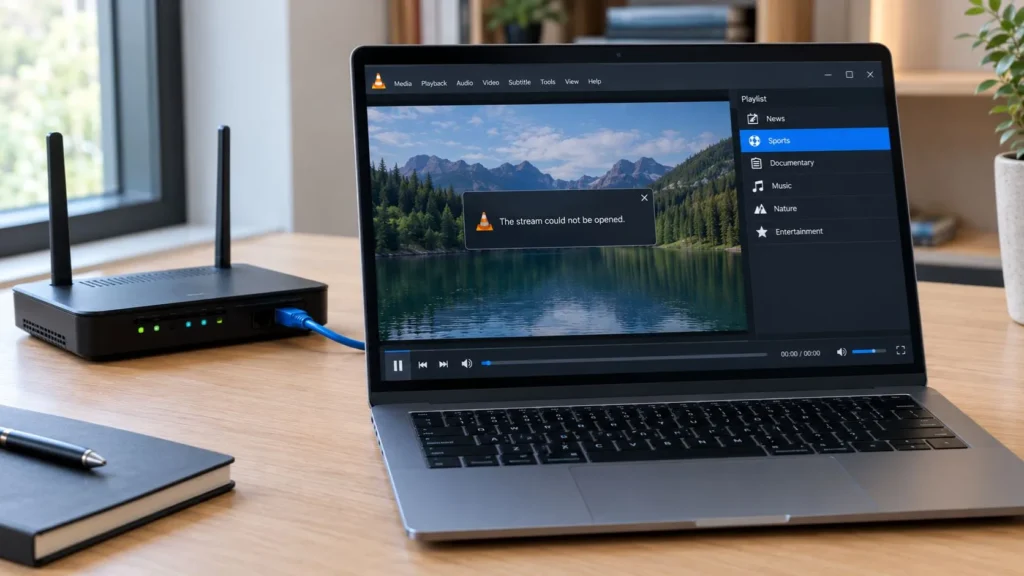
- If possible, connect your computer to the router using Ethernet instead of Wi-Fi.
- Pause other bandwidth-intensive downloads or streams temporarily.
- Restart VLC and try the stream again.
If only one channel buffers, the issue may be specific to that stream or its source. If multiple channels and other online services have problems, investigate the broader network connection.
For more detailed troubleshooting, see the IPTV buffering fix guide if that URL is live and matches the published article. Otherwise, use the site’s relevant buffering guide.
VLC Shows a Network or Authentication Error
A network error can indicate an incorrect URL, an unavailable server, a connection problem, or an access restriction.
Try the following:
- Copy the complete URL again from your provider’s account or setup instructions.
- Check whether the playlist or stream link has expired.
- Confirm that your internet connection is working.
- Verify whether your provider requires credentials or a particular authentication method.
- Check that your account is active and authorized to access the stream.
- Update VLC if you’re using an outdated version.
Some providers use access methods or stream configurations that VLC cannot handle directly. In that situation, repeatedly changing VLC settings may not solve the issue. Ask your provider which playback methods and applications are supported.
Never post a private playlist URL or authentication token in a public support forum.
The Playlist Loads but Individual Channels Fail
A playlist can contain entries that are no longer available, incorrectly configured, restricted, or incompatible with your playback environment.
To narrow down the cause:
- Try two or three other entries in the same playlist.
- Check whether the affected channel is available through the provider’s authorized interface, if one exists.
- Confirm that the stream URL hasn’t changed.
- Update VLC to a current compatible version.
- Ask your provider whether the affected stream is supported in VLC.
If most channels work but one does not, focus on that entry rather than rebuilding the entire playlist. If every channel fails, revisit the playlist URL, account authorization, and network connection first.
VLC Media Player vs. a Dedicated IPTV Player
VLC is a versatile media player that can handle many local media files and network streams. A dedicated IPTV player, however, is designed around channel browsing and television-style playback workflows.
The right choice depends on how you plan to watch.
| Feature | VLC Media Player | Dedicated IPTV player |
|---|---|---|
| Local M3U playlist playback | Supported for compatible playlists | Depends on the application |
| Direct network streams | Supported for compatible streams | Depends on the application |
| Traditional playlist navigation | Available | Often designed specifically for channel browsing |
| Integrated EPG interface | Limited compared with IPTV-focused apps | Often available, depending on the app |
| Favorites and channel organization | Basic playlist-oriented workflow | May offer specialized organization tools |
| TV remote navigation | Depends on device and setup | Often a central design consideration |
| Media playback beyond IPTV | Broad media-player capabilities | Varies by application |
These are general distinctions, not guarantees for every product. Features and compatibility vary by operating system, application version, and playlist provider.
When VLC Is a Good Choice
VLC is worth considering if you:
- Already use it on your computer.
- Want to open an M3U playlist without installing a separate IPTV application.
- Need to test an individual network stream.
- Prefer a general-purpose media player for different media formats.
- Are comfortable navigating a standard playlist panel.
When a Dedicated IPTV App Makes More Sense
A dedicated application may be a better fit if you want:
- A more organized television-style channel interface.
- Integrated EPG data and program schedules.
- Easier channel grouping and favorites management.
- A viewing experience designed around a TV remote.
- Features tailored to your device and IPTV provider.
Before choosing an alternative, check that it supports your device and the playlist or service you intend to use. You can explore the available options in ViviMate’s IPTV player comparison guide.
Frequently Asked Questions
Can I watch IPTV on VLC Player for free?
VLC Media Player is free to use, but that doesn’t mean every IPTV channel is free. You still need a valid playlist or stream URL, and some content requires a paid subscription or other authorization.
Does VLC support M3U playlists?
Yes. VLC can open compatible M3U and M3U8 playlist files, including playlists that reference online streams. Playback depends on the validity of the playlist entries and the compatibility and accessibility of the referenced streams.
Can I use IPTV on VLC without downloading a playlist file?
Yes. If your provider supplies a compatible remote playlist URL or direct stream URL, you can enter it through VLC’s network-stream interface. You don’t necessarily need to save a playlist file locally first.
Why does my IPTV playlist work on another app but not VLC?
Different applications handle playlists, authentication, stream protocols, and provider-specific configurations differently. Your playlist may depend on a feature or access method that VLC does not support in your current setup. Check the provider’s supported applications and stream requirements.
Can I use VLC for IPTV on a Smart TV?
VLC availability and functionality depend on the TV’s operating system and the version of VLC available for that platform. Desktop instructions do not necessarily apply to Smart TVs. Check your device’s official app store and compatibility information before proceeding.
Is VLC better than a dedicated IPTV player?
Neither is universally better. VLC is useful for general media playback and compatible network streams. A dedicated IPTV player may be more convenient if you need integrated program schedules, channel management, or a TV-focused interface.
Is it legal to watch IPTV through VLC?
VLC is a media player, and legality depends on the content source, licensing, authorization, applicable jurisdiction, and how the service is used. Use playlists and streams that you are authorized to access.
Continue Setting Up Your IPTV
Getting IPTV to work in VLC mainly comes down to using the correct playlist or stream URL, loading it through the appropriate interface, and confirming that the referenced streams are accessible.
Start with a local M3U file if you have one, use the network-stream option for a remote playlist or direct stream URL, and troubleshoot based on the specific error you encounter.
If you need help with the wider setup process, continue to the ViviMate IPTV installation guide. If VLC’s playlist-based interface doesn’t meet your needs, explore the best IPTV player guide to find an option that better suits your device and viewing preferences.