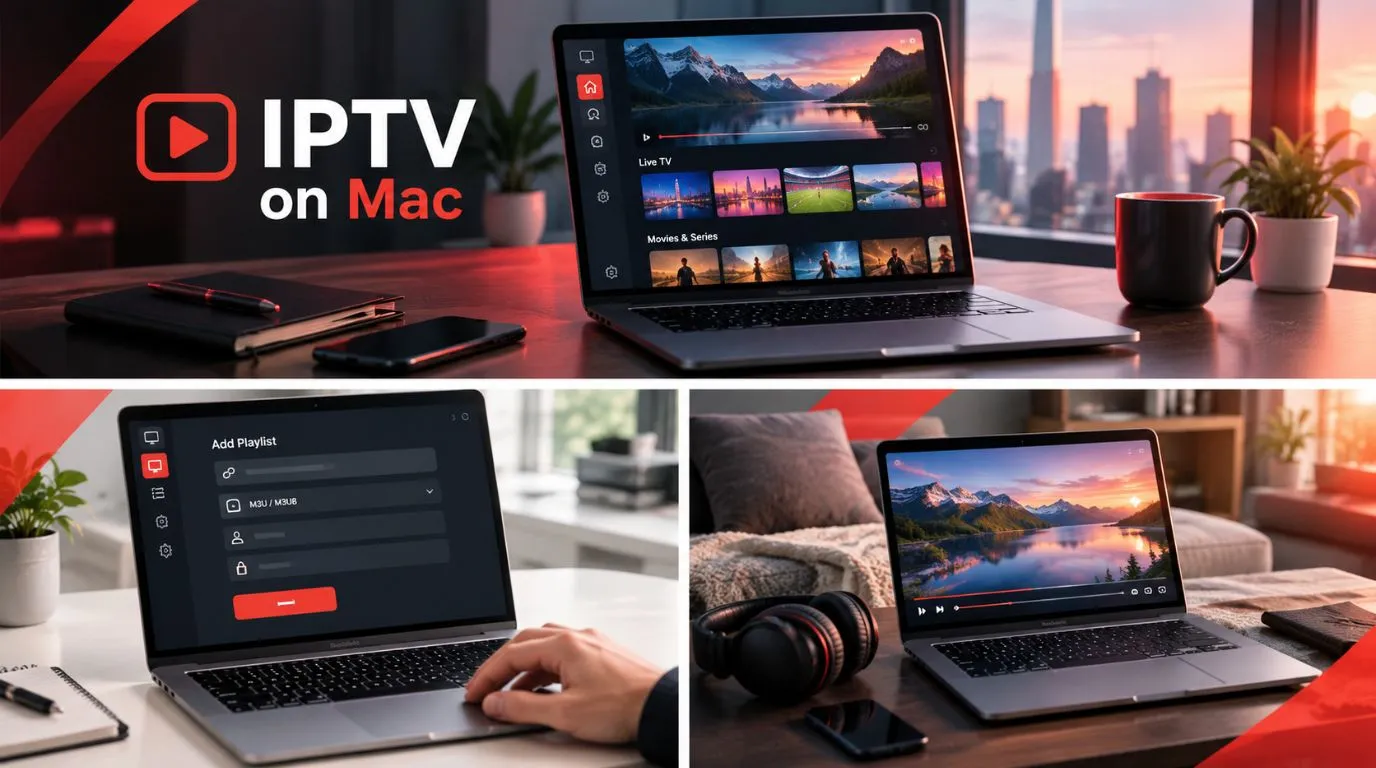
If you want to watch IPTV on your MacBook, iMac, or Mac mini, you have several options. You can use a dedicated IPTV application, a general-purpose media player, or a compatible web player, depending on how you access your channels.
The main challenge is finding software that works with your version of macOS and supports the playlist or login details provided by your IPTV service. Not every IPTV app available for Android or Fire TV has a Mac version, and some players offer more features than others.
This guide explains how to choose an IPTV player for Mac, how to set it up, and what to check when channels fail to load or play.
Table of Contents
Can You Watch IPTV on a Mac?
Yes. You can watch IPTV directly on a Mac using compatible desktop software or a supported browser-based service.
You do not necessarily need a separate streaming device. If your IPTV provider supplies a compatible playlist or account connection, you can use it with an appropriate Mac player.
There are three main approaches:
- Dedicated IPTV applications: Designed to organize live channels, playlists, program guides, and sometimes movies and series.
- General-purpose media players: Useful for opening supported IPTV streams without needing a full IPTV interface.
- Browser-based players: Allow you to watch through a compatible web browser when your provider offers a web player.
Your choice depends on whether you want a simple way to play a stream or a more complete interface for browsing channels and on-demand content.
What to Look for in an IPTV Player for Mac
Before downloading a Mac IPTV app, check its compatibility and features. A player that works well for one IPTV service may not support another service’s connection format.
1. macOS and Mac Hardware Compatibility
Start by checking the software’s system requirements.
Mac computers use different hardware architectures, and older versions of macOS may not support the latest applications.
- Apple Silicon Macs: Mac computers with M-series processors.
- Intel Macs: Older Mac models that use Intel processors.
- macOS version: The minimum operating system required by the application.
- Available storage: Some applications and downloaded content require additional space.
If you use an older MacBook, confirm that the app supports your installed macOS version before downloading it.
An application may support macOS but still require a newer version of the operating system than your computer can run.
2. M3U Playlists and Xtream Codes Support
Your IPTV provider may supply different types of connection details.
The two common options are M3U playlists and Xtream Codes credentials.
| Connection type | What you receive | How it works |
|---|---|---|
| M3U or M3U8 | A playlist file or URL | Provides a list of channels or stream addresses |
| Xtream Codes | Server URL, username, and password | Connects through a supported account interface |
An M3U playlist can contain channel names, categories, and stream addresses. Some playlists also include information that helps a player match channels with an electronic program guide.
Xtream Codes support can provide a more organized interface for live TV, movies, and series, depending on the application and the provider’s configuration.
Not every player supports both methods. Check the app’s documentation before choosing it.
3. Electronic Program Guide and Channel Organization
An electronic program guide, or EPG, displays information about current and upcoming programs.
If you regularly watch live television, look for a player that supports:
- Channel categories
- Favorites
- Program information
- Channel search
- Playlist refresh
- EPG support
Some applications can import guide data separately from the channel playlist. If your provider supplies an XMLTV guide, check whether the player supports that format.
A basic media player may be enough if you only want to open individual streams. A dedicated IPTV application is more suitable when you want to browse a large channel list.
4. Playback Features
Playback requirements vary depending on the streams you watch.
Useful features may include:
- Full-screen playback
- Picture-in-picture
- Audio track selection
- Subtitle support
- External player support
- Adjustable playback settings
Remember that a player’s feature list does not guarantee that every IPTV stream will work. The stream’s format, encoding, server configuration, and your internet connection also matter.
5. App Cost, Privacy, and Download Source
Some IPTV applications are free, while others offer paid versions or optional features.
Before installing an app, check:
- Whether the application is free or paid
- Whether important features require an upgrade
- Whether it comes from an official website or trusted store
- What permissions it requests
- How it handles saved playlists and account credentials
Avoid entering your IPTV account details into an unfamiliar application.
IPTV Player Options for Mac
There is no single IPTV player that suits every Mac user. The right option depends on how you receive your channels and whether you need an IPTV-specific interface.
The following applications represent different approaches to IPTV playback.
IPTVnator: A Dedicated IPTV Application
Official project: IPTVnator on GitHub
IPTVnator is a cross-platform IPTV application with a macOS version. It supports M3U and M3U8 playlists, Xtream Codes connections, Stalker portals, and XMLTV program guide data.
Its features include:
- Playlist import through a URL or local file
- Channel organization
- Electronic program guide support
- Favorites
- Live TV playback
- Support for external players such as VLC and MPV
IPTVnator may suit users who want a dedicated IPTV interface rather than opening individual streams manually.
The project has also introduced an experimental embedded MPV player for macOS, so check the current release notes if playback behavior is important to you.
IPTVnator does not provide IPTV channels or subscriptions. You need a compatible playlist or service separately.
VLC: A General-Purpose Media Player
Official website: VLC media player
VLC is a general-purpose media player that can open supported network streams and media playlists.
It can be useful if you already have an IPTV stream URL and do not need a dedicated channel interface.
VLC supports network playback, including supported HTTP and HLS streams.
However, VLC is not a complete IPTV subscription management system.
It does not automatically turn every IPTV playlist into a polished channel guide, and it may not support the account-based features offered by dedicated IPTV applications.
Choose VLC when your main requirement is straightforward stream playback.
IINA: A Mac-Focused Media Player
Official website: IINA
IINA is a media player designed specifically for macOS. It uses the mpv playback engine and supports online streams as well as local media.
Its features include:
- A macOS-style interface
- Picture-in-picture
- Keyboard and trackpad controls
- Playback customization
- Support for online streams
IINA may be worth considering if you prefer a Mac-oriented media player.
It is not a dedicated IPTV subscription manager, so you should verify that your particular stream format works with it before relying on it for regular viewing.
Browser-Based IPTV Players
Some IPTV providers offer a web player that works through a compatible browser.
This can be convenient if you do not want to install desktop software.
Before using a browser-based option, check whether it supports:
- Your IPTV account or playlist format
- Your browser and macOS version
- The channels and media formats you want to watch
- The playback controls you need
Only enter your credentials on a website you trust. A web player should not require you to install unrelated software or provide unnecessary personal information.
How to Set Up IPTV on a Mac
The exact setup process depends on the application and IPTV provider, but the general steps are similar.
Step 1: Check Your Mac and Choose a Player
First, confirm which version of macOS your computer is running.
You can find this information by opening the Apple menu and selecting About This Mac.
Next, choose an IPTV player that supports your operating system and connection format.
If you want a dedicated channel interface, look for an IPTV application with playlist and EPG support.
If you only need to play a stream, a general-purpose media player may be sufficient.
Step 2: Download and Install the Application
Download the software from its official website or another trusted distribution source.
For example, IPTVnator provides macOS downloads through its project release page.
After downloading:
- Open the downloaded installer or disk image.
- Follow the application’s installation instructions.
- Move the app to your Applications folder if required.
- Open the application.
- Review any macOS security prompts carefully.
If macOS blocks an application, do not immediately bypass the warning. Confirm that you downloaded the genuine application from a trusted source and review the developer’s installation instructions.
Step 3: Get Your IPTV Connection Details
You need a compatible IPTV source before you can load channels.
Depending on your provider, this may be:
- An M3U playlist URL
- An M3U playlist file
- An Xtream Codes server address
- An Xtream Codes username and password
- An electronic program guide URL
If you already have an IPTV subscription, check the account information or setup instructions supplied by your provider.
Do not assume that your subscription automatically includes a Mac application. The provider may simply supply connection details that you can use with compatible software.
If you are still choosing a service, review its supported devices and connection formats before subscribing.
Step 4: Add Your IPTV Playlist or Account
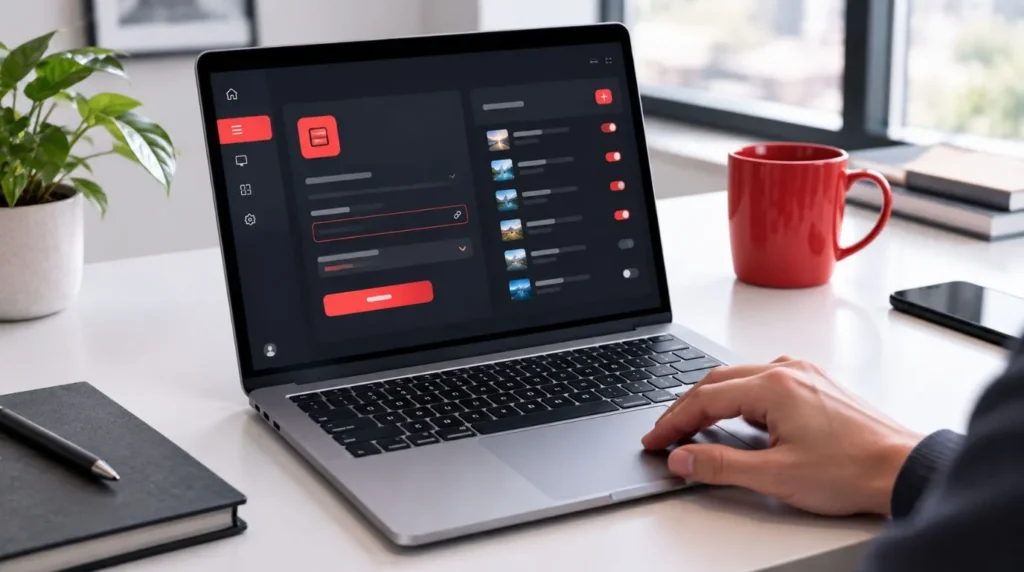
Open your chosen IPTV player and look for an option such as Add Playlist, Add Source, or Add Account.
The exact label depends on the application.
For an M3U playlist:
- Select the option to add a playlist.
- Choose a remote playlist URL or local file.
- Enter the details supplied by your provider.
- Save the playlist.
- Wait for the application to load the available channels.
For an Xtream Codes connection:
- Select the Xtream Codes or account login option.
- Enter the server address.
- Enter the username and password.
- Save the connection.
- Allow the player to retrieve the available content.
Use the format supported by your chosen app. If it does not offer Xtream Codes support, you may need an M3U playlist or a different player.
Step 5: Load Channels and Check the Program Guide
After importing your playlist, open the channel list.
Check whether:
- Channel names appear correctly
- Categories are available
- Channels open when selected
- Program information is displayed
- Favorites and search work as expected
If the program guide is empty, confirm whether your provider supplies EPG data and whether the application requires a separate guide URL.
Some playlists do not include program information, so an empty guide does not necessarily mean that the channel playlist is broken.
Step 6: Test Playback
Choose a channel and allow the stream to load.
If playback works, test a few additional channels to make sure the issue is not limited to one stream.
You can also check whether the application supports full-screen playback, audio selection, or other features you need.
If some channels work and others do not, the problem may be related to the individual stream rather than your Mac or the player itself.
How to Fix Common IPTV Problems on Mac
IPTV playback problems can originate from the application, playlist, network, or content source.
Use the following checks to narrow down the cause.
| Problem | What to Check |
|---|---|
| Playlist will not load | Confirm the URL, credentials, and playlist format. |
| Channels appear but do not play | Test another channel and verify stream compatibility. |
| Playback keeps buffering | Check your network and test another stream. |
| EPG is missing | Verify that guide data is supplied and correctly configured. |
| App will not open | Check macOS compatibility and the download source. |
| Some channels work while others fail | Check whether the affected streams are available and supported. |
IPTV Playlist Not Loading
If your playlist does not load, start by checking the connection details.
Make sure the URL has been copied correctly and that the playlist is still available.
If you use an account-based connection, confirm that the server address, username, and password are correct.
Some providers also restrict access based on account status or connection rules.
If the details are correct but the playlist still fails, try refreshing it or contacting the provider.
Channels Not Playing or Constantly Buffering
Buffering can occur for several reasons, including network congestion, server problems, or an incompatible stream.
Try these steps:
- Test another channel.
- Restart the player.
- Check your internet connection.
- Pause other bandwidth-heavy downloads.
- Try a different supported playback option, if available.
- Contact the provider if the same stream repeatedly fails.
A faster internet connection does not automatically solve every playback issue. The source server and stream format can also affect performance.
Electronic Program Guide Not Appearing
If channels play but the guide is empty, check whether your IPTV service supplies EPG data.
Some applications require you to add an XMLTV guide separately.
Confirm that the guide URL is correct and that the application supports the supplied format.
If the guide loads but channel names do not match, the application may need channel mapping or a compatible playlist.
App Will Not Open or Is Incompatible With macOS
Check the application’s minimum macOS requirement and confirm that your Mac meets it.
If you downloaded an installer from an unofficial source, remove it and obtain the application from its official distribution page.
Avoid running terminal commands that disable macOS security protections unless you fully understand the consequences and have verified the software’s authenticity.
If the app is no longer supported on your Mac, consider a compatible alternative rather than forcing an incompatible installation.
Mac IPTV vs. Apple TV: What Is the Difference?
A Mac and an Apple TV are different platforms, even though both are part of Apple’s ecosystem.
A Mac runs macOS and supports desktop applications. Apple TV runs tvOS and uses applications designed for the television interface.
An IPTV app available for Apple TV is not automatically available for macOS.
Likewise, a Mac IPTV player may not have an Apple TV version.
If you want to watch IPTV on a television, check whether your chosen application supports Apple TV or whether your IPTV provider offers another compatible setup.
For more information about television-based options, see the ViviMate Apple TV IPTV app guide.
Choosing an IPTV Setup That Fits Your Mac
The right IPTV setup depends on how you want to watch television.
If you want an organized channel interface with playlist management and program information, consider a dedicated IPTV application such as IPTVnator.
If you only need to open a supported stream, VLC or another general-purpose media player may be enough.
If you prefer not to install software, check whether your IPTV provider offers a compatible web player.
Before choosing, confirm that the application supports your Mac, your playlist format, and the features you actually need.
You should also verify that your IPTV provider is authorized to distribute the channels and content it offers. IPTV is a delivery method, and the legality of a particular service depends on licensing, authorization, jurisdiction, and how it is used.
If you are comparing software options beyond macOS, explore our Best IPTV Player guide for a broader overview of IPTV player choices.
For users who already have a service, the next step is to check its connection details and confirm that they work with the Mac player you select.