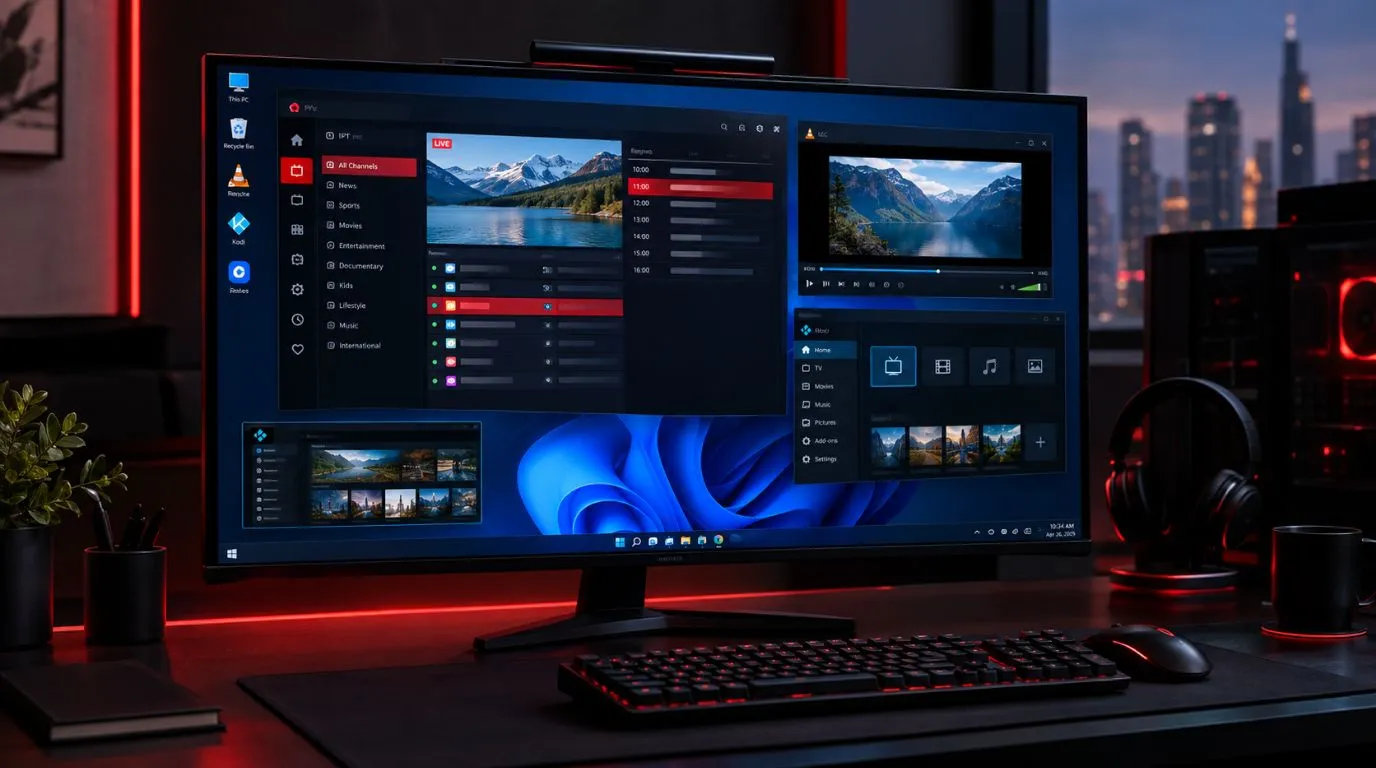
Choosing the best IPTV player for Windows depends on more than simply finding an app that can play a stream. Windows users can choose from dedicated IPTV applications, flexible media players, and full media-center platforms. The right option depends on how you receive your IPTV service, whether you use an M3U playlist or another login method, and which features matter most to you.
Some users want a simple player that loads a playlist and starts streaming. Others need an electronic program guide (EPG), channel categories, favorites, catch-up support, or more advanced playlist management.
This guide compares several practical options for watching IPTV on a Windows PC or laptop and explains what to look for before choosing one.
Table of Contents
The Best IPTV Players for Windows at a Glance
| IPTV Player | Windows Use | Playlist Support | EPG | Best For |
|---|---|---|---|---|
| Kodi | Native Windows app | M3U through IPTV Simple Client | Yes | Advanced users |
| VLC Media Player | Native Windows app | M3U and compatible stream URLs | Limited | Simple playback |
| MyIPTV Player | Windows-focused app | IPTV playlists | Yes | Dedicated IPTV use |
| IPTV Smarters-style players | Depends on the specific app | Often M3U/M3U8 | Depends on app | Users familiar with the Smarters interface |
| Web-based IPTV players | Runs in a browser | Depends on service | Depends on service | Users who prefer no installation |
| Dedicated Windows IPTV apps | Varies by application | Depends on app | Depends on app | Users wanting a purpose-built interface |
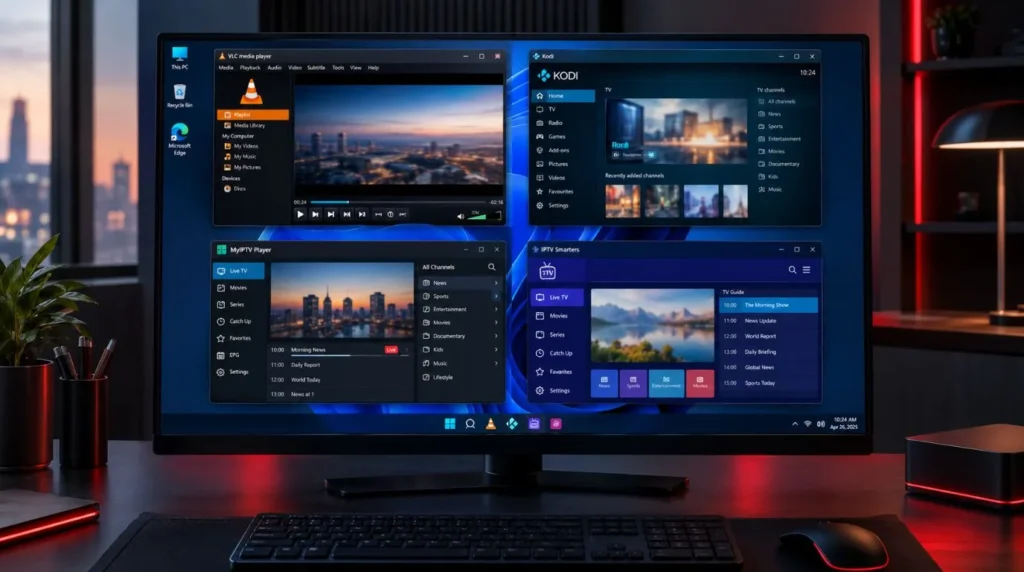
There is no single Windows player that is ideal for every IPTV setup. Compatibility with your playlist and preferred features should come before appearance or popularity.
What to Look for in an IPTV Player for Windows
Before installing an IPTV player, check how your IPTV service delivers its content. The player needs to support the format or login method provided by your service.
Windows Compatibility
The first consideration is whether the player works properly on your version of Windows.
A native Windows application is usually the simplest choice for a desktop or laptop. Some IPTV players are distributed through the Microsoft Store, while others are downloaded directly from the developer.
You may also find IPTV services that work through a web browser. These can be convenient if you do not want to install additional software, but the available features depend heavily on the particular web player.
For a normal Windows PC, check whether the application supports your Windows version before installing it.
M3U Playlist Support
M3U is one of the most common formats used to organize IPTV streams.
An M3U playlist can contain channel names, stream URLs, categories and other metadata. Depending on how the playlist is structured, compatible software can use that information to organize channels.
If your IPTV provider gives you an M3U URL or file, choose a player that explicitly supports M3U playlists.
This is particularly important because an application can be advertised as an IPTV player while supporting a different input method.
Xtream Codes Support
Some IPTV services provide credentials through an Xtream Codes-style login instead of asking you to manually enter an M3U playlist.
Typically, this setup involves information such as:
- Server or portal URL
- Username
- Password
If you specifically want to use Xtream IPTV for PC, verify that the Windows player you choose supports the login format supplied by your provider.
Do not assume that every IPTV application supports every IPTV authentication method.
EPG Support
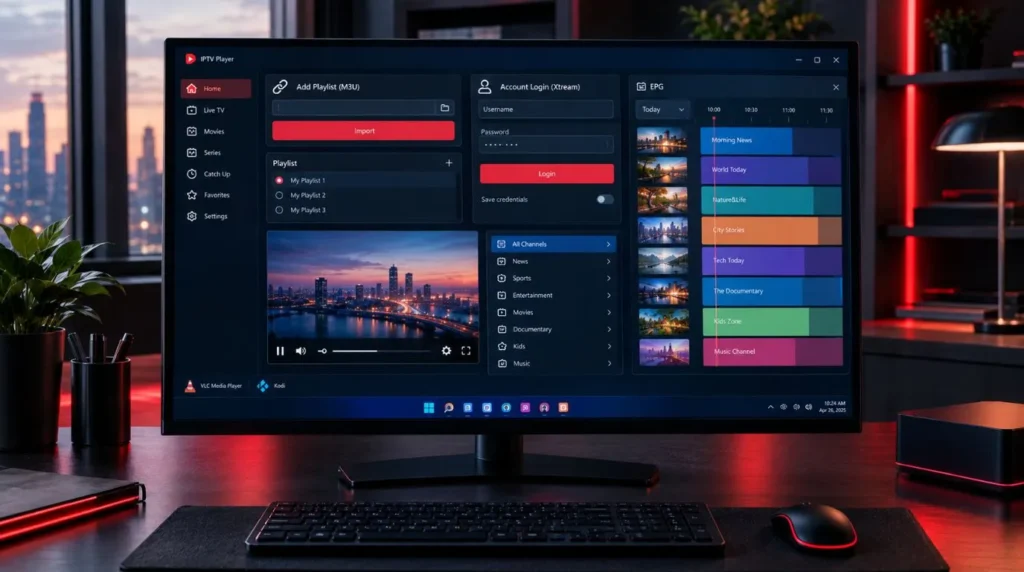
An electronic program guide can make a large IPTV channel list much easier to navigate.
Instead of seeing only channel names, a compatible player may display information about current and upcoming programs.
EPG support is particularly useful if you use IPTV primarily for live television and want an experience closer to a traditional TV guide.
However, EPG availability depends on both the player and the data supplied by the IPTV service.
Channel Organization
A good IPTV player should make a large playlist manageable.
Useful features can include:
- Channel categories
- Favorites
- Search
- Recently watched channels
- Custom groups
- Channel logos
- EPG navigation
- Separate live TV and VOD sections
These features become more important as your playlist grows.
Playback and Performance
The player itself is only one part of streaming performance.
Playback can also depend on:
- Your internet connection
- Wi-Fi quality
- PC hardware
- Video format
- Stream resolution
- Provider infrastructure
- Network congestion
A different player can sometimes resolve a compatibility or playback issue, but changing players cannot fix every buffering problem.
If several players have the same problem with the same stream, the cause may be elsewhere.
1. Kodi
Kodi is a full media-center application rather than a dedicated IPTV-only player. It is available as a native Windows application and can be configured for IPTV through its IPTV Simple Client add-on.
The IPTV Simple Client supports M3U playlists and EPG data, making Kodi a flexible option for users who want more control over their IPTV setup.
Best for: Advanced Windows users
Kodi can be a good choice if you want to build a more customized media-center experience.
Its IPTV functionality can support:
- M3U playlists
- Live TV
- EPG data
- Channel groups
- Channel logos
- Catch-up functionality when supported by the source
- Additional media-center features
The tradeoff is complexity. Kodi gives you considerably more configuration options than a basic IPTV application, but that also means there can be more settings to understand.
If your priority is simply entering IPTV credentials and watching television immediately, Kodi may be more than you need.
If you want customization and already understand IPTV playlists, it becomes a much more interesting option.
2. VLC Media Player
VLC is one of the most familiar media players available for Windows.
It is not specifically designed around IPTV, but its broad media and network-stream capabilities make it useful for users who primarily want straightforward playback.
Best for: Simple stream playback
VLC makes sense when your main requirement is playing compatible IPTV streams or an M3U playlist without building a complete TV interface.
Its biggest advantage is familiarity. Many Windows users already have VLC installed, and its interface is relatively straightforward for basic media playback.
However, VLC is not necessarily the ideal choice for someone who wants a traditional IPTV experience with extensive channel organization, an integrated guide, favorites and provider-specific account management.
Think of VLC as a flexible media player that can handle IPTV-related playback rather than a complete IPTV management platform.
3. MyIPTV Player
MyIPTV Player is a Windows-focused option available through the Microsoft Store.
Its dedicated IPTV design makes it more directly relevant to people who want a traditional IPTV interface rather than a general-purpose media player.
Best for: Users looking for a dedicated Windows IPTV application
A dedicated IPTV player can make playlist management more convenient because the software is built around television streams rather than general media files.
Before choosing it, however, verify that the current version supports the playlist and EPG format supplied by your provider.
This is a good example of why compatibility should come before simply choosing an application based on its name.
4. IPTV Smarters-Style Players
Searches for Smarters IPTV for Windows can be confusing because there are multiple applications and services using similar names.
The important point is to identify the exact application and developer before downloading anything.
Some applications using Smarters-style branding are designed for platforms such as Android or smart TVs rather than Windows. Other Windows solutions may use similar terminology while being separate products.
Best for: Users who prefer a familiar IPTV-style interface
If you specifically want a Smarters-style experience on a Windows computer, verify all of the following before installing:
- Official Windows availability
- Developer identity
- Supported Windows version
- M3U support
- Xtream Codes support, if required
- EPG support
- Whether the application is free or paid
- Whether the download comes from a legitimate source
Avoid downloading an unknown executable simply because its name contains “Smarters,” “IPTV,” or “Pro.”
The name alone does not establish that an application is official or trustworthy.
5. Web-Based IPTV Players
A web-based IPTV player can be useful if you do not want to install desktop software.
Instead of installing an application, you access the player through a browser and enter the information required by the service.
Best for: Users who want minimal installation
The main advantage is convenience.
You can potentially use the player from a Windows computer without installing a dedicated application.
The downside is that browser-based IPTV experiences can vary considerably. Features such as EPG, favorites, VOD organization, playback controls and playlist management depend on the particular platform.
A web player can therefore be convenient, but it is not automatically the best option for a large or complex IPTV setup.
6. Dedicated Windows IPTV Applications
Beyond the better-known names, there are various Windows applications designed specifically for IPTV.
These can offer a more focused experience than VLC while being simpler than Kodi.
Best for: Users who want a straightforward IPTV interface
When comparing dedicated applications, look beyond screenshots and feature lists.
Check whether the application supports the exact format provided by your IPTV service.
For example, if your service gives you an M3U URL, M3U support is essential. If you receive Xtream-style credentials, look for explicit support for that login method.
Also check whether the software receives regular updates and whether you can obtain it from a legitimate source.
Which IPTV Player Is Right for Your Windows PC?
The best player for IPTV on Windows depends largely on your priorities.
If you want the simplest experience
Look for a dedicated IPTV application with a straightforward interface and the input method supported by your provider.
You probably do not need a highly customizable media center if your goal is simply to load a playlist and watch live channels.
If you use an M3U playlist
Choose a player that explicitly supports M3U.
Kodi with IPTV Simple Client is one example of a Windows setup that supports M3U and EPG data. Other dedicated IPTV players may also support M3U, but the exact implementation can differ.
If you use Xtream Codes
Verify Xtream compatibility before installing the application.
Do not assume that an IPTV player supporting M3U will automatically provide a separate Xtream login interface.
If EPG is important
Look for both player-side EPG support and compatible EPG data from your IPTV service.
Having an IPTV player that supports EPG does not guarantee that your particular playlist will contain complete guide information.
If you want advanced customization
Kodi can be worth considering because its IPTV functionality can be configured extensively.
It is better suited to users who are comfortable working with add-ons, playlists and configuration settings.
If you just want to test a stream
A general media player such as VLC can be useful for basic troubleshooting.
For example, if you want to determine whether a particular stream URL can play independently of a more complicated IPTV interface, a simple media player can help isolate the issue.
How to Set Up an IPTV Player on Windows
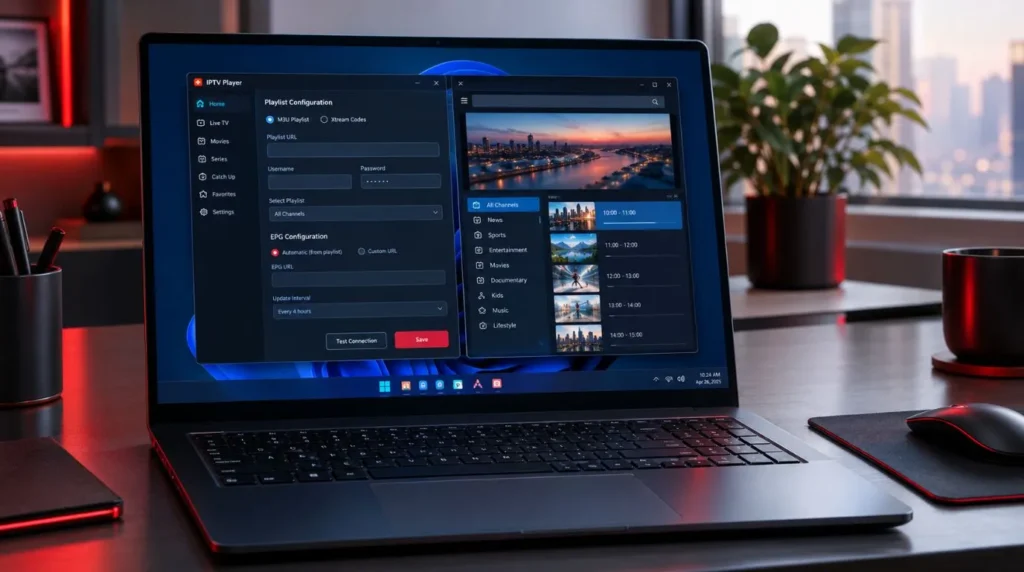
The exact process depends on the application, but the general workflow is straightforward.
Step 1: Choose a compatible player
First determine whether your provider gives you:
- An M3U URL
- An M3U file
- Xtream-style credentials
- Another supported login method
Then select a Windows player that supports that format.
Step 2: Install the player from a legitimate source
Download the software from the developer’s official website, Microsoft Store, or another source you can verify.
Avoid random download sites and modified executables.
Step 3: Add your IPTV source
Open the application’s playlist or account section.
Depending on the software, you may enter an M3U URL, upload a playlist file, or enter account credentials.
Step 4: Configure the guide
If your IPTV service supplies EPG information and the player supports it, configure the guide according to the application’s instructions.
Step 5: Organize your channels
Use categories and favorites where available.
This becomes particularly useful if your playlist contains thousands of channels.
Step 6: Test playback
Open several channels rather than testing only one.
If some channels work while others do not, the issue may be related to the individual streams rather than the Windows player itself.
For more detailed installation guidance, see the IPTV setup guide.
Common Windows IPTV Player Problems
The playlist will not load
Check that:
- The playlist URL is correct
- Your credentials are correct
- The playlist has not expired
- Your internet connection is working
- The player supports the playlist format
If the same playlist works in one compatible application but not another, application compatibility may be the issue.
EPG information is missing
An empty guide does not necessarily mean the player is broken.
The IPTV service must provide compatible EPG information, and the player must be configured to use it correctly.
Check both sides before replacing the application.
IPTV keeps buffering
Buffering can have several causes.
Try checking:
- Internet speed and stability
- Wi-Fi signal
- Other devices using the connection
- The same channel in another compatible player
- Whether multiple channels experience the same problem
If only one or two streams buffer while others play normally, the problem may be specific to those streams.
The player cannot log in
If you were given Xtream-style credentials, confirm that the application supports that authentication method.
If you were given an M3U playlist, make sure you are entering it into the correct playlist field rather than an Xtream login form.
IPTV Player vs IPTV Subscription
An IPTV player and an IPTV subscription are two different things.
The IPTV player is the software you use to load and play your content.
The IPTV service or subscription provides the channels, streams or playlist information.
For example, installing an IPTV player does not automatically give you a legal television channel lineup. You need a legitimate source of content that the player can access.
This distinction is important when comparing IPTV applications. A player should be evaluated based on its software features, compatibility and usability, while the IPTV service should be evaluated separately.
If you are comparing service options, you can review ViviMate’s IPTV subscription options separately from your choice of player.
What Makes a Good Windows IPTV Player?
For most users, the most important characteristics are not flashy interfaces or long feature lists.
A practical Windows IPTV player should match your particular setup.
| Your Priority | What to Look For |
|---|---|
| Easy setup | Simple playlist or login process |
| M3U | Explicit M3U/M3U8 support |
| Xtream | Dedicated Xtream-style login support |
| EPG | Compatible EPG functionality |
| Large playlists | Search, groups and favorites |
| Advanced setup | More configuration options |
| Basic playback | Lightweight media player |
| Media center | IPTV integration with broader media features |
The right choice can therefore be different for two users with the same Windows computer.
Someone who only needs basic playback may prefer a lightweight application. Another user with a large playlist and EPG may prefer a more structured IPTV interface. An advanced user may choose Kodi because of its broader customization options.
Final Thoughts on the Best IPTV Player for Windows
The best IPTV player for Windows is ultimately the one that supports your IPTV source and gives you the features you actually need.
For straightforward playback, a general media player can be enough. For a dedicated IPTV experience, a Windows-focused application may be more convenient. Users who want extensive customization can consider a media center such as Kodi with its IPTV functionality.
Before installing anything, check three things first: Windows compatibility, playlist or login compatibility, and the features you actually need.
If you are still comparing IPTV players across different platforms, explore ViviMate’s complete Best IPTV Player guide for a broader overview. If you already know which player you want to use, the next step is to make sure your IPTV service and playlist are compatible with it.