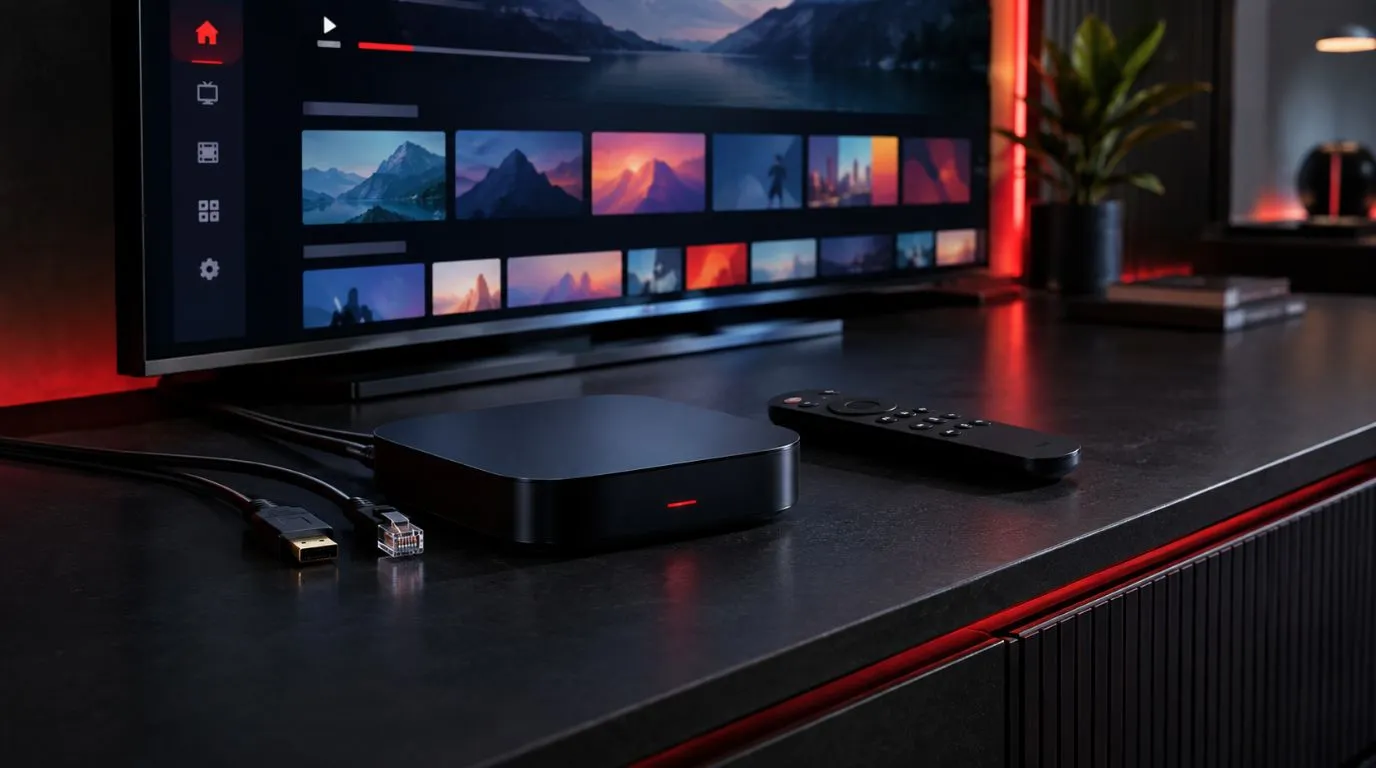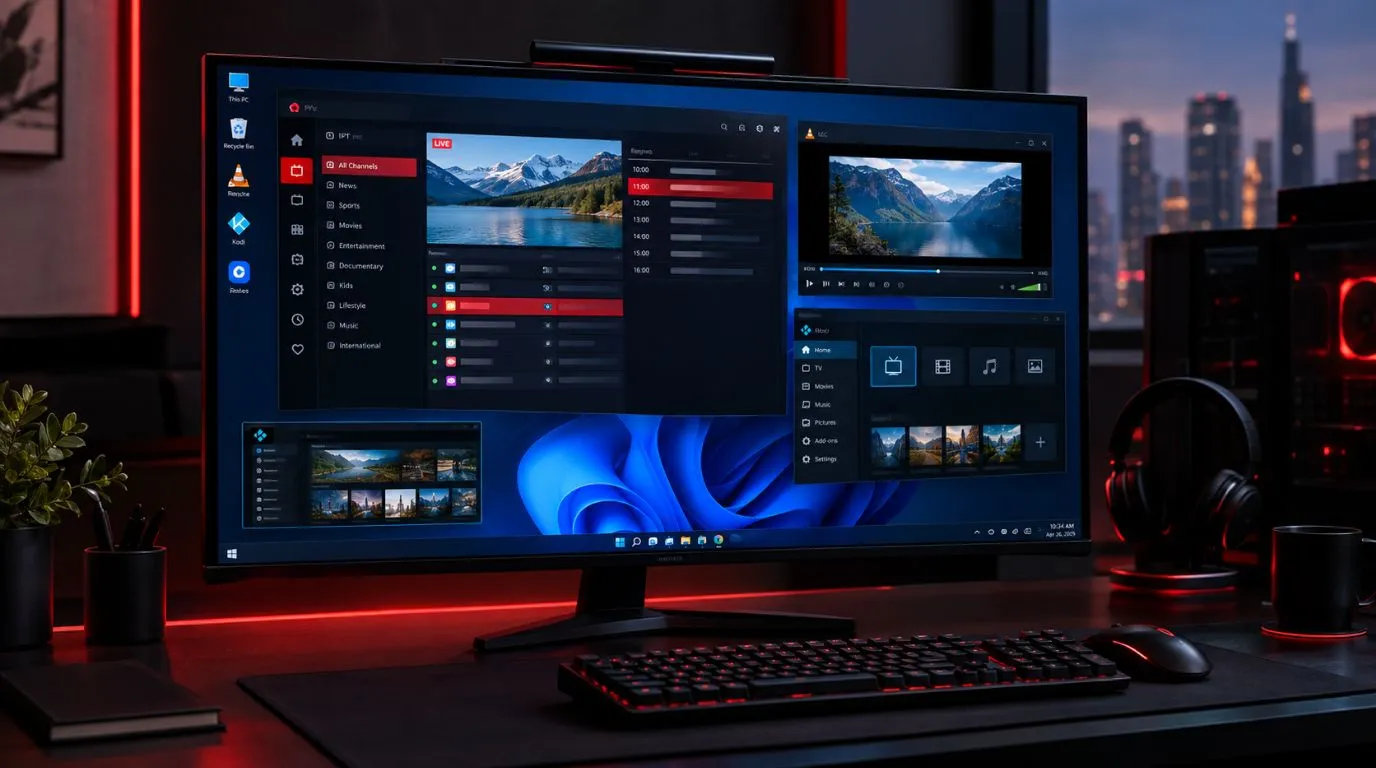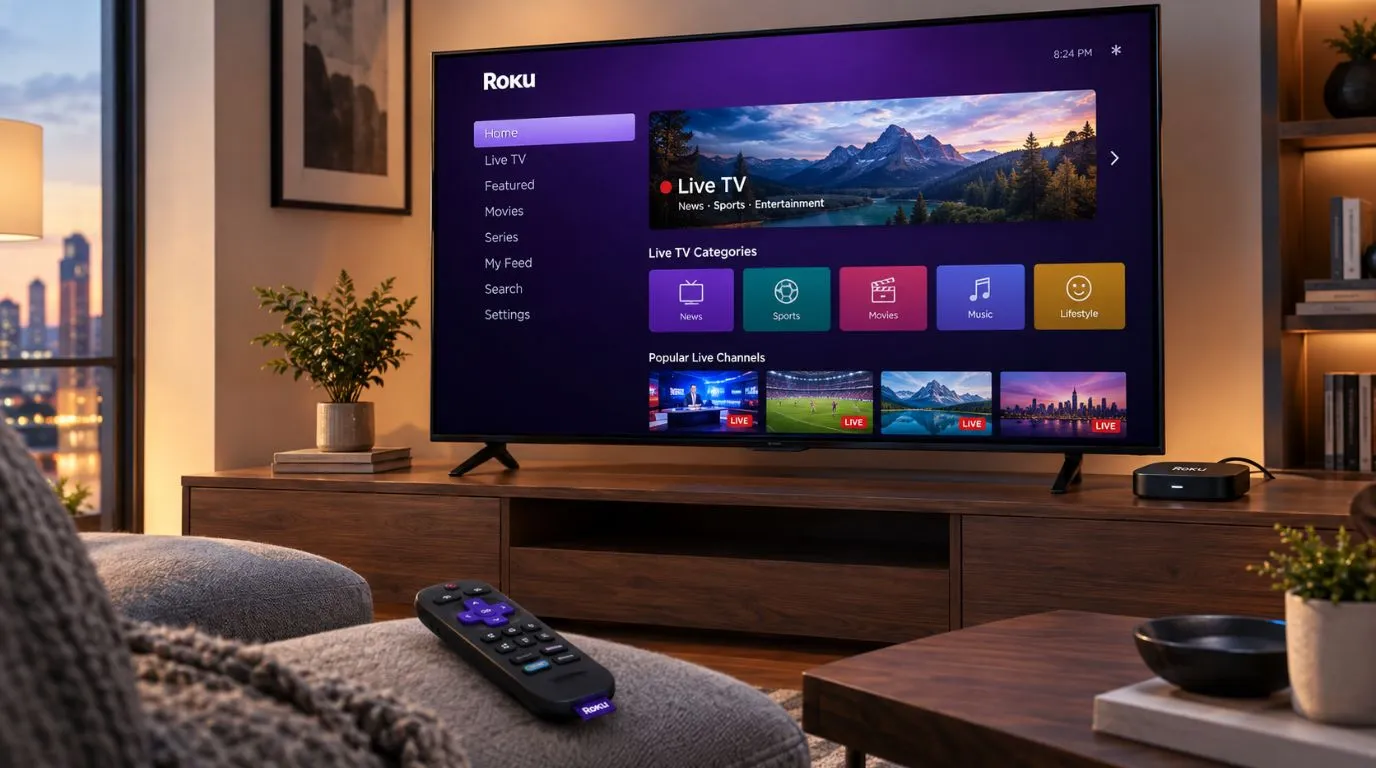
If you are searching for IPTV for Roku, you probably already have a Roku TV or Roku streaming device and want to know how to watch IPTV on it. The challenge is that Roku works differently from Android TV, Google TV, and Fire TV, so an IPTV setup that works on one platform may not work the same way on Roku.
The good news is that there are several ways to approach IPTV on Roku, depending on your device, available apps, and the type of IPTV service you use.
This guide explains how IPTV works with Roku, the main setup options, what to check when choosing a service, and what to do if you run into compatibility or playback problems.
Table of Contents
Can You Use IPTV on Roku?
Yes, but the setup is different from many other streaming platforms.
Roku has its own operating system and app ecosystem. This means you cannot assume that every IPTV player available for Android TV, Google TV, or Fire TV will also be available directly through Roku.
For Roku users, the most important question is not simply whether an IPTV service works with Roku. You also need to consider how the IPTV service will be accessed on your particular Roku setup.
Depending on your situation, you may be able to use:
- A Roku-compatible IPTV application or service
- Screen mirroring or casting from another supported device
- An external streaming device connected to your Roku TV
- Another supported playback method provided by your IPTV service
Before subscribing, it is worth confirming the exact compatibility requirements instead of assuming that an IPTV player designed for another platform will work on Roku.
How IPTV on Roku Works
A typical IPTV setup involves three main components:
IPTV service → playlist or login information → compatible player or playback method
Your IPTV provider may give you information such as an M3U playlist URL, Xtream Codes-style login details, an account username and password, or another form of access.
The player or playback method then uses those details to load available live TV channels and, depending on the service, additional content such as an electronic program guide (EPG) or video-on-demand library.
With Roku, the key difference is the middle part of this process: you need a playback option that is compatible with the Roku environment or use another supported device to handle playback.
What You Need Before Starting
Before setting up IPTV on Roku, have the following ready:
- A Roku TV or Roku streaming device
- A reliable internet connection
- An active IPTV subscription, if required
- Your IPTV login or playlist information
- Information about which devices and players your provider supports
- A compatible Roku setup or alternative playback method
If your provider supplies an M3U URL or other credentials, keep them private. They can provide access to your IPTV account.
Ways to Set Up IPTV on Roku
There is no single setup method that applies to every Roku user. Your best option depends on the Roku hardware you own and the IPTV player or service you intend to use.
1. Use a Roku-Compatible IPTV App
If a suitable IPTV application is available for your Roku setup, this can be the most straightforward approach.
The general process is:
- Open the Roku interface.
- Search for the supported application.
- Install the application if it is available for your device.
- Open the player.
- Enter the IPTV credentials or playlist information requested by the application.
- Save the configuration.
- Load the available channels and guide data.
The exact steps depend on the application.
Do not follow an Android or Fire TV tutorial blindly. The menus, applications, and supported authentication methods can be different on Roku.
If you are comparing IPTV players for different platforms, our Best IPTV Player guide provides broader information about choosing a player based on device compatibility and features.
2. Use Screen Mirroring or Casting
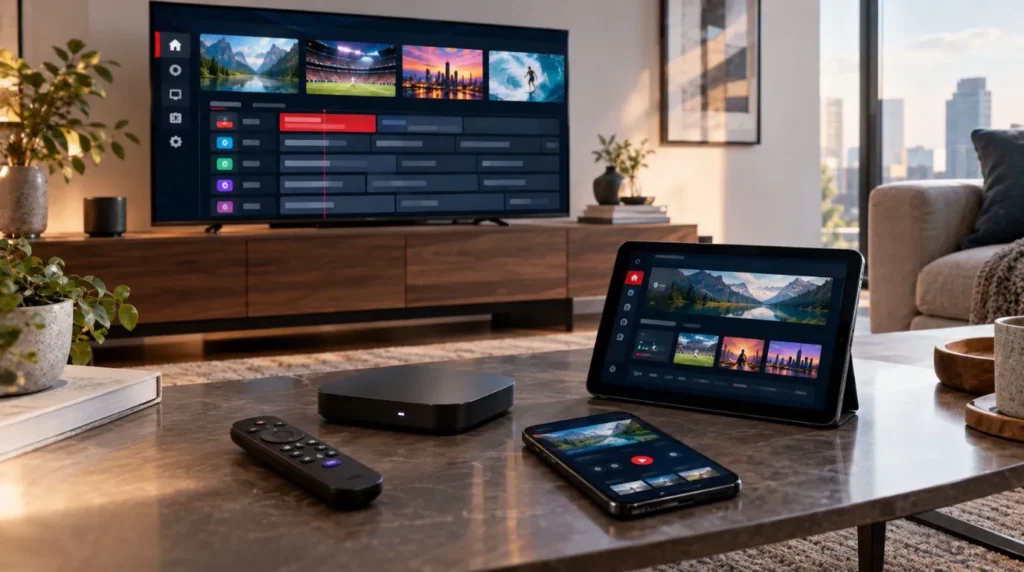
Another option is to play IPTV from a compatible phone, tablet, or computer and mirror the content to a Roku device when the required features are supported.
This approach can be useful when the IPTV player you prefer is not available directly on Roku.
The general concept is:
IPTV player on another device → compatible mirroring/casting feature → Roku TV
However, compatibility can vary between devices and operating systems. Some applications may also restrict screen sharing or handle video playback differently.
For that reason, test the method with your particular phone, tablet, computer, and Roku model before relying on it as your primary setup.
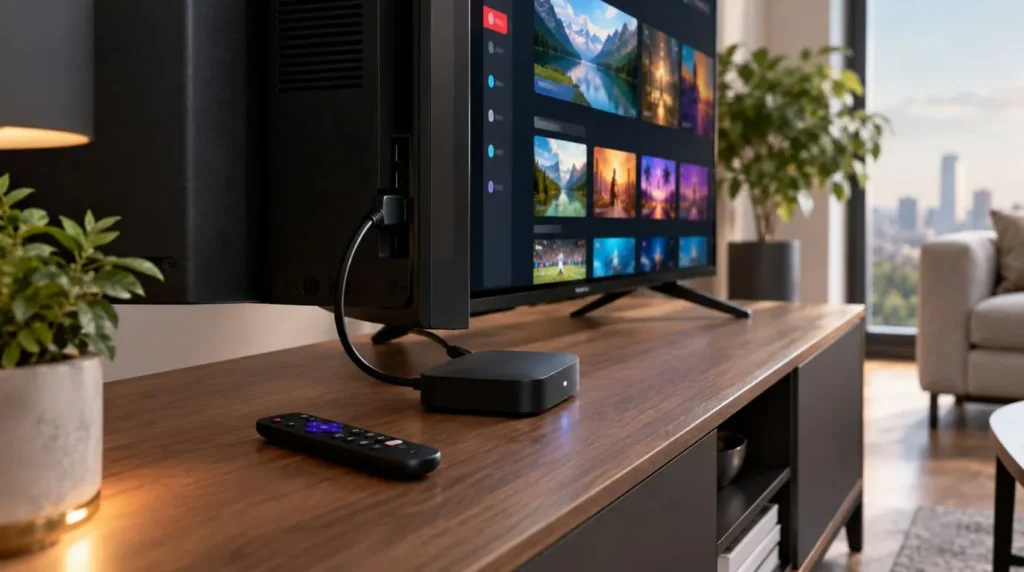
3. Use an External Streaming Device
If you already own a Roku TV but want access to IPTV players designed for another platform, an external streaming device can be another option.
The important distinction is that the Roku TV remains your display, while the external device handles the IPTV application.
For example:
External streaming device → HDMI → Roku TV
In this arrangement, you are not actually running the IPTV player inside the Roku operating system. The external device is responsible for running the compatible IPTV application.
This can be useful for users who want a wider selection of IPTV player applications or more flexibility when managing playlists and EPG data.
Choosing an IPTV Player for Roku
If you are looking for the best IPTV for Roku, start with compatibility rather than simply choosing an application with the longest feature list.
A good IPTV setup should match your device, subscription format, and preferred viewing experience.
Consider these factors before choosing a player or playback method:
| Feature | Why It Matters |
|---|---|
| Roku compatibility | Determines whether the player can be used directly with your setup |
| Playlist support | Important if your provider supplies an M3U playlist |
| Login support | Useful when your provider uses username/password authentication |
| EPG support | Helps organize live programming information |
| Live TV navigation | Makes switching between channels easier |
| VOD support | Useful if your service includes on-demand content |
| Remote control usability | Important for everyday TV viewing |
| Stability | Reduces unnecessary playback interruptions |
| Updates | Can improve compatibility and fix application problems |
| Customer support | Useful when setup or account issues occur |
The right choice depends on how you intend to use IPTV rather than on a single universal list of features.
Roku vs. Other IPTV Streaming Platforms
One reason Roku users often have more questions about IPTV is that different streaming platforms have different app ecosystems.
| Consideration | Roku | Fire TV | Android TV |
|---|---|---|---|
| IPTV player availability | Depends on supported Roku options | Generally broad | Generally broad |
| App flexibility | Platform-dependent | High | High |
| External-device option | Yes | Yes | Yes |
| IPTV setup experience | Depends on method | Often player-based | Often player-based |
This does not mean that one platform is automatically better for every viewer.
If you already own a Roku TV and only need a suitable way to access your IPTV service, changing your entire television setup may not be necessary. If you specifically want a large selection of third-party IPTV players, however, comparing the available platforms before buying additional hardware can save you time and money.
What to Check Before Choosing IPTV for Roku
Compatibility should be checked before purchasing an IPTV subscription.
Ask these questions first:
Does the service support Roku?
Do not rely only on the phrase “works on all devices.” Ask which Roku models, applications, or playback methods are actually supported.
What login method does the service use?
Find out whether you receive:
- An M3U playlist
- Username and password credentials
- A portal URL
- Another supported login method
Your preferred player needs to support the format provided by your service.
Is EPG information available?
If you rely on TV schedules, check whether the service provides EPG data and whether your chosen player can use it.
An IPTV service may provide channels without automatically providing a fully configured program guide.
Is there a trial?
If compatibility is uncertain, a trial can be useful before committing to a longer subscription.
This lets you test the actual combination of:
IPTV service + Roku setup + player/playback method + internet connection
rather than assuming compatibility from a device list.
You can also review the ViviMate IPTV free trial if you want to test the service before choosing a longer subscription.
Does customer support understand your setup?
If you need help configuring IPTV, support is more useful when you can tell them exactly what you are using.
Include details such as:
- Roku TV or Roku device
- Roku model where relevant
- IPTV player or playback method
- Type of login information
- Internet connection type
- The specific error or playback problem
Common IPTV Problems on Roku
Even when your IPTV service is working correctly, problems can occur during setup or playback.
The IPTV App Is Not Available
If you cannot find a particular IPTV player in the Roku ecosystem, it may simply not support Roku.
Do not assume that an application available on Android TV or Fire TV must also be available on Roku.
In this situation, check whether the IPTV provider supports another Roku-compatible method or whether an external streaming device is a better solution.
Your Playlist or Login Does Not Work
If your player opens but does not load your IPTV content, check the credentials carefully.
Verify:
- Username
- Password
- Playlist URL
- Server or portal address
- Account expiration
- Internet connection
Avoid manually changing URLs or login details unless you know exactly what needs to be changed.
If the credentials are correct but the account still fails to load, contact your IPTV provider.
Channels Buffer or Stop Playing
Buffering does not automatically mean the IPTV service itself is the problem.
Possible causes include:
- Weak Wi-Fi
- Network congestion
- Slow or unstable internet
- Router problems
- Device limitations
- High traffic on the IPTV provider’s side
- Problems with a particular stream
Try another channel first. If only one or a small number of channels have problems, the issue may be specific to those streams rather than your entire setup.
For broader installation and connection guidance, see the IPTV Setup guide.
EPG Information Is Missing
If channels load but the program guide is empty, check whether your IPTV service actually provides EPG data and whether your player is configured to use it.
EPG availability can depend on both the IPTV provider and the player.
A missing guide does not necessarily mean that the live TV streams themselves are unavailable.
Is Roku a Good Choice for IPTV?
That depends on what you already own and what you expect from your IPTV setup.
Roku can make sense if you:
- Already own a Roku TV.
- Prefer the Roku interface.
- Have access to a compatible IPTV playback method.
- Want to keep your existing television setup.
- Do not require a specific IPTV player that is unavailable on Roku.
Another streaming platform may make more sense if you:
- Want access to a broader range of IPTV players.
- Need a particular IPTV application that does not support Roku.
- Want more flexibility with playlist and player configuration.
- Are buying a new streaming device specifically for IPTV.
The important point is to choose the player and device combination together. Buying an IPTV subscription first and checking compatibility afterward can create unnecessary setup problems.
How to Get the Most From IPTV on Roku
Once your setup is working, a few basic practices can make everyday viewing easier.
Keep your Roku software and supported applications updated. Use a stable internet connection, particularly when watching high-resolution streams. If possible, place your router where your streaming device receives a strong signal.
It is also useful to keep your IPTV login information somewhere secure. If you need to reinstall an application or change devices, having the original account information available makes the process easier.
If you regularly watch live TV, make sure your player is configured for the features you actually use, such as favorites, EPG data, categories, or parental controls where available.
For channel-specific information, you can also explore the ViviMate IPTV channels guide.
IPTV for Roku: What to Know Before You Start
Using IPTV for Roku is possible, but the setup depends heavily on the Roku environment and the playback method you choose.
The most important steps are:
- Confirm how your IPTV provider supports Roku.
- Check whether your preferred IPTV player is compatible.
- Verify the login or playlist format supplied by the provider.
- Test the connection before committing to a long subscription.
- Consider an alternative playback device if Roku does not support the player you want.
- Troubleshoot the network, credentials, player, and individual streams separately when problems occur.
Roku can remain a practical part of your home entertainment setup, particularly if you already own a Roku TV. The key is matching your IPTV service with a compatible player or playback method instead of assuming that every IPTV application works across every streaming platform.