IPTV buffering can turn a smooth streaming session into a constant cycle of pauses, loading screens, and frozen video. If your IPTV keeps stopping while other online activities work normally, the cause may be your Wi-Fi connection, streaming device, IPTV player, network congestion, or the particular stream you’re watching.
The good news is that you can usually narrow down the problem without changing everything at once.
This IPTV buffering fix guide walks through the most useful troubleshooting steps, starting with quick solutions and moving toward more specific checks.
Table of Contents
Why Is My IPTV Buffering or Freezing?
Buffering happens when the player cannot receive and process the stream quickly enough to maintain continuous playback. The underlying cause isn’t always the same.
Common possibilities include:
- An unstable Wi-Fi connection
- Network congestion in your home
- Weak wireless signal
- Router or connection problems
- Too many apps running on the device
- An outdated IPTV player
- Device storage or performance issues
- Incorrect player settings
- Problems affecting a particular stream or channel
- Temporary service-side issues
The first step is figuring out where the problem occurs.
If every channel buffers on every device, your network or the service itself deserves attention. If only one device has the problem, focus on that device and its IPTV player. If only one or two channels freeze, the issue may be specific to those streams.
Quick IPTV Buffering Fixes to Try First
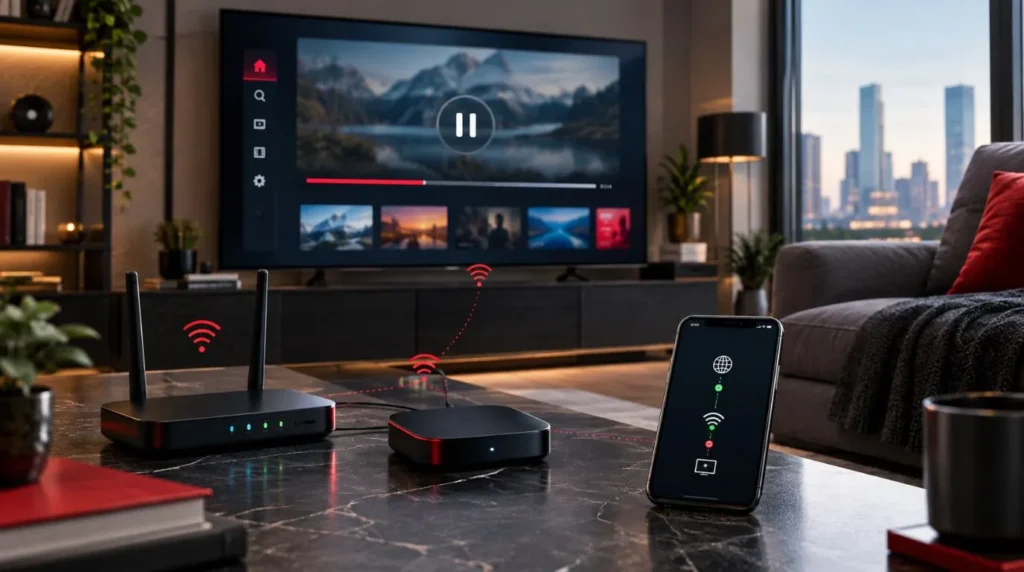
Before changing advanced settings, work through these basic checks.
1. Restart Your Streaming Device
Restart the device you’re using for IPTV.
A reboot can clear temporary software problems, background processes, and memory issues that may interfere with playback.
After restarting, open your IPTV player and test the same channel again.
If the problem disappears temporarily and then returns, the device or application may need further investigation.
2. Restart Your Router
Turn off your router, wait briefly, and restart it.
This can resolve temporary connection problems and is particularly useful when other devices in your home are also experiencing inconsistent internet performance.
Once the connection is back, test IPTV again before changing any player settings.
3. Test Your Internet Connection
Don’t look only at your advertised download speed. Streaming also depends on connection stability.
Check whether:
- Websites load normally
- Video calls are stable
- Other streaming services play without interruption
- Multiple devices are using the connection
- Your connection becomes unstable at certain times
If Netflix, YouTube, or other streaming services are also buffering on the same device, the problem is more likely related to your network or internet connection than to the IPTV player itself.
4. Try Ethernet Instead of Wi-Fi
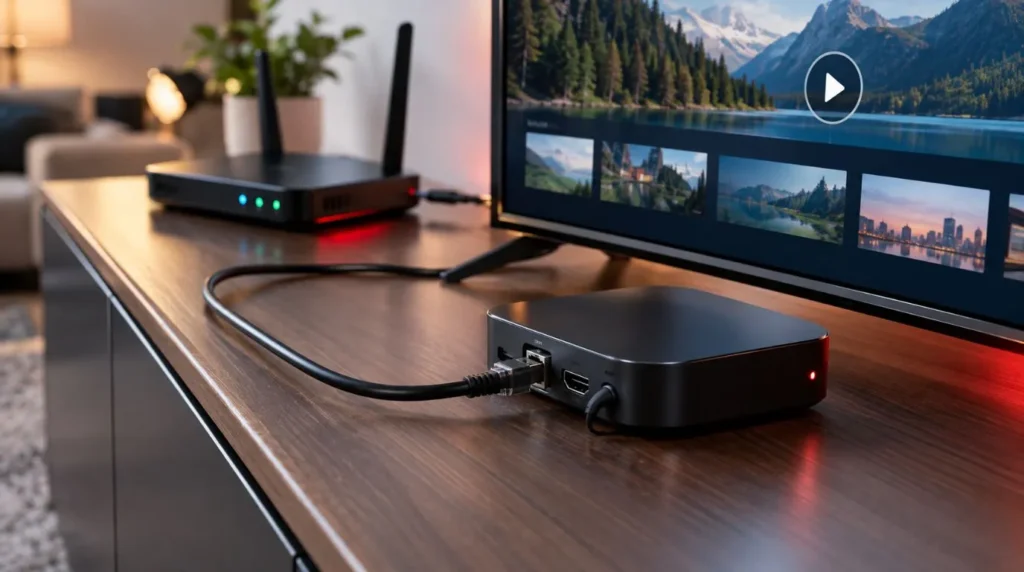
If your streaming device supports Ethernet, connecting it directly to your router can be a useful diagnostic test.
Wi-Fi performance can be affected by:
- Distance from the router
- Walls and floors
- Wireless interference
- Other connected devices
- Router placement
If IPTV becomes significantly more stable over Ethernet, your wireless connection is worth investigating.
5. Stop Other High-Bandwidth Activities
Large downloads, cloud backups, game updates, and multiple simultaneous streams can compete for available bandwidth.
Temporarily pause these activities and test IPTV again.
This is especially useful if buffering occurs when several people in the household are using the internet at the same time.
11 IPTV Buffering Fixes for Persistent Problems
If the quick fixes didn’t solve the issue, move through these troubleshooting steps one at a time.
1. Check Whether Every Channel Buffers
This is one of the most important diagnostic tests.
Open several different channels.
If every channel buffers, investigate your connection, device, player, and overall setup.
If only one or two channels buffer while others play normally, don’t immediately assume your internet connection is the problem. The issue may be limited to those particular streams.
2. Test IPTV on Another Device
If possible, sign in using another compatible device and test the same content.
For example, if IPTV freezes on your Smart TV, test it on another supported streaming device.
The result can help isolate the problem:
| Test result | What it suggests |
|---|---|
| Both devices buffer | Check network or stream |
| Only one device buffers | Check that device or player |
| Same channel buffers everywhere | Could be stream-specific |
| Different channels work normally | Problem may be limited to certain streams |
This simple test can prevent you from changing settings that aren’t actually responsible for the problem.
3. Check Your Wi-Fi Signal
A device can show that it is connected to Wi-Fi while still having an unstable wireless connection.
If your streaming device is far from the router, try moving it closer temporarily.
Also consider whether the router is surrounded by objects or positioned in a location that makes wireless coverage difficult.
If moving closer improves playback, your Wi-Fi environment may be contributing to the IPTV buffering.
4. Close Unnecessary Apps
Streaming devices with limited resources can struggle when several applications or processes are running simultaneously.
Close apps you aren’t using and restart the device before testing IPTV again.
This is particularly worth checking if the device feels generally slow, menus take a long time to respond, or other applications are also behaving poorly.
5. Check Available Storage
Very low storage can contribute to general device performance problems.
Check your device’s available storage and remove applications or files you no longer need if space is almost full.
You don’t need to install random “speed booster” or cleaning applications. Start with the device’s own storage management tools.
6. Update Your IPTV Player
Check whether your IPTV application has an available update.
Older versions can sometimes contain bugs or compatibility problems that have been addressed in newer releases.
If the application is already up to date, avoid repeatedly reinstalling it without first identifying whether the app is actually responsible for the problem.
7. Clear the App Cache When Supported
Some Android-based devices allow you to clear an application’s cache from the system settings.
A cached file can occasionally become corrupted or cause unexpected application behavior.
The exact menu varies by device, but it is generally found under the application’s settings or storage information.
Be careful not to confuse clearing cache with clearing app data. Clearing app data may remove saved settings or account information and could require you to configure the application again.
8. Check the IPTV Player Settings
Some IPTV players provide playback-related settings that can affect compatibility or performance.
If you’ve recently changed player settings, consider returning them to their previous configuration.
Don’t change multiple advanced options simultaneously. If you do, it becomes difficult to determine which change helped or caused another problem.
If you’re still configuring your device rather than troubleshooting an existing installation, use the ViviMate IPTV setup guide for broader installation instructions.
9. Test Different Channels and Content Types
Try several channels from different categories.
For example:
- A live TV channel
- Another live channel
- A movie or VOD title
- A different category
Pay attention to whether the problem follows a particular stream.
If most content plays normally but one specific channel repeatedly freezes, changing your router or device may not solve that particular issue.
10. Test at a Different Time
If IPTV works well during some parts of the day but becomes unstable during others, record when the problem occurs.
For example, you might notice:
- Smooth playback in the afternoon
- Buffering during the evening
- Normal playback again later at night
Timing alone doesn’t prove what is causing the problem, but it provides useful information when troubleshooting network congestion or service-side conditions.
11. Recheck Your IPTV Configuration
If the buffering began immediately after changing your IPTV application, device, playlist, or configuration, review what changed.
A configuration problem may produce playback issues even when your internet connection appears normal.
For broader setup instructions, see the complete IPTV setup instructions rather than repeating the entire installation process here.
IPTV Freezing Every 10 Seconds? Start With These Checks
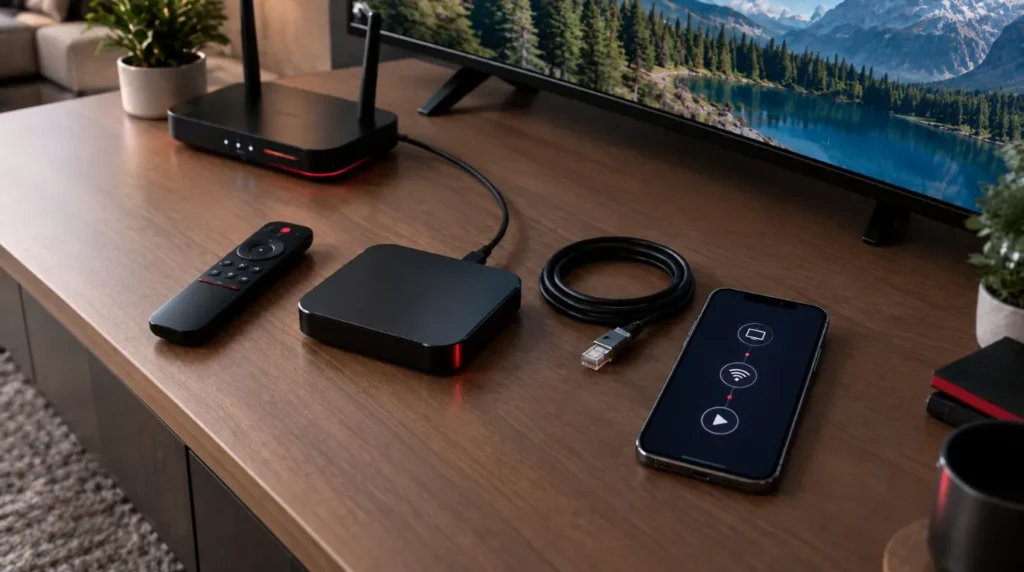
IPTV freezing every 10 seconds is more useful as a symptom than as a diagnosis. A repeating freeze does not necessarily have one universal cause.
Start by answering these questions:
Does It Happen on Every Channel?
Try several unrelated channels.
If only one channel repeatedly freezes at the same interval, compare it with other channels before changing your entire setup.
Does It Happen on Another Device?
Test the same content on another compatible device if available.
If the second device plays normally, focus on the original device, IPTV player, network connection to that device, or its configuration.
Does It Happen Over Ethernet?
If you’re currently using Wi-Fi, temporarily test a wired connection.
A stable wired connection can help determine whether wireless connectivity is contributing to the problem.
Do Other Streaming Services Have the Same Problem?
Try another streaming service on the same device.
If everything experiences interruptions, investigate the device or internet connection first.
If other services work normally while IPTV continues to freeze, focus your troubleshooting on the IPTV application, configuration, or stream.
IPTV Buffering vs. IPTV Not Working
Buffering and a complete service failure aren’t necessarily the same problem.
IPTV buffering:
The stream starts playing but repeatedly pauses while additional data loads.
IPTV freezing:
The picture or playback stops unexpectedly and may remain stuck until playback resumes or is restarted.
IPTV not working:
Channels or content may fail to load altogether, or the IPTV application may fail to connect or display content.
This distinction matters because the appropriate troubleshooting path can be different.
If your problem is an authorization error rather than playback interruptions, for example, a buffering guide isn’t the right place to troubleshoot it.
How to Identify the Source of IPTV Buffering
Use this quick diagnostic table before making major changes:
| What you’re seeing | Check first |
|---|---|
| Every channel buffers | Internet and network stability |
| Only one device buffers | Device and IPTV player |
| Only certain channels buffer | Specific stream or channel |
| IPTV and other streaming services buffer | Internet/network |
| Only IPTV buffers | IPTV player, configuration, or stream |
| Buffering started after an app change | Player settings or app |
| Buffering improves near the router | Wi-Fi signal |
| Ethernet works better than Wi-Fi | Wireless connection |
| Device is slow everywhere | Device resources/performance |
| Problem occurs at particular times | Network or service conditions |
The goal isn’t to change everything. It’s to isolate the variable that’s actually causing the problem.
When the Problem May Not Be on Your Side
Sometimes an IPTV buffering problem cannot be fixed by changing your TV, router, or player.
For example, if:
- Multiple devices experience the same issue
- Your internet connection is stable
- Other streaming services work normally
- The same channels consistently have problems
- Restarting your devices doesn’t change anything
then the problem may be outside the local device.
A useful troubleshooting process should recognize this possibility instead of recommending endless changes to your equipment.
When to Contact Your IPTV Provider
If you’ve gone through the basic troubleshooting steps and the problem continues, contact your provider with useful diagnostic information.
Include:
- The device you’re using
- The IPTV player or app
- Whether you’re using Wi-Fi or Ethernet
- Which channels are affected
- Whether all channels or only some channels buffer
- When the problem occurs
- Whether another device has the same issue
- Whether other streaming services work normally
Instead of simply saying “IPTV is not working,” provide these details. They can make it much easier for support to determine whether the problem is related to your setup or the content source.
How to Stop IPTV Buffering From Becoming a Recurring Problem
Once playback is stable, a few simple habits can help you identify future problems faster.
Keep your streaming device and IPTV player updated, avoid unnecessarily overloaded Wi-Fi connections, and pay attention to whether problems affect all channels or only specific content.
Most importantly, don’t immediately change several settings at once.
If buffering returns, repeat the same diagnostic process:
Check the channel → check another channel → check the device → check the network → compare with another device.
That approach gives you much more useful information than repeatedly restarting everything without knowing what changed.
If you are still working on the initial installation or want to review device-specific configuration, visit the ViviMate IPTV setup guide.