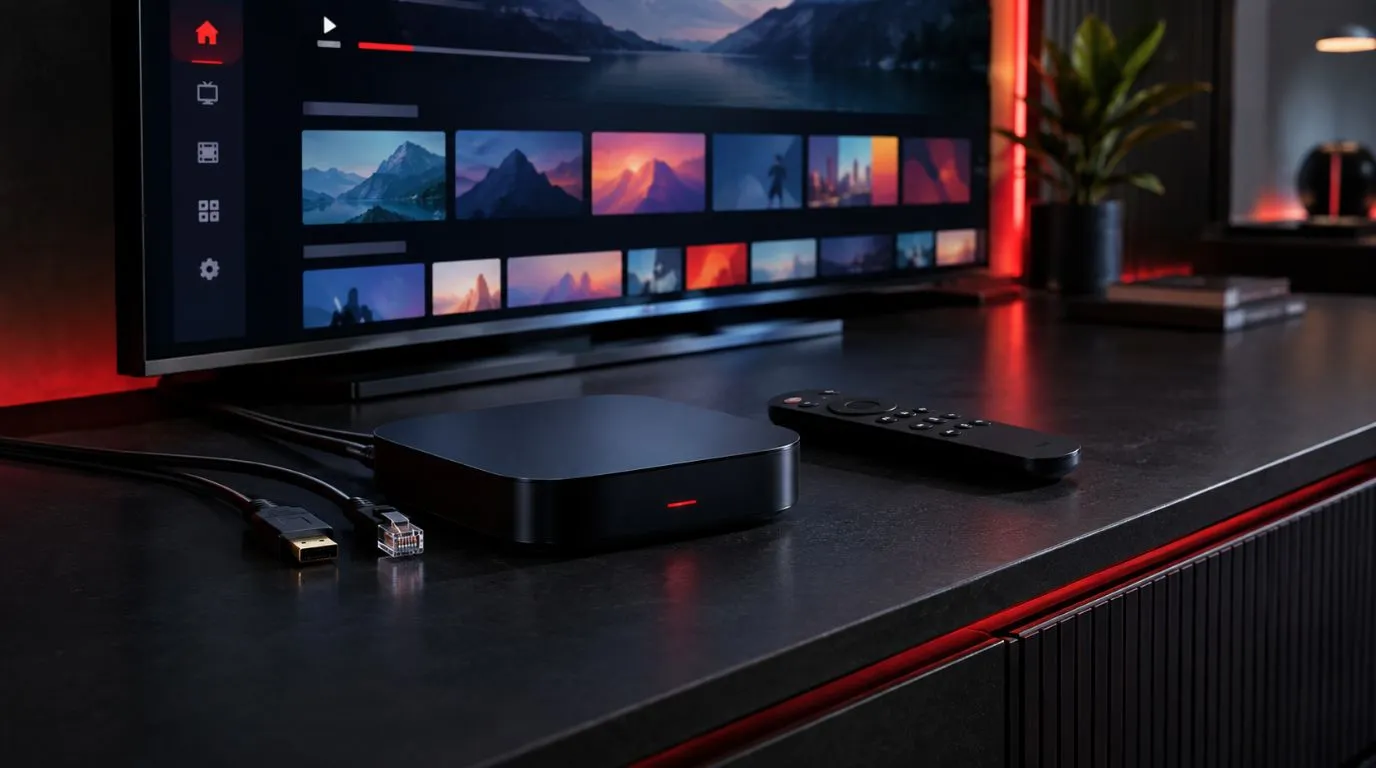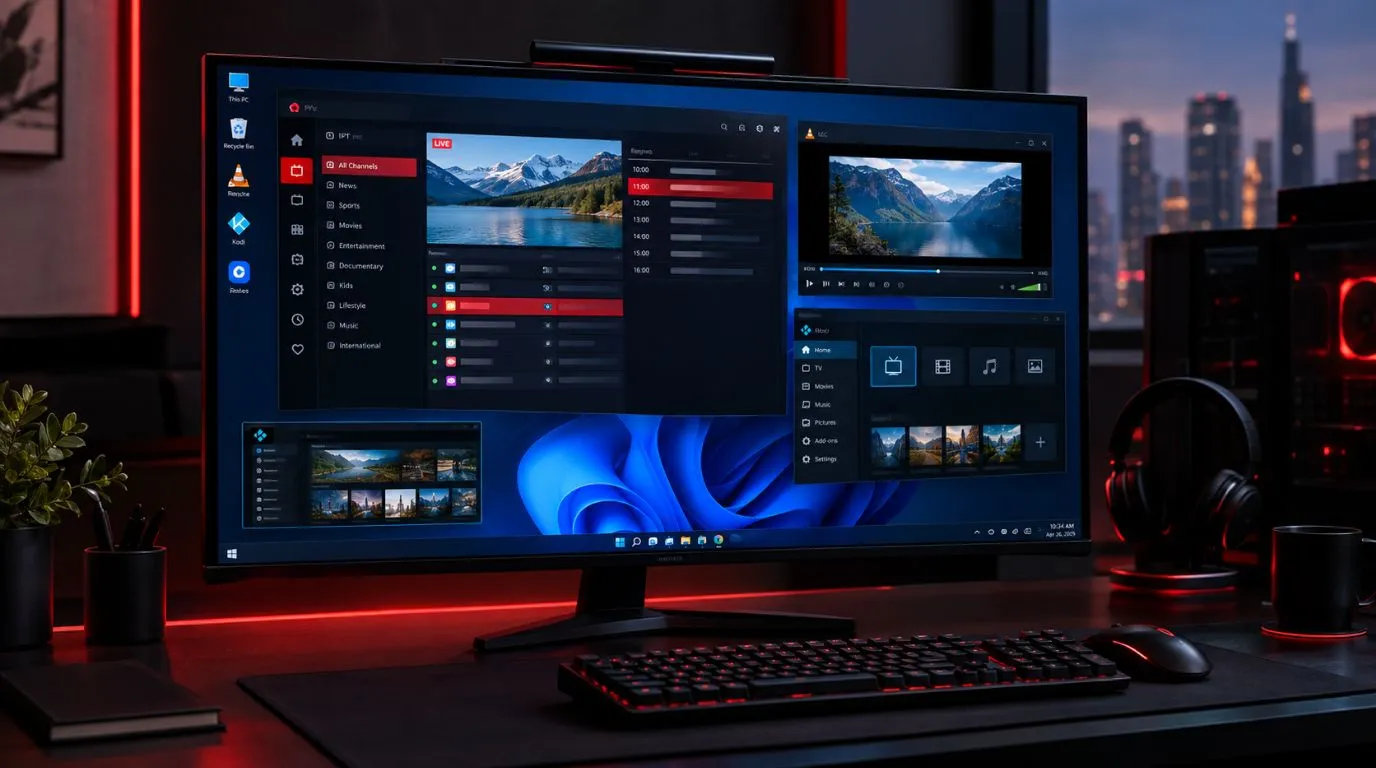
Setting up IPTV is usually straightforward once you have the right app and the correct service credentials. The exact screens vary depending on your TV, streaming device, phone, computer, or IPTV player, but the basic process is similar: install a compatible player, add your IPTV details, load the channel list, and check that everything works correctly.
This guide walks through a generic IPTV setup without tying the instructions to one specific device or application. If you are using a particular platform, the same basic process can then be adapted to its setup method.
Table of Contents
What You Need Before Setting Up IPTV
Before you start, have these three things ready:
- A reliable internet connection
- A compatible IPTV player or application
- Your IPTV service login information
Your provider may give you your service details in one of several formats.
| Information | What it is used for |
|---|---|
| Username | Identifies your IPTV account |
| Password | Authenticates your account |
| Server URL | Connects the player to the IPTV service |
| M3U playlist URL | Loads your channel playlist |
| Xtream Codes details | Another common method for loading a service |
| EPG URL | Provides TV guide information when supported |
You do not necessarily need every item listed above. The information you receive depends on how your IPTV service is configured.
Keep your credentials private and enter them exactly as provided. A small typo in the server address, username, or password can prevent the playlist from loading.
Step 1: Choose an IPTV Player
An IPTV subscription and an IPTV player are two different things.
The IPTV service provides the content and connection details. The IPTV player is the application that uses those details to display channels and other available content.
There are many IPTV players available, and their interfaces differ. Some are designed primarily for Smart TVs, while others work across Android devices, streaming devices, computers, tablets, or phones.
If you are still deciding which type of application to use, see the ViviMate IPTV player guide for more information about choosing a suitable player.
When choosing an application, consider:
- Whether it supports your device
- Whether it accepts M3U playlists
- Whether it supports Xtream Codes
- Whether it supports EPG data
- Whether it is easy to navigate with your remote
- Whether it receives regular updates
You do not need to use the same player as someone else. The important point is that the application supports the connection method provided by your IPTV service.
Step 2: Install the IPTV App
Once you have selected a compatible player, install it on your device.
The general process is:
- Open your device’s official app store or application marketplace.
- Search for the IPTV player by name.
- Check that you have selected the intended application.
- Install the app.
- Open it after installation.
The exact process depends on your platform.
For example, an Android TV device and an LG Smart TV do not use the same app store or installation process. Some streaming devices may also require you to install applications through their own marketplace.
The installation itself is normally separate from adding your IPTV service. Installing the player does not automatically give the application access to your IPTV subscription.
Step 3: Find the Player’s Add Playlist or Login Option
After opening the application, look for an option similar to:
- Add Playlist
- Add User
- Add Account
- Add IPTV
- Login
- Xtream Codes
- M3U Playlist
The wording varies between applications.
You may also see several connection methods. If your provider gave you a username, password, and server URL, an Xtream Codes login may be available. If you received a complete M3U playlist URL, select the M3U or playlist option instead.
If you are unsure which method to use, check the setup information supplied with your IPTV service.
Step 4: Enter Your IPTV Credentials
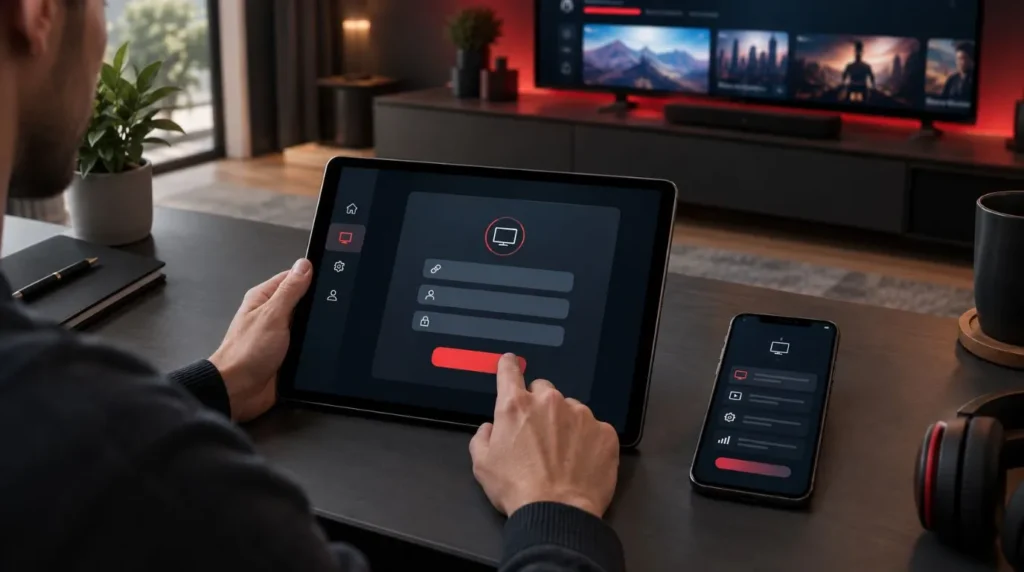
This is the most important part of the setup.
Using Xtream Codes
If your player supports Xtream Codes, you will commonly see fields such as:
- Playlist name
- Username
- Password
- Server URL
Enter each value exactly as provided.
For example, the server address should be entered in the server or URL field rather than combined with your username or password.
Avoid adding spaces before or after the credentials. If you copy and paste the information, check that you have not accidentally copied an extra character.
Using an M3U Playlist
An M3U setup generally requires a playlist URL.
The process usually looks like this:
- Select M3U Playlist or a similar option.
- Enter a name for the playlist if requested.
- Paste the M3U URL into the playlist field.
- Save or submit the playlist.
- Wait for the player to retrieve the channel data.
Some applications allow you to upload an M3U file instead of entering a URL.
The important distinction is that an M3U playlist and Xtream Codes are different ways of providing access information. Use the method supported by both your service and your player.
Step 5: Wait for the Channel List to Load
After submitting your information, the application normally connects to the service and retrieves the available data.
Depending on the service and application, you may see categories such as:
- Live TV
- Sports
- Movies
- Series
- News
- Kids
- International channels
The categories available to you depend on the service configuration.
Don’t assume that an empty category means the player is broken. The service may simply not provide that type of content.
If the application remains stuck while loading, first verify your internet connection and then check the credentials you entered.
Step 6: Configure the EPG
EPG stands for Electronic Program Guide. It provides program information such as channel schedules, program names, and upcoming broadcasts when supported.
Some IPTV services automatically provide EPG information when you add your account. Others may require a separate EPG source.
If your player has an EPG section, check whether the guide has been populated after the playlist finishes loading.
If channels are working but the guide is empty, that does not necessarily mean the IPTV connection itself has failed. The channel playlist and EPG data can be handled separately.
A typical EPG setup may involve:
- Opening the EPG or TV Guide settings.
- Adding the EPG source if one was provided.
- Saving the source.
- Refreshing or updating the guide.
- Checking several channels.
The exact procedure depends on the IPTV player.
Step 7: Test Your IPTV Connection
Once the playlist has loaded, don’t immediately assume the setup is complete.
Test several parts of the service.
Check multiple channels
Open several channels from different categories rather than testing only one.
Check the TV guide
If EPG information is included, verify that program information appears correctly.
Check channel switching
Move between channels to make sure the player responds normally.
Check your internet connection
Streaming quality depends partly on the connection between your device and the service. If your connection is unstable, you may experience buffering or playback interruptions even when the IPTV credentials are correct.
If you are specifically dealing with buffering after completing the setup, use the dedicated IPTV buffering troubleshooting guide rather than repeating the entire installation process.
Common IPTV Setup Problems
A generic IPTV setup can fail for several different reasons. The quickest solution depends on where the problem occurs.
The login details are rejected
Double-check:
- Username
- Password
- Server URL
- Spaces accidentally added during copying
- Correct login method
If the credentials are correct but the player still rejects them, the issue may be related to the account or service rather than the installation itself.
The playlist does not load
Check that:
- Your device is connected to the internet
- The playlist URL was entered correctly
- The URL has not been shortened or altered
- The IPTV player supports the playlist format
- The service is currently available
Trying the same credentials in an incompatible player can also create unnecessary confusion.
Channels appear but do not play
This is different from a failed login.
If the channel list loads successfully but playback fails, check your internet connection and try several different channels. If only certain channels are affected, the issue may not be with your entire IPTV setup.
The EPG is missing
First confirm that your service actually provides EPG data.
If it does, refresh the guide or check whether a separate EPG source needs to be configured. Also make sure the player supports the EPG format being provided.
IPTV Smarters does not accept the credentials
If you are using IPTV Smarters and receive an authorization-related error, avoid repeatedly reinstalling the application without checking the login information first.
A dedicated IPTV Smarters authorization troubleshooting guide can help you identify the specific problem.
How to Use IPTV After Setup
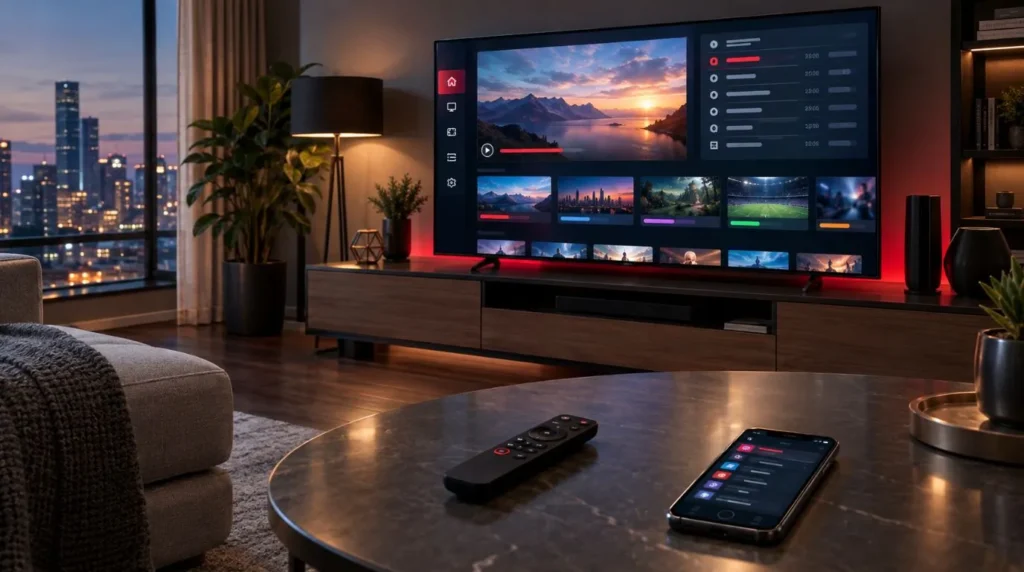
Once the service has been successfully added, using IPTV is mainly a matter of navigating the player.
Depending on the application, you may be able to:
- Browse channel categories
- Search for channels
- Create a favorites list
- Open the electronic program guide
- Switch between live channels
- Resume or replay supported content
- Adjust subtitles or audio options when available
The exact features depend on both the IPTV player and the service.
If you are new to IPTV, spend a few minutes learning the layout of your chosen application. Knowing where the channel list, favorites, search, and EPG are located makes everyday use much easier.
When You Should Use a Device-Specific Setup Guide
The basic process above works as a general framework, but device-specific installation can be different.
For example, the steps required to install an IPTV application on a Smart TV may be completely different from those used on an Android TV box or another streaming device.
That is why it is better to use a dedicated device guide when you need detailed instructions for a particular platform.
The general process remains:
Install player → add credentials → load playlist → configure EPG → test channels
The device-specific steps simply explain how to perform those actions on your particular hardware.
A Simple IPTV Setup Checklist
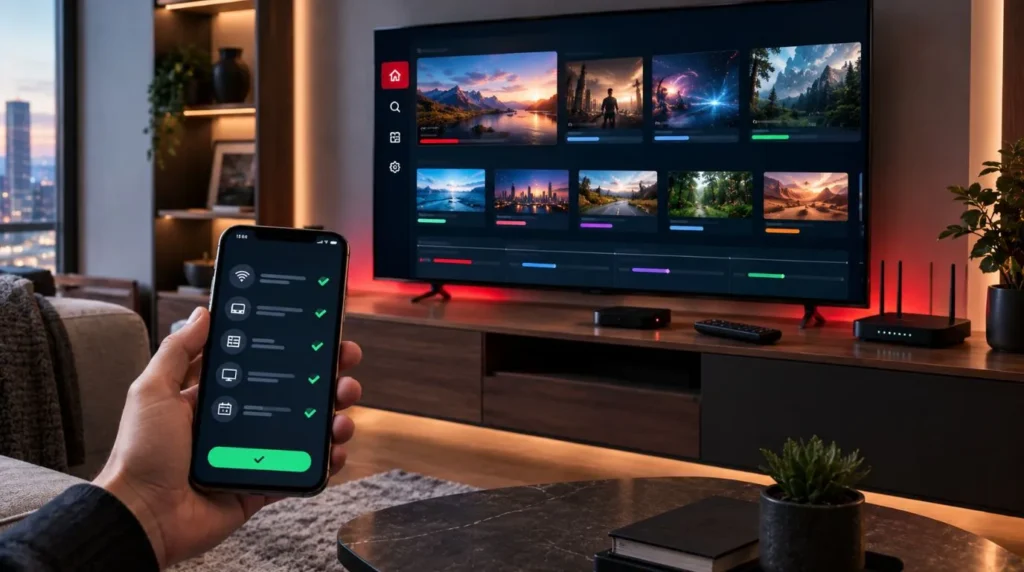
Before considering your setup complete, check the following:
- Your device has a stable internet connection
- You installed a compatible IPTV player
- You have the correct IPTV credentials
- You selected the correct login method
- Your playlist loaded successfully
- Your channels are visible
- Several channels play correctly
- EPG information appears if provided
- You know where your favorites and channel categories are located
If all of these checks pass, your basic IPTV setup is complete.
What to Do Next
Once you understand the setup process, the next step is making sure the service and player you use match your device and viewing needs.
You can explore the ViviMate IPTV channels page to learn more about channel availability, or review the ViviMate IPTV subscription options if you are looking for a service to use.
If you prefer to test a service before committing to a longer subscription, you can also learn more about the ViviMate IPTV free trial.
Finally, remember that IPTV is a delivery method, not a blanket authorization for every piece of content delivered through it. The legality of a particular IPTV service depends on factors such as licensing, authorization, jurisdiction, and how the content is used. Always use services and content you are authorized to access.