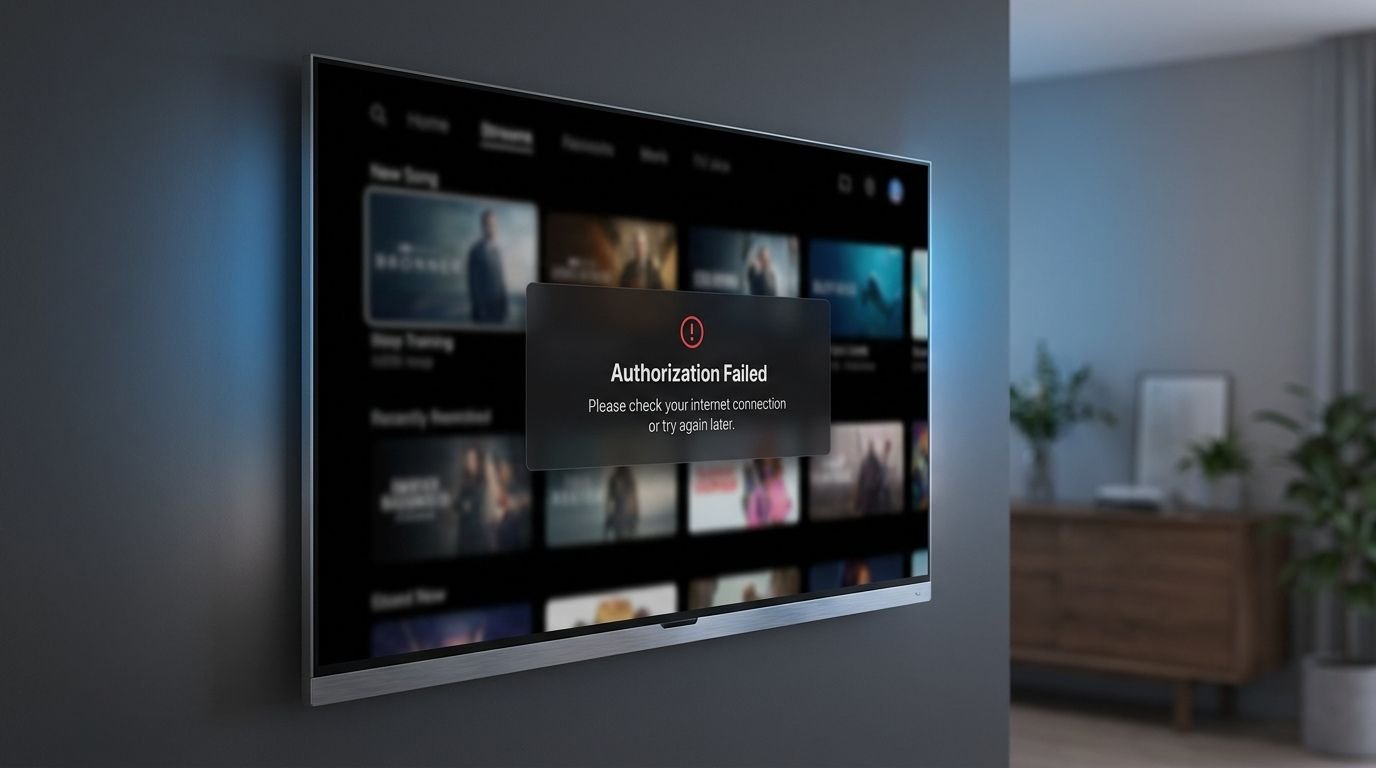
Seeing the “Failed to Authorize” message in IPTV Smarters usually means the app could not successfully authenticate your IPTV account with the server. Although the error looks straightforward, several different issues can trigger it, including incorrect login details, an expired subscription, connection limits, network problems, app configuration, or a temporary server issue.
In most cases, you can identify the cause within a few minutes by checking the most common problems first. This guide walks you through the practical fixes step by step, starting with the easiest solutions.
Table of Contents
Quick Fixes for the “Failed to Authorize” Error
Before changing advanced settings, go through these basic checks:
- Re-enter your IPTV username and password carefully.
- Confirm that your IPTV subscription is still active.
- Verify that the server URL is correct.
- Close IPTV Smarters on other devices using the same account.
- Test the service using another internet connection.
- Clear the IPTV Smarters cache.
- Update or reinstall the application if necessary.
- Contact your IPTV provider if the problem remains.
If one of these checks solves the issue, there is usually no reason to make additional changes.
What Does “Failed to Authorize” Mean in IPTV Smarters?
When IPTV Smarters displays “Failed to Authorize”, the application has attempted to connect to your IPTV service, but the authentication request was not accepted by the server.
This does not automatically mean that your password is incorrect. The same error can appear when an IPTV subscription has expired, the server is temporarily unavailable, too many devices are connected, or your network is preventing the application from reaching the server properly.
For this reason, repeatedly changing your password is not always the best solution. The more effective approach is to determine whether the problem comes from your credentials, account, connection, application, device, or IPTV server.
1. Check Your IPTV Username and Password
Incorrect login credentials are one of the first things you should check when IPTV Smarters displays an authorization error.
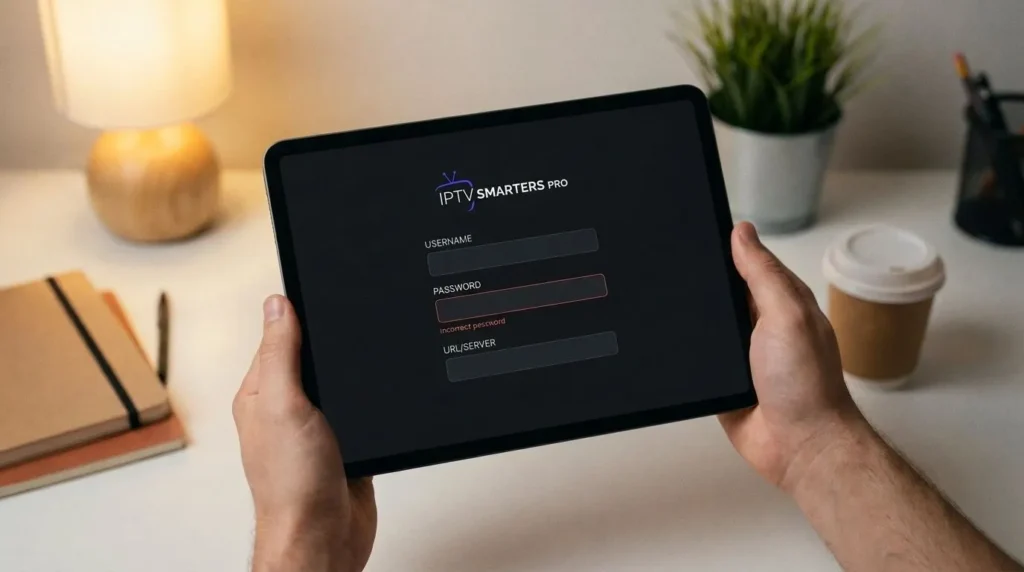
IPTV usernames and passwords can be case-sensitive, and one missing character can prevent the server from authenticating your account. Copying credentials from a message, screenshot, or formatted document can also introduce spaces or other characters that are easy to overlook.
If You Use Xtream Codes
Check each of these three fields carefully:
- Server URL — Make sure the domain, address, and port match the information provided by your IPTV provider.
- Username — Check every character, including uppercase and lowercase letters.
- Password — Make sure there are no missing characters or unwanted spaces.
Instead of correcting individual characters, it is often better to remove the existing information and enter the credentials again directly from the original details provided by your IPTV service.
If You Use an M3U Playlist
If you connect through an M3U playlist rather than Xtream Codes, the entire playlist URL must be entered correctly. Long URLs can sometimes be truncated or modified when they are copied between applications.
- Check that the beginning of the URL is correct.
- Make sure the complete URL has been copied.
- Confirm that the required username and password parameters are included.
- Remove any accidental spaces before or after the URL.
2. Check Whether Your IPTV Subscription Is Active
If IPTV Smarters was working normally and suddenly starts showing “Failed to Authorize”, check your account status before changing the application settings.
An expired, suspended, or inactive subscription can prevent the IPTV server from accepting your credentials. In some cases, the application does not display a specific explanation and simply shows an authorization error.
Check your provider’s customer area, confirmation email, or subscription information to make sure your service is still active.
If you use ViviMate, you can review the available IPTV subscription options if your current service has expired.
If your subscription is still active, continue with the next troubleshooting step rather than immediately creating a new account.
3. Check Your Connection Limit
Some IPTV subscriptions limit the number of devices or simultaneous streams that can use an account. If another device is already connected, a new connection may fail even when the username and password are correct.
This can happen even when you are not actively watching a channel. IPTV Smarters running on another TV, phone, streaming device, or computer may still have an active session.
Try These Steps
- Close IPTV Smarters on your other devices.
- Stop any active IPTV streams.
- Wait a few minutes for the previous session to close.
- Open IPTV Smarters again.
- Try connecting with your IPTV credentials.
If the error continues, ask your IPTV provider how many simultaneous connections your subscription supports and whether an existing session needs to be disconnected.
4. Check Whether the IPTV Server Is Available
Sometimes IPTV Smarters is not the source of the problem. The IPTV server itself may be temporarily unavailable or experiencing a technical issue.
Server maintenance, temporary outages, infrastructure problems, or unusually high traffic can prevent the application from completing the authentication process.
How to Check
- Try the same IPTV account on another compatible device.
- Check whether the error appears on more than one device.
- Ask your IPTV provider whether there is a current service interruption.
- Wait a short time and try connecting again.
If the same credentials fail on several devices at the same time, a provider-side or server-side problem becomes more likely.
5. Test Your Internet Connection
A network problem can prevent IPTV Smarters from reaching the IPTV server correctly. This is particularly important to check when the application works on one connection but fails on another.
Try Another Network
If possible, temporarily connect your device to a different internet connection. For example, you can test a phone using mobile data or connect a compatible streaming device to another Wi-Fi network.
If IPTV Smarters works on the second connection, the problem may be related to your original network, router, DNS configuration, or internet service provider.
Restarting your router is also a simple first step. If the problem affects multiple devices connected to the same network, contact your internet provider if necessary.
6. Clear the IPTV Smarters Cache
If your IPTV credentials and subscription are correct, clearing cached application data is another useful troubleshooting step. This can be especially helpful on Android-based devices and Fire TV devices.
Android and Fire TV
- Open your device’s Settings.
- Go to Apps or Applications.
- Select IPTV Smarters.
- Open Storage if the option is available.
- Select Clear Cache.
- Open IPTV Smarters again.
- Enter your IPTV credentials and test the connection.
The exact menu names can vary depending on your device model and operating system version.
7. Update or Reinstall IPTV Smarters
An outdated or corrupted application installation can sometimes cause connection and authentication problems.
Check for an Update
Check the official app store available on your device and see whether a newer version of IPTV Smarters is available. Keeping the application updated can help prevent compatibility problems caused by outdated software.
Reinstall the Application
If clearing the cache and updating the application do not solve the problem, uninstalling and reinstalling IPTV Smarters can provide a clean installation.
Before uninstalling the app, make sure you have your IPTV login information available. You will normally need to enter the credentials again after reinstalling the application.
8. Check Your Device Date and Time
An incorrect date or time on your streaming device can sometimes interfere with secure network connections and authentication processes.
Open your device settings and make sure the date and time are configured automatically when that option is available.
After correcting the clock, restart IPTV Smarters and try connecting again.
9. Check Whether the Problem Is Device-Specific
If IPTV Smarters works correctly on one device but shows “Failed to Authorize” on another, the issue is more likely related to the second device, its configuration, or its application installation.
- Restart the affected device.
- Check that it has a stable internet connection.
- Install any available device software updates.
- Clear the IPTV Smarters cache where supported.
- Update or reinstall the application.
- Check the device date and time.
Testing the same IPTV account on another compatible device is one of the quickest ways to determine whether the problem is related to the account or the device.
10. When You Should Contact Your IPTV Provider
If you have checked your credentials, subscription, connection limit, network, application, and device, the remaining problem may be related to the IPTV provider or server.
When contacting your provider, explain exactly what happens when you attempt to connect. Providing useful technical details can help support identify the problem more quickly.
Include the following information:
- Your IPTV username, but never your password.
- The device you are using.
- The IPTV Smarters version, if available.
- The exact error message displayed by the app.
- When the problem started.
- Whether the service works on another device.
- Whether the problem occurs on another internet connection.
This information can help your provider determine whether the issue is related to your account, server, device, or internet connection.
IPTV Smarters Failed to Authorize Troubleshooting Table
| What You See | Possible Cause | First Step to Try |
|---|---|---|
| The error appears immediately after setup | Incorrect credentials or server URL | Re-enter the login details |
| It worked before but suddenly stopped | Expired account or server issue | Check your subscription status |
| It works on one device but not another | Device or app problem | Clear the cache and update the app |
| It works on another network | Network or ISP issue | Check your router or network settings |
| Several devices fail at once | Provider or server issue | Contact your provider |
| The problem started after adding a device | Connection limit | Close other active sessions |
| The app was recently updated or changed | Application configuration | Restart or reinstall the app |
Frequently Asked Questions
Why does IPTV Smarters say “Failed to Authorize”?
The error can be caused by incorrect credentials, an expired subscription, a connection limit, an unavailable IPTV server, network problems, or an issue with the application or device. Check each possibility one by one instead of assuming that the password is the problem.
Can an expired IPTV subscription cause an authorization error?
Yes. If your IPTV account is no longer active, the server may reject the authentication request. Check your subscription status with your provider before changing your application settings.
Why does IPTV Smarters work on one device but not another?
If the same account works on another device, the problem may be related to the affected device, its network connection, the application installation, or its configuration. Clearing the cache, updating the app, and restarting the device are good first troubleshooting steps.
Why does IPTV Smarters work on mobile data but not Wi-Fi?
If the service works over mobile data but fails on Wi-Fi, the issue may be related to your Wi-Fi network, router, DNS configuration, or ISP. Testing another network can help determine whether the problem is connection-specific.
Should I reinstall IPTV Smarters if authorization fails?
Reinstalling the application can help when the installation or cached data is corrupted, but it should not be the first step. Check your credentials, subscription, connection limit, and network first. If those are working correctly, updating or reinstalling the application is a reasonable next step.
What information should I give my IPTV provider?
Tell your provider the exact error message, your device, the application version if available, when the problem started, and whether the account works on another device or network. Never send your account password.
Final Checklist
If IPTV Smarters is still showing the authorization error, go through this checklist one more time:
- ✓ Username and password are correct.
- ✓ Server URL is correct.
- ✓ IPTV subscription is active.
- ✓ No connection limit has been reached.
- ✓ The IPTV server is available.
- ✓ Your internet connection is working correctly.
- ✓ IPTV Smarters cache has been cleared.
- ✓ The application is up to date.
- ✓ Your device date and time are correct.
- ✓ The issue has been tested on another device or network.
In most cases, identifying which of these conditions is different from normal will point you toward the cause. If everything looks correct and the error continues across multiple devices, your IPTV provider is the best place to investigate the account or server.
If you are setting up IPTV for the first time, you can also follow the ViviMate IPTV setup guide for help with the initial configuration and connection process.